
Custom Pages Permissions
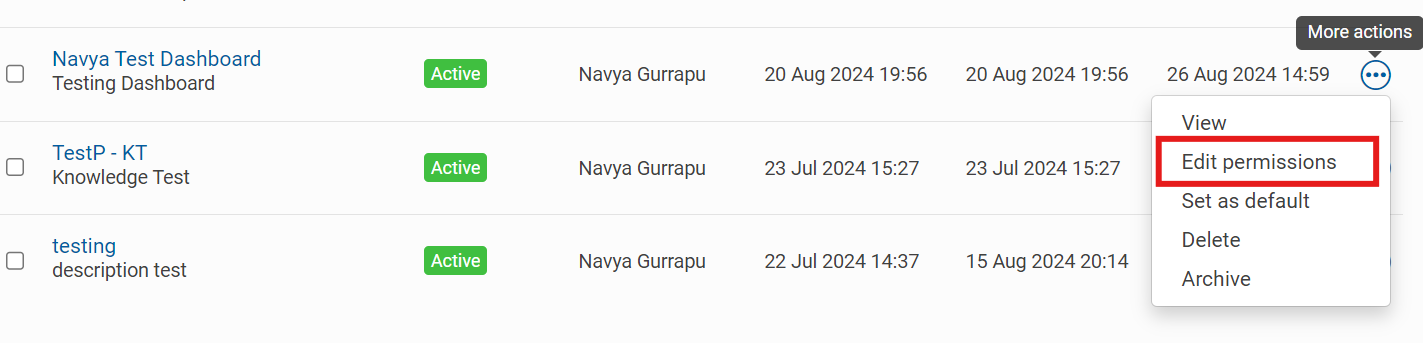
User permissions can be managed using the ‘
More Actions
’ button once a custom page has been created. However, these new dashboards will only be visible to users who have been granted the appropriate permissions. To manage permissions, click on
Edit permissions
:
The
Edit permissions
screen opens:
You can select which permissions each group gets. Click the corresponding check box to give each group
View
and Default
rights.- View- The group only have access to view the dashboard.
- Default- The group can view and able to make edits to the dashboard.
Administrators can assign view, edit, and default rights to groups or organizations for dashboard access. This allows users to edit dashboards without needing site admin privileges.
note
If an administrator without site admin rights edits a dashboard, the site name will be hidden from their view.
Custom Pages
and Site Homepages
are both components of the home module and can be used interchangeably by clients within sites. Only one default dashboard can be created for the entire site. For example, if there are 10 Site Homepages and 5 Custom Pages, only one of these can be designated as the default. If a new Custom Page is selected as the default homepage, it will replace the current default Site Homepage. A Custom Page can be set as the default for one user group, while a Site Homepage can be set as the default for another user group. This flexibility allows each group to have a dashboard that meets their specific functional needs.
note
With the release of 5.9.8, Custom Pages will be available in Site templates, allowing them to be included when importing and exporting sites.
The below graphic explains how Custom Pages and Site Homepages can be used interchangeably by clients within sites for default dashboards.
