
Edit and create Office Online documents
note
You will need to have edit rights to a document to edit it in Office Online.
Editing office online documents
Once
Open in Office Online
is enabled on your site, you can create and edit Microsoft Office documents directly in the Files module. To edit office online documents, navigate to the Files
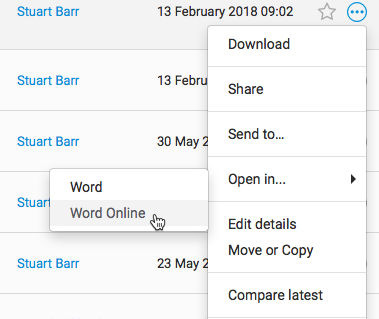
module, and select your Word document. Click More actions
> Open in...
> Word Online
.Additionally, you can access this menu option from the document preview screen.
note
If you have selected a PowerPoint document or an Excel document, the option here will be
Open in...
> Powerpoint Online
or Excel Online
respectively.A new tab opens, which asks you to log in to your Office Online account.
note
To ensure that the new tab is opened, you need to disable any pop-up blocker and ensure that 3rd party cookies are enabled.
Once you have logged in, your Word document opens.
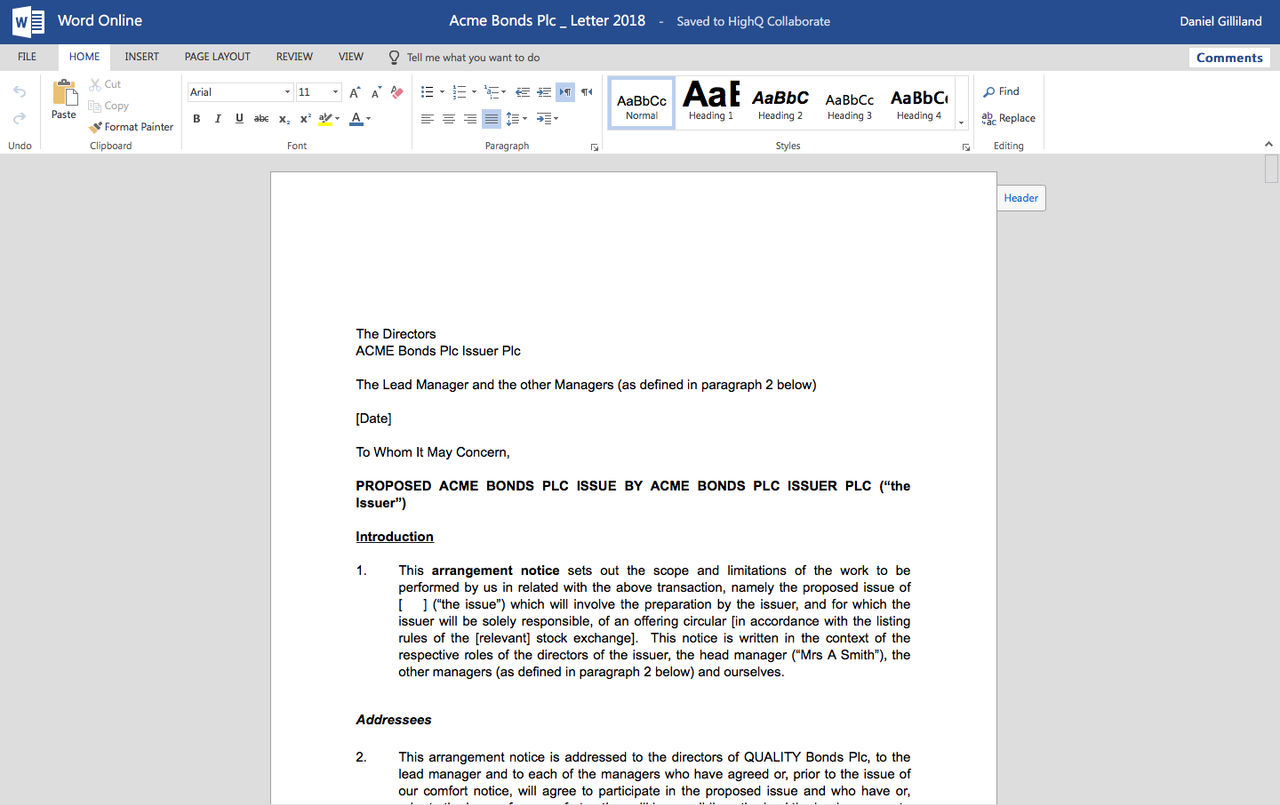
In this screen, you can make any edits to your document.
Multiple users
Multiple users can join you during the editing session. When another user joins you, you are notified at the top right of the screen and you see a cursor and edits to the document in real-time.

While you and other users are editing the document, the document is regularly autosaved to a cached version on your computer.
When the last person closes the document or manually saves the document, a new version of the document is created in HighQ and displayed in the files list. This document contains all changes made by all users during the editing session.
note
The file is active while it is open in a browser tab. If a tab is inactive for 20 minutes or you do not have an internet connection, the session is closed and the file is no longer autosaved. If you reopen the tab, changes are only made to the cached document - we recommend you reopen the document from the Files module to make sure you have the latest version.
Files edited in Office Online don’t appear in My drafts, as Office Online handles these functions.
Creating a new office online document
To create a brand new document in Office Online, navigate to
New
> Word Document
.
The
New Word Document
screen opens.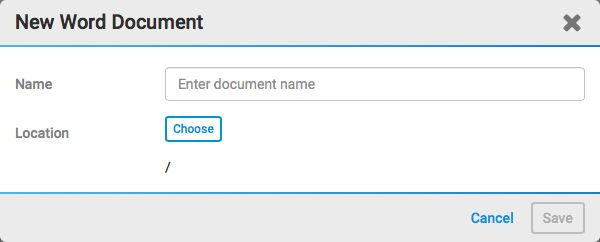
Enter the name of your document, and select where you want the document to be located.
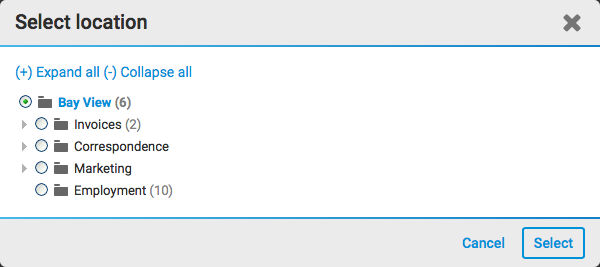
Select
Select
to select a location, then select Save
to create your new Word document. A new window opens, showing the same Office Online screen shown above. Now add content and collaborate with other users as described in the Edit
section.Enabling Office add-ins
There are a range of add-ins available for Microsoft Word. You may install add-ins to benefit from additional tools when working on a HighQ document.
For security, a system admin must configure a list containing the IDs of all plug-ins permitted on the instance.
System admin settings
The ID for each add-in that will be installed must be added to system settings by a system admin.
Open
System admin
from your profile menu, then select System settings
in the left-hand panel.Scroll down to
Office Add-ins id
.
This field must include a comma-separated list containing the IDs of all plug-ins permitted on the instance.
Finding the IDs
Click the
Microsoft AppSource
link to open the library of add-ins.
Click the add-in and check the URL in the browser's address bar.

Copy this ID and return to the
System settings
page.Scroll down to
Office Add-ins id
.
Add the ID to the comma-separated list and select
Save
.Users may now
add the add-in
to Office Online