
Create content modules
To create individual content items you need to create a module.There are five types of modules:
- Comparison toolkit (CTK)
- Events
- Microsite
- Publications
- Video
To create a module, navigate to your 
My profile
drop-down and select Content Hub
> Modules
.The 
Modules
screen opens.You can edit existing modules by clicking 
More actions
, followed by one of the edit options.To add a new module, select 
Add module
, then Events
.Events module
Each of these modules has a creation wizard, and the common module types (publications, events and videos) have the following tabs:
- Details- high-level configuration elements such as title, permalink, content settings and if it's public, SEO settings.noteYou can change theEditorial environment. AnOpenenvironment allows all editors to view and edit other editors' content. AClosedenvironment only allows editors to view and edit their own content.
- Metadata- set relevant system or custom metadata and manage tagging options for content.
- Permission- manage which organisations and groups have access to the module
- Content elements- the building blocks of the module content creation process.noteThe form builder allows admins to set required fields for editors when creating content.
- Editor groups- use this tab if editor/approver workflow is required.
- Edit dashboard- this tab provides access to the dashboard builder

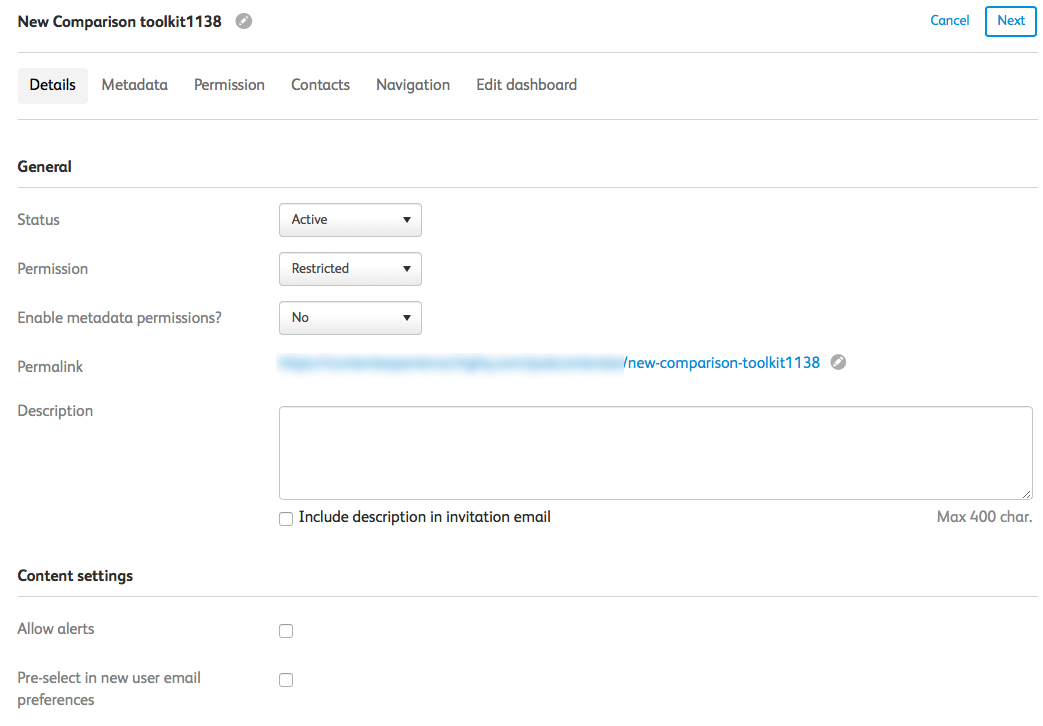
Comparison toolkit module
- Details- high-level configuration elements such as title, permalink, content settings and if it's public, SEO settings
- Metadata- set relevant system or custom metadata and manage tagging options for content.
- Permission- manage which organisations and groups have access to the module
- Contacts- enables the user to add a list of contacts for this module. These users can be associated with a jurisdiction, so it is easier for users to identify key contacts.
- Navigation- provides a list of extra navigation options available through the toolkit, and tools to add custom navigation
- Edit dashboard- this tab provides access to the dashboard builder
note
As of our June 2023 release, we have improved the layout of the comparison builder, to ensure that when three or fewer countries are selected, the width is automatically adjusted to ensure all information is shown without the need to scroll from left to right.
If there are more than three, you still need to scroll to see this information.
Publication module
The Publication module includes a mechanism to prompt users to select the
Include in email notification
checkbox.To turn on this prompt, navigate to your profile drop-down menu and select 
Content hub
.In the 
Content hub
, select Modules
.In this screen, either create a new Publication via 
Add modules
> Publication
or edit an existing Publication via More actions
> Edit details
. Within the
Details
screen, navigate to Content settings
.
Mark the
Allow 'Include in email notification' prompt
check box and then select Save
. Your changes will now be saved and the prompt opens.Related Content
-
Module content elements
Format: Article,
7 min read
Article,
7 min read
-
Events
Format:
Article,
17 min read
-
Module administrators
Format:
Article,
2 min read
-
Module permissions
Format:
Article,
9 min read
-
Add a Comparison Toolkit Module
Format:
Article,
10 min read
-
Create comparison toolkit content
Format:
Article,
3 min read
-
Comparison toolkit pages
Format:
Article,
2 min read
-
Comparison toolkit glossaries
Format:
Article,
1 min read
-
Publisher Public Teaser
Format:
Article,
2 min read