
Work with calculations
Prepare a calculation
Following these steps to integrate and manage the data effectively within your calculations:
- Go to the Calculations screen at .
- Select the checkbox for all relevant calculations. Consolidated entities using the “AU Consolidated Company Tax” template must be handled separately from those using the “AU Company Tax” template.
- Select .
- Select . Inserting this sheet will add all other {P} OTP audit trails.
- Go to .
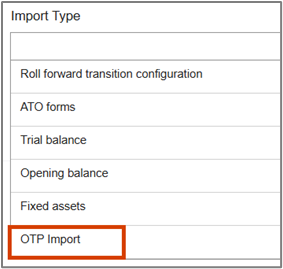
- SelectOTP Importas the import type. You'll no longer useTrial Balancefor this purpose.
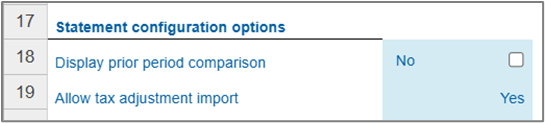
- For all calculations, check the {S2} Calculation Setup workpaper.
- Ensure the checkboxAllow Tax Adjustment Importis marked and set asYes. This should automatically be set toYesupon data imported into the {P} workpapers, but it is advisable to verify each calculation.
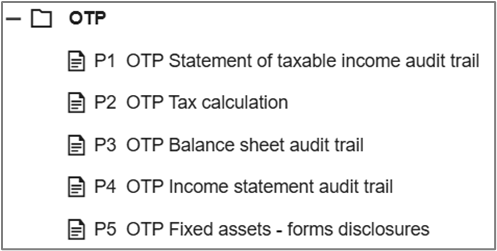
- Examine the {P1} to {P5} workpapers to ensure the data imported via the OTP to OCT Integration report is correct and complete.
{P1} – {P5} OTP workpapers
A new folder of workpapers has been created for OTP to OCT Integration, starting with reference {P}. Data imported from the OTP to OCT Integration report is directed into these workpapers rather than directly to the Balance Sheet, Income Statement, and Statement of Taxable Income. From these workpapers, the data is pushed into the {RA} Company tax return.
Other workpapers
Most tax offsets and credits can still be imported, though some calculations can be done within existing workpapers. For the Research and Development (R&D) Tax Offset, complete the calculation using the {A27} Research and Development Tax Incentive workpaper. This aligns with the standard process and ensures all relevant tax return labels are correctly cross-referenced and populated.
Other offsets and credits using existing workpapers can be completed similarly. All workpapers with the OTP import column will continue to function as before, letting you choose between workpaper data or imported data. 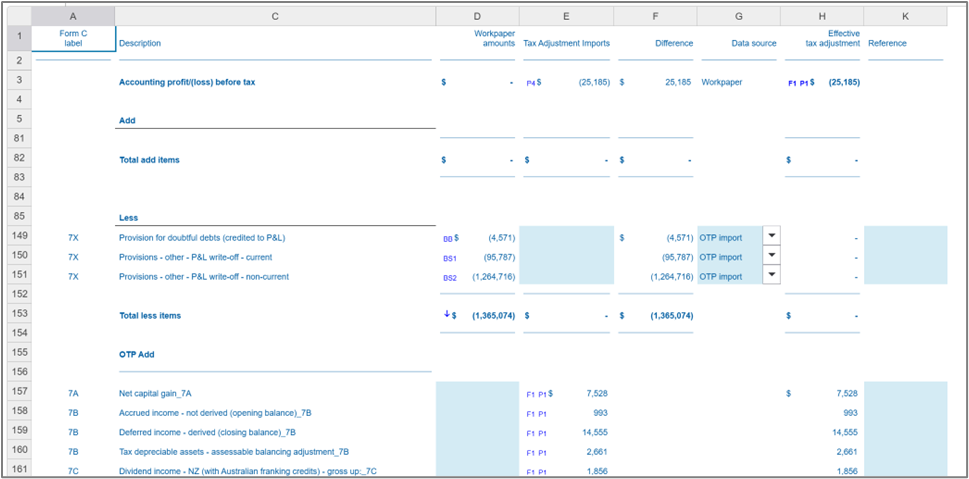
Income statement and balance sheet workpapers for analysis
When integrating OTP with OCT, avoid using detailed workpapers for income statements and balance sheets like {BA} Accrued Income, {BC2} Prepayments, and {BR} Provisions. If you have already imported a tax adjustment via the OTP to OCT Integration report and another adjustment is pushed from an analysis workpaper, both will appear on the {P1} Statement of Taxable Income Audit Trail. This can cause duplication potentially.
If you use the analysis workpaper, select between the workpaper amount and the imported amount from OTP using the dropdown in the "Data source" column. Ensure there are no data duplications or conflicts with imported amounts by either:
- Reversing the amount imported from OTP in the analysis workpaper, or
- Removing the amount from the OTP to OCT Integration report before importing it into ONESOURCE Corporate Tax.
Fixed assets analysis
Item 9 Capital Allowances disclosures can be imported into the {P5} OTP Fixed Assets – Forms Disclosures workpaper, or completed manually using the {F5} Fixed Assets – Forms Disclosures.
Consolidation
The consolidation process remains unchanged. We’ll add OTP sheets at the Group level for the new “P” sheets for the Balance Sheet {P3} and Income Statement {P4}. All other consolidation areas should function according to the OCT Template. We’ll push updates from the AU Company Tax template to the AU Consolidated Company Tax template.
The tax consolidation for the group loss automation should work for the tax consolidated group. Verify settings to ensure the correct data transfer for your requirements.
The new OTP to OCT Integration process should facilitate importing underlying member data for consolidation purposes. This will enable tax return analysis in the Head Entity or within the consolidated tax return.
The new OTP Audit Trail import sheets will consolidate within the Group calculation. The Balance Sheet {P3} and Income Statement {P4} will necessitate a new OTP Consolidation sheet.