
E-file an FBT return
You use ONESOURCE Fringe Benefits Tax to prepare and complete the FBT return as ready to lodge.
Electronically filed FBT returns are lodged using the Thomson Reuters ONESOURCE E-Filing Manager application.
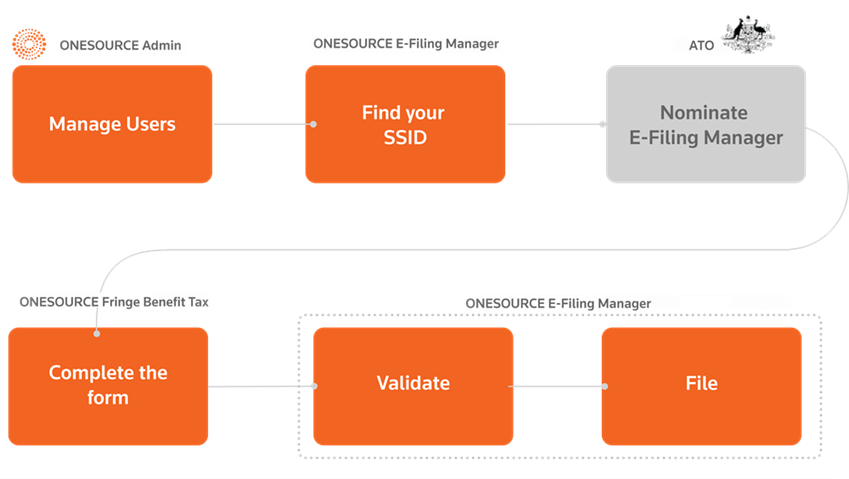
Generating an electronic file
- Complete the ATO return.
- On the toolbar, select theeFilebutton.
- You will be prompted to verify that the form is ready for filing.
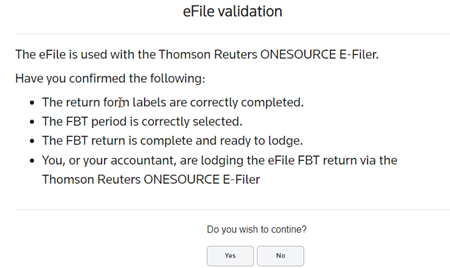 Check the following:
- The correctFBT periodmust be selected.
- The FBT return must be complete andready to lodge.
- The form must contain a validTFNandABN. The validity of the number is checked on input, but is not checked against the ATO's records for your organisation. If you lodge using ONESOURCE E-Filing Manager, the ABN and TFN are validated against the ATO's records when you validate the return. The reporting entity details such as TFN, ABN, etc. are entered on the Reporting Entities page (Administration>Reporting Entity).
- Titles can only be an acceptable title such as Mr, Mrs, Miss, Ms, or Trustee for.
- TheFirst namefield cannot contain text such as Exec for, Rep for, Trustee for, or Trustee. You must enter these in the Title field.
- SBR validations do not allow the use of the suffix ESQ, JNR, JP, MHA, MHR, MLA, MLC, MP, QC or SNR in theFirst name,Other nameorFamily namefields.
- Only enter individual or non-individual for a any section, but not both.
- Tax agents must complete label 24with full details, including the Tax agent number. Use the dropdown to select from the list of your tax agents.
- Do not use "as above" on any part of the form, you must enter the correct details in each section.
- Do not enter Australia in theCountryfield. This item is only for countries other than Australia.
- Label 9 NAME OF PERSON TO CONTACT- If you fill in this field, you must include a day-time phone number and an email address.
- Label 10 NUMBER OF EMPLOYEES RECEIVING FRINGE BENEFITScalculates the number of benefited employees based on the data you entered. The calculated figure can be adjusted in this tab.
- Label 11HOURS TAKEN TO COMPLETE THIS FORM- Number of hours cannot exceed 999.
- Label 12 DO YOU EXPECT TO LODGE AN FBT RETURN FOR FUTURE YEARS?- You must selectYes, otherwise your organisation will cease to be registered for FBT purposes.
- Label 13PROVIDE FINANCIAL INSTITUTION DETAILS- If you are receiving a refund and are lodging via eFile (ONESOURCE E-Filer) you must complete this field. The ATO will not process refunds to your account if theAccount Nameexceeds 32 characters.
- Open sectionCALCULATIONSand check labels 14 to 23. Ensure that you have reconciled back to workpapers or reports.
- Label 24 TAX AGENT'S DECLARATION- If you are a tax agent you must complete the declaration section with complete details, including the Tax agent number.
- If you are lodging your own return, you must complete the fields in section25 EMPLOYER'S DECLARATIONfully.
- If there are no validation issues, selectYesto continue.
- Tab1| Filingsconfirms the entity being filed. TheEfiling Statusfield provides an update on whether the entity has been validated, submitted or not sent.Optionally, you can select a button for more information.
- View Errors– View any ATO validation errors provided after validation by selecting this button. This log can also be downloaded from the Jobs/Tasks screen.
- Refresh Status– Updates the screen to show the most recent status.
- Go to tab2| Actionsand select an option, depending on what you want to do:
- Save to XML– Downloads the .xml file to your Downloads folder. You can use any text editor to open this file.
- Validate– Sends the file to the ATO for validation.
- File– Sends file to Efiling Manager queue ready for submission. Final submission MUST be completed via ONESOURCE E-Filing Manager.