
Using Upload Templates
Data can be uploaded into ONESOURCE Fringe Benefit Tax from Excel or other data sources. If you have a large amount of data to enter it may be more efficient to use data upload.
You can upload the following data types:
- Excel (.xls/xlsx)
- CSV (comma separated values)
- Tab-delimited text files
- Pipe-delimited text files
Upload Templates
Thomson Reuters recommends using the provided upload templates. These templates are in Excel format and are designed to assist you with populating the spreadsheets with the correct data. To download the templates, select
Help
, then Upload templates
from the navigation bar. The file is saved to your computer's
Downloads
folder.Working with the Upload Templates
The downloaded Excel file contains multiple worksheets. Each worksheet includes comments in the column header with information about the type of data that should be entered into the cells in the column. The comments are provided to assist you with populating the spreadsheets with the correct data. To show the comments, hover your cursor over the column headings.
Example:
The following example shows the comment for the
Reporting Entity Code
column on the Vehicles - Upload Existing benefit upload template.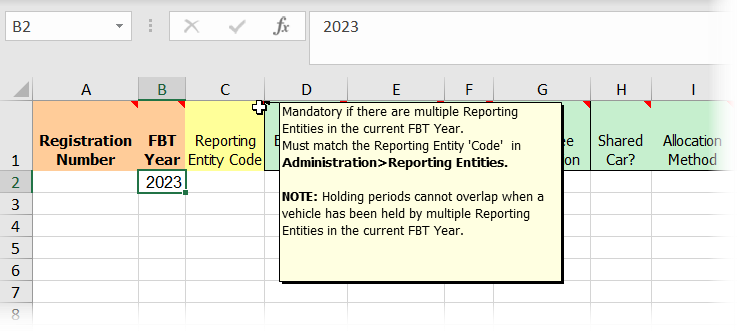
- The columns shaded orange are mandatory and must always be populated.
- The columns shaded yellow are conditionally mandatory, depending on what other data is being uploaded. More information can be found in the comments within each column header cell.
- The columns shaded green are optional and are populated as required by the preparer.
Upload Templates Details
Template | Description |
|---|---|
Cost Centre | As part of configuring ONESOURCE ;Fringe Benefit Tax, you can define cost centres. Although cost centres are optional, they can be useful in allocating FBT costs to various groups in your organisation. |
Standard Category | Standard categories let you to classify benefits within a workpaper. Standard categories are optional. |
Employee | The Employee workpaper is used to add information about employees. You can upload or manually add employee information. |
Ad Hoc benefit | The purpose of this template is to assist in uploading calculated benefits. For example, you may have received this data from a salary packaging company that does the verification and calculation on your behalf. note
Use this workpaper at your own risk as the values you upload cannot be checked for completeness or correctness. If you have any doubts, you are advised to use the benefit workpapers and enter the full details for each benefit. |
Board benefit | A board benefit may arise when two or more meals a day are provided pursuant to an industrial award. |
Car Parking benefit | This template permits uploading optional car park location details and car parking benefits. |
Entertainment benefit | This template facilitates the methods to value entertainment. Be sure you have elected the appropriate entertainment calculation method. |
Expense benefit | This template facilitates upload of expenses incurred and paid or reimbursed by the employer. |
Property benefit | The Property upload template facilitates import of property benefits provided to an employee. The template also provides for In-house property uploads. |
Residual benefit | The Residual benefit upload template facilitates import of other benefits provided to an employee. The template also provides for in-house residual benefits upload. |
House details Housing benefit | There are two upload templates for entering housing benefits.
|
LAFHA benefit | The LAFHA template facilitates upload of benefit details that arise when an employee is living away from their usual place of residence to work temporarily for the employer at another locality. |
Loans benefit Loan Transactions benefit | The Loan Benefit templates distinguish between loan benefits, the associated schedule of repayments, and the loan transactions that are related to each loan. |
Debt Waiver benefit | This template facilitates upload of debt waiver benefits that arise when an employer waives (releases) an obligation of an employee to repay a debt. |
Vehicle - Add New | The purpose of this template is to assist you upload vehicle details (single driver, shared or residual) to the Vehicle workpaper. Some columns are seldom or never altered so for tax risk mitigation purposes they cannot be updated via this method. You must amend these columns manually to ensure you deliberately consider the change. tip
Uploading of 'update' data can be performed for existing vehicles already entered in the workpaper. |
Vehicle Operating Costs | This template assists in uploading transactional records of operating cost amounts to the Operating Cost Transactions tab in the vehicle workpaper. The calculated total of all rows in this tab are disclosed in the Details tab in the Op Cost - Transactions Total column.note
You can only upload operating costs for vehicles that are already entered in the workpaper. |
Vehicle Accessories | This template is to facilitate the upload of non-business accessories fitted to the car. |
Vehicle Shared Usage | This template is used for adding drivers and their respective usages to cars nominated as shared. These cars need to have already been added to the Vehicles workpaper. tip
Allocation of usage can be made against cost centre or state instead of employee. |
Vehicle Update Existing | This template is used to upload information about a vehicle that is not new. The registration number must match the registration number recorded on the Details tab of the Vehicle benefit screen. |
Vehicle Fleet | This template facilitates calculating the operating cost method for employers with a fleet of 20 or more cars. |
Uploading data
You upload from the applicable target workpaper. For example, you upload expenses by opening the Expense Payment workpaper.
- Use theUploadbutton on the ribbon for each workpaper to start the upload process.
- You will be prompted to locate the Excel file on your computer. Data is validated before the upload is processed and you can cancel the upload without committing the data if necessary.noteWhen using a reporting entity's workpaper, you can upload multiple reporting entities at the same time. You're not limited to uploading only 1 reporting entity at a time.
- Use theWorksheet namedropdown to select the Excel worksheet to upload.
- On tab 3Map Columns, use the dropdowns in theUpload dataheader box to match the columns from the workpaper to the upload. If you're using the upload templates, the columns are already matched.
- Select theValidatebutton.
Validation
The validation process identifies any rows that are incomplete or contain invalid data. A box in the upper right corner alerts you to the status of the validation.
Click into the warning box to open a window with more information about the errors.
You have multiple options for viewing errors:
- SelectDownload Log Fileto download a text file that lists the errors.
- SelectDownload Import Fileto download a spreadsheet that lists the errors. Errors are shown in theErrorcolumn.
The errors must be corrected before you can proceed with the upload.
Finalising an upload
Once you have validated your upload data you're ready to add the data to the target workpaper.
- If you select "Continue" only rows without validation issues will be added to the workpaper. Any rows of data that are incomplete or contain invalid data will not be imported.
- Select "Discard" if you don't want any rows uploaded (i.e. you want to fix the data and try again).
important
Duplication of data warning: In other workpapers each time you click Upload the rows of data are added again. I.e. the upload adds these as additional rows; it does not overwrite existing rows. If you want to re-import existing benefits as an update of information into these other workpapers you need to firstly delete the existing rows and then upload. If you do not do this you will duplicate your data.