
Tax accounting — Group
Group tax accounting sheets consolidate the following sheets for underlying entities to help you prepare group tax accounting figures.
- Tax Account
- Accounts disclosure
- Movement in deferred tax assets and liabilities(for IFRS)
Completing the Tax account sheet
Tax account
sheetThis sheet consolidates all the tax account information from the underlying entities linked to the group. You can add any overseas companies or other companies not prepared in this application. You can also add any consolidation or other relevant adjustments.
If there are exchange differences due to different exchange rates, the application calculates them in the
Exchange differences
column. You can customise the view of the group
Tax account
.Completing the Accounts disclosures sheet
Accounts disclosures
sheetThis sheet consolidates all the accounts disclosure information from the underlying entities linked to the group. You can add any overseas or other companies not prepared in this application. You can also add any consolidation or other relevant adjustments.
Completing the Payments for relief sheet
You can use this sheet to enter group relief payments surrendered and received (and other inter-company amounts surrendered and received) between the group companies. Select the
Push data down through entity hierarchy
arrow from the toolbar to move the data to the underlying files.Completing the Consolidated Disclosure note headings sheet
Consolidated Disclosure note
headings sheetThis sheet consolidates all the row and column descriptions in the underlying files. It alerts you if any of these descriptions are inconsistent between entities. If you want to turn off these alert messages, select
Yes
for Ignore inconsistent descriptions
.Completing the Tax Options – FRS 102 / IFRS sheet
You can use this sheet to insert line items for row or column descriptions in the group, if you want to disclose items differently.
Sub-consolidations
Use the group module to prepare tax accounting figures at the sub-consolidation level. You can then link these amounts to a
main group
consolidation.important
Sub-consolidations only work correctly if your setup in the
Entity Manager
is correct.- SelectConfiguration, thenEntity managerfrom the menu bar
- Create the subgroups and add individual entities to subgroups in the same way as normal group consolidations:
- Select the subgroup in the 2nd pane.
- Mark the checkboxes for entities on the 1st pane.
- SelectAdd to group.
- Add the main group to theEntity managerand to the 2nd pane.
- You can add the subgroups to the main in the same way as adding entities to a group.
- Link all underlying entities to the main group separately, usingAdd to group. They’ll also show under their subgroups.
note
You may have entities that are only linked to the main group and not to a subgroup.
The following sub-consolidation example and image shows how you might set up the sub groups and main group on the
Entity Manager
screen.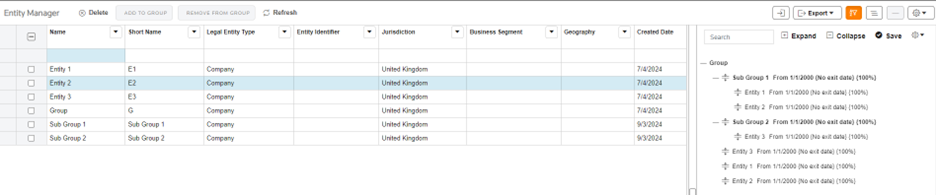
- The grid in the 1st pane has 6 rows:
- Entity 1
- Entity 2
- Entity 3
- Group
- Sub Group 1
- Sub Group 2
- The 2nd pane shows:
- Group
- Sub Group 1
- Entity 1
- Entity 2
- Sub Group 2
- Entity 3
- Entity 1
- Entity 2
- Entity 3
Sub-consolidation – Display options
On the
Tax account
and Accounts disclosures
sheets, you can choose what to show in the group module about information flowing upwards into the group. Select
Consolidation view
, then choose from the following.- Subtotals onlyto show only the subtotals from the sub groups.
- Detail with subtotalsto show all the underlying information from the entity files and the subtotal for each sub group.
- Detail without subtotalsto show only the individual entity information.