
Enable integation with QuickBooks Online
You can import a QuickBooks Online company's accounts for a contact in the Trial Balance screen. To do so, you'll need to connect your client's QuickBooks Online company to a contact from within Onvio, and then enter and confirm your QuickBooks online login credentials.
- In the Setup > All Contacts, or Setup > Clients screen, click the Edit button for a selected contact or client.
- Click the Integration tab.
- Click the Connect to QuickBooks button.noteThe first time you choose this command, the application displays the QuickBooks Online Integration license agreement. You must read the license agreement, mark the agreement checkbox, and then click Save before you can continue. Once you accept the terms, the application will not display the license agreement again.
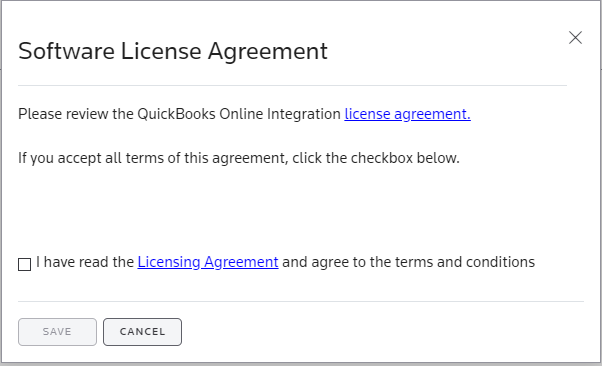
- Click Save to open the QuickBooks Online Sign-in screen.
- Enter your user ID and password, and then click the Sign In button to open Intuit's QuickBooks Online application.
- If you log into QuickBooks Online as the client's accountant, select the appropriate company from which to import account data. If you logged in as the client, this option does not apply.
- Click Next to establish a connection with QuickBooks Online.
- When a successful connection is established, close the separate browser window.After closing the separate browser window, refresh the Integration screen to see the correct connected state.
note
- The link between QuickBooks Online and Onvio remains open even if you log out and back into Onvio, or close the browser and re-open it.
- You can click the Disconnect button on the Integration tab to end the connection between the Onvio contact and the QuickBooks Online company.
- When you choose Import > QuickBooks Online in the Trial Balance screen, and haven't yet logged into QuickBooks Online, you'll be directed to a login screen in a separate browser window for that application.