
Prepare charity accounts in Accounts Production Advanced
These instructions are for preparing charity accounts using the Practice Charity master templates for incorporated and unincorporated accounts.
- Simple charity — only 1 unrestricted fundnoteA simple charity is defined as having only 1 unrestricted fund. The Practice Charity (Incorporated/Unincorporated) Master template includes the standard charity nominal code list and account assignment, like other client types. The standard nominal codes are pre-assigned and treated as unrestricted funds. They produce simple charity accounts without any other funds works, much the same as for other client types.
- In the journal entry screen, leave theFundsandResourcescharity-specific columns blank so that all postings are already assigned and treated as unrestricted funds.
- You can run theAll Account Codesreport from the Reports list before posting journals.noteThis report shows where each nominal code is assigned and consequently which section of the report values will appear within. If it's not in the reports list, selectBrowse.If you have a network installation, you're likely to find reports atC:\Program Files (x86)\Digita\Accounts Production Advanced\Templates\Reports.If you use Digita Virtual Office, you're likely to find reports at:Y:\Digita\Accounts Production Advanced\Components\Reports
- Charities with multiple funds
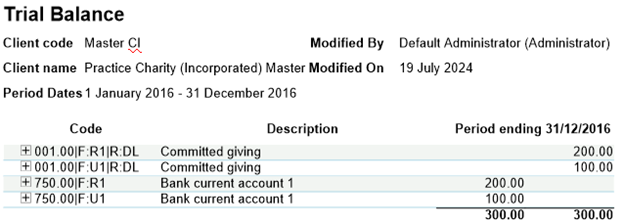
- In the journal entry screen, use theFundandResourcecolumns.noteFor example, there are 2 postings to code 001.00 — Donations and legacies. These appear as separate codes on the trial balance, each gets a suffix relating to their fund and resource allocation.
 There's no concept of subcodes, so this will show differently on the trial balance. The new nominal codes are001.00|F:U1|R:DLand001.00|F:R1|R:DL.FundsandResourcesare already set up in the application, but more may be needed.Allocating Funds and Resources in the journal entry screen is done solely to assign the suffix to the end of the nominal code, which helps when assigning these newly created codes.
 importantBalance sheet items should not have a resource assigned to the row at the journal posting.
 - Go to theImport/Account Assignmenttab and selectAccount Assignment (Master) Maintenanceto assign any newly created codes.noteThese will show next to the unassigned codes list.
- Assign the new codes in 2 places: the Balance and Fund categories.noteThese categories are the X axis and Y axis of the report's tables. The Balance category represents the X axis (the row of the SOFA where the codes appear). The Fund category represents the Y axis (the column of the SOFA where codes appear). Until you map the codes are mapped in both categories, the application won't populate the report.
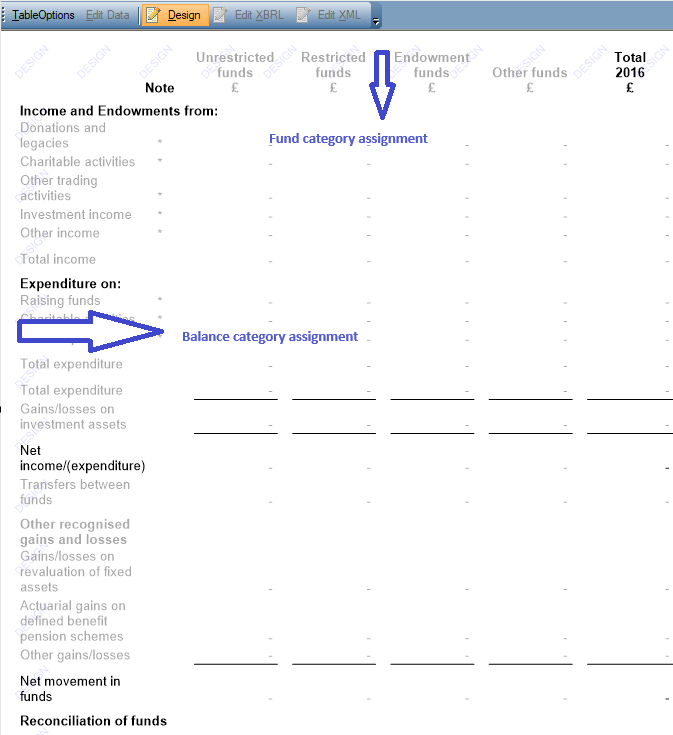
- Map the codes in theBalance(X axis) category first.noteThe Resource abbreviation tells you where to assign the code. In this example, it's DL (donation and legacies), so you would need to map the codes in the Donations and legacies section of the Income folder.

- Once you've assigned all codes with values posted to them in theBalancecategory structure, selectApply.
- Change theCategory structuremenu toFundto map which fund the postings relate to (Y axis).noteOnly assign codes001.00to499.99and opening balance codes in theFundscategory structure.The important part of the code to this category is the fund suffix (F:U1/R1). This shows where the codes need to be assigned.001.00|F:U1|R:DLto Unrestricted income and001.00|F:R1|R:DLto Restricted income

- When you've assigned all codes, selectOK.All figures posted will now appear correctly in the report. At this point you can assign the codes to report on funds individually. This is primarily for charities with multiple restricted funds that need more in-depth analysis.
- Create new accounting periods
- Go toFinancial Period, then selectNew Financial Periodto create a new accounting period in the normal way.
- Opening balancesnoteYou need to calculate opening balances manually on a per-fund basis then post as a manual journal.Using pre-existing code combinations ensures consistency between years and results in fewer new code combinations to assign through Account Assignment.To post to pre-existing codes, you can use the following steps to copy forward a journal with codes but without values from the prior year to use it for posting of opening balances.
- Go to theJournalstab.
- Select the sub tab for the prior year.
- Right-click over a journal to selectCopy.
- Return to theCurrent Periodtab, right-click in the space after the journals, then selectPaste without value.note
- This will create a blank journal with the pre-existing nominal code combinations, making posting the current year’s figures much easier
- You may need to use some new codes and combinations, which you'll need to assign.
- However, using this method reduces the number whilst also ensuring greater accuracy and consistency.