
Self-service Q&A powered by CoCounsel Panel
The
Self-service Q&A powered by CoCounsel
is an AI-powered, self-service chat tool embedded within the HighQ platform. Accessed via a simple call-to-action button on the custom page dashboard, the intuitive chat interface allows users to quickly find relevant legal or business information without manually searching through documents. Powered by CoCounsel's legal expertise, it delivers fast, accurate answers to streamline decision-making and enhance user experience.Click "
Self-service Q&A
" to add the panel:
The "
Add panel - Self-service Q&A
" screen opens:
- Panel title- Enter the title of the panel. This title is the heading above the call to action. You can also hide the title by selecting the "Hide title" checkbox.
- Site- Select the site you want to pull the files from.
- Folder- Select the folder within the site that your files are in that you want to upload to the CoCounsel database. This is a mandatory field.When you select a HighQ folder to the self‑service Q&A, all documents within that folder are uploaded to the underlying CoCounsel database. The folder is automatically synced, ensuring that any changes, such as adding, removing, or updating documents, are automatically reflected in the database, keeping content up to date without needing to delete or reconfigure the Q&A panel.noteSubfolders and smart folders are not supported.
- Chat assistant name- This is the name of the panel/chat, e.g., ''CoCounsel'' is the default, but you can change this to "{your chosen name}".
- Description text- This is the short description of the Self-service Q&A Panel.
Next, click on the ''
Chat configuration
'' tab: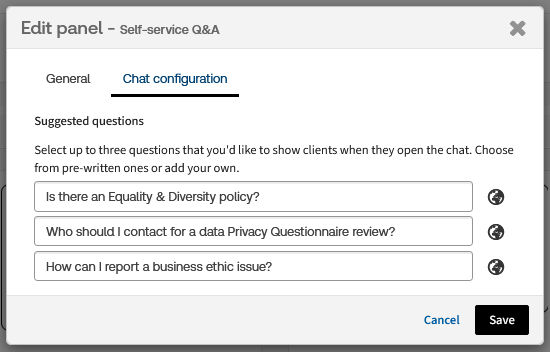
Suggested questions
- These are example questions shown to users, which can be customised and used or shared with clients as guidance.
note
Users can select suggested questions presented as easily clickable options, enabling them to initiate the query directly and faster in Q&A panel.
Click
Add
to add the panel to the section.The new panel is now displayed in your dashboard as shown below:

When a user clicks on the KPI-style card, it triggers a chat function linked to the CoCounsel database configured by the administrator. The user can then ask natural language questions about the data contained in that CoCounsel database. If the user asks a question that is not related to the database content, the chatbot will respond with ''no relevant information found''.
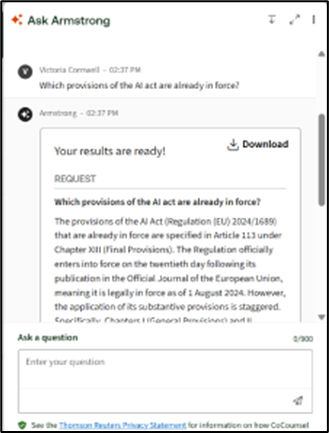
An example of what the chatbot can look like within the dashboard:
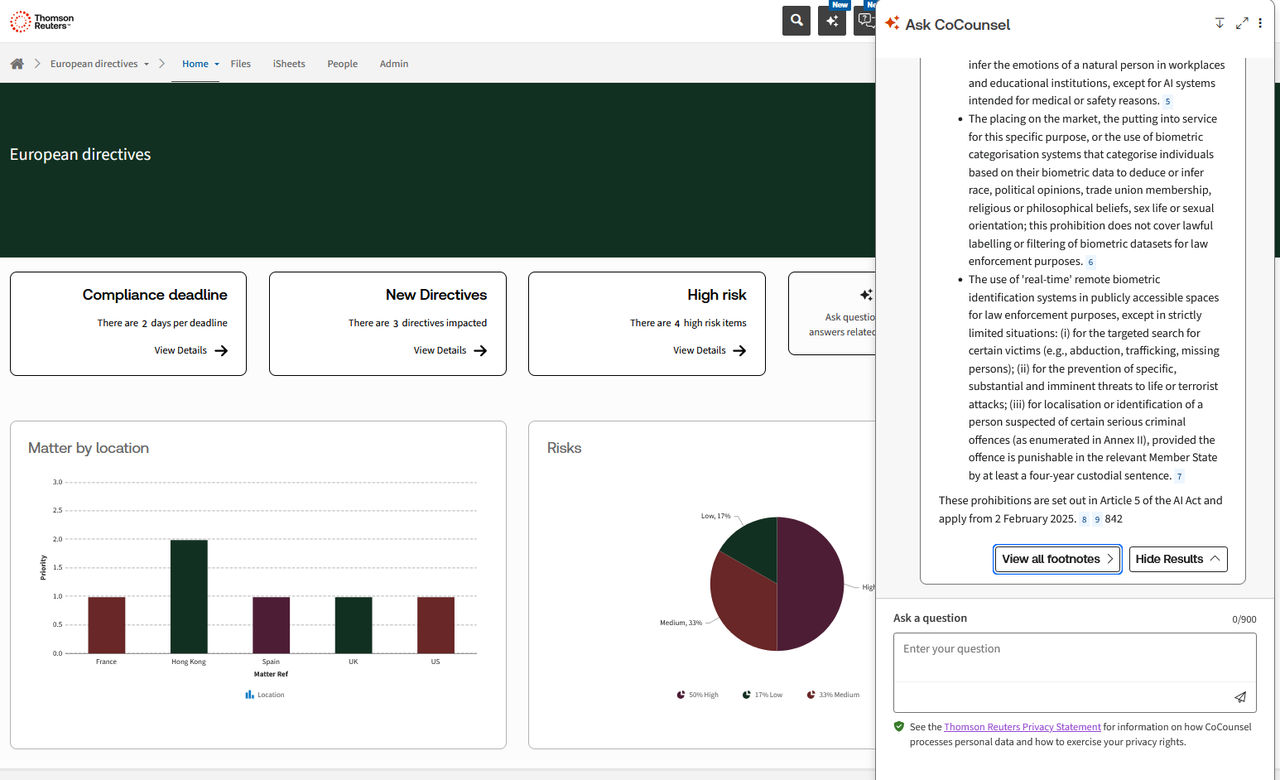
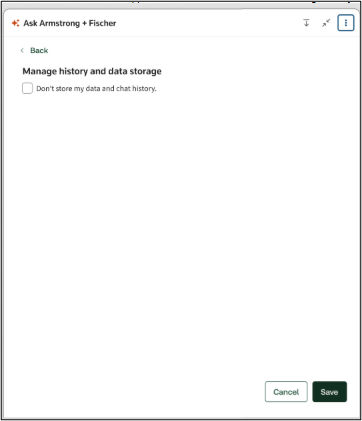
The user's chat history is retained for 7 days to allow users to review their own previous questions. As of April 2026, users will also have the ability to manage their own chat history.
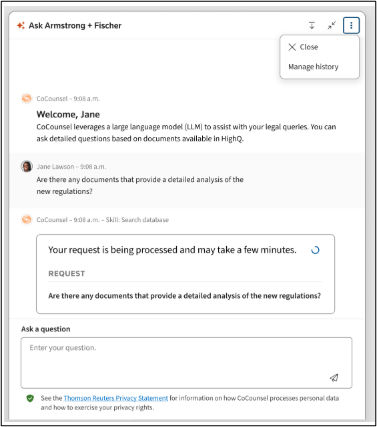
To manage history, from the Q&A panel, click on three ellipses and select
Manage history
.
Alternatively, the ''
View Results
'' option saves submitted questions to the chat history.
note
- If the View Results option is not clicked, the question will not be saved and will not appear in the chat history the following day.
- By default, chat history is retained for 7 days, however the time period can be extended up to 30 days. To update this, please contact support.
The "
View all footnotes
" option allows users to view all mentioned sources and their locations within the document, displaying where the cited information appears, such as specific page numbers.note
- If you're using the chatbot for the first time, you'll need to click on "I understand" to accept the terms and conditions. This is a one-time step.
- The chatbot may take a few minutes to retrieve accurate information, as it searches only within the CoCounsel database.
Users also have the option to download the responses to a Word document, allowing them to work on it further.
Additional Information
- Any user who has access to the dashboard will be able to interact with the documents in the connected database through the Q&A panel. If there are users who should not have access to this data, permissions must be applied at the dashboard level to restrict their access.
- The self-service Q&A feature supports searching up to 100 documents. However, when using HighQ folders, keep in mind that sub-folders are not included in the search; only documents in the selected top-level folder will be searchable.
- To avoid confusion, only one Q&A panel can be added to a dashboard. This ensures users aren't interacting with multiple chat panels linked to different data sources.
- When a self-service Q&A panel is deleted, all associated user history cannot be accessed.
note
When a firm has full responsibility for its own legal privacy and terms and conditions through a special arrangement with TR, the privacy disclaimer text will be adjusted accordingly.