
CoCounsel for Microsoft Outlook (Gov)
For Microsoft Entra ID and Microsoft 365 global and Exchange administrators in Government cloud tenants (GCC, GCC High, DoD).
Overview
How this add-in gets installed
Manifest-based deployment is the only supported installation method for
CoCounsel for Microsoft Outlook (Gov)
in Microsoft Government cloud tenants (GCC, GCC High, and DoD). No AppSource or Marketplace listing exists in any sovereign cloud. This is a Microsoft platform constraint that applies to all vendors' add-ins in these environments, not a Thomson Reuters limitation.Instead, Thomson Reuters provides your organisation with the add-in manifest file, which your Entra ID administrator or IT administrator uploads and manages using your organisation's administrative tools. Thomson Reuters cannot install the add-in in your tenant on your behalf. All steps described in this guide must be completed by your administrators within your own Microsoft 365 Government tenant.
Before proceeding, review and follow your organisation's internal process for approving, installing, and managing new applications in your environment. The steps in this guide assume that review and approval have already taken place.
note
Microsoft offers more than one valid way to deploy the add-in. You can upload and assign the manifest from either the Microsoft 365 admin center (Integrated apps) or the Microsoft Entra admin center. You can manage the permissions of the resulting enterprise application from either the Enterprise applications pane or the App registrations pane in the Microsoft Entra admin center. This guide shows the most common path through each admin center. Your team might already have an internal standard for one of them, and Microsoft supports both.
note
Send your Government tenant ID (Microsoft Entra tenant ID, in GUID format) to your Thomson Reuters program team when you request the manifest file. This lets Thomson Reuters confirm the correct app registration and consent endpoint for your specific tenant before you deploy.
Prerequisites
Before you start, make sure that you have the following:
- Admin access: You need Global Administrator, Exchange Administrator, or Cloud Application Administrator access to your Microsoft 365 Government tenant (GCC, GCC High, or DoD, as applicable).
- The Gov manifest file: Thomson Reuters provides a Gov-specific manifest directly to your organisation. It differs from the commercial CoCounsel for Outlook manifest, it points to separate Government Microsoft Entra ID app registrations and Government-only service endpoints. To request the file, contact your Thomson Reuters support team. The file isn't published for download.
- A deployment scope: Decide the deployment scope in advance, whether for yourself only (for testing), specific users or groups, or your entire organisation.
- A flat security group, if you scope to a group: Confirm that the group lists user accounts directly. A nested group (a group that contains other groups) reports the deployment as successful but doesn't reach anyone in the nested membership. This is the most common reason a deployment looks complete but the add-in never appears for users.
- Nested App Authentication (NAA) support: CoCounsel for Microsoft Outlook (Gov) uses Microsoft's Nested App Authentication (NAA) for user sign-in. Before deployment, confirm that users' Outlook clients meet Microsoft's minimum NAA version requirements. See Microsoft's Nested app auth requirement set for the minimum supported version on each platform. Outlook on the web is always supported, while Windows, Mac, iOS, and Android each have their own minimum build requirements. Users running older or unsupported builds cannot sign in to the add-in.
Capabilities and Limitations
What's included in the Gov application
CoCounsel for Microsoft Outlook (Gov) supports HighQ features only. The add-in presents these features as a Skill Library. CoCounsel AI drafting and skills and Legal Tracker matter intake are available in the commercial version of the add-in, but they
aren't enabled
in the Gov application.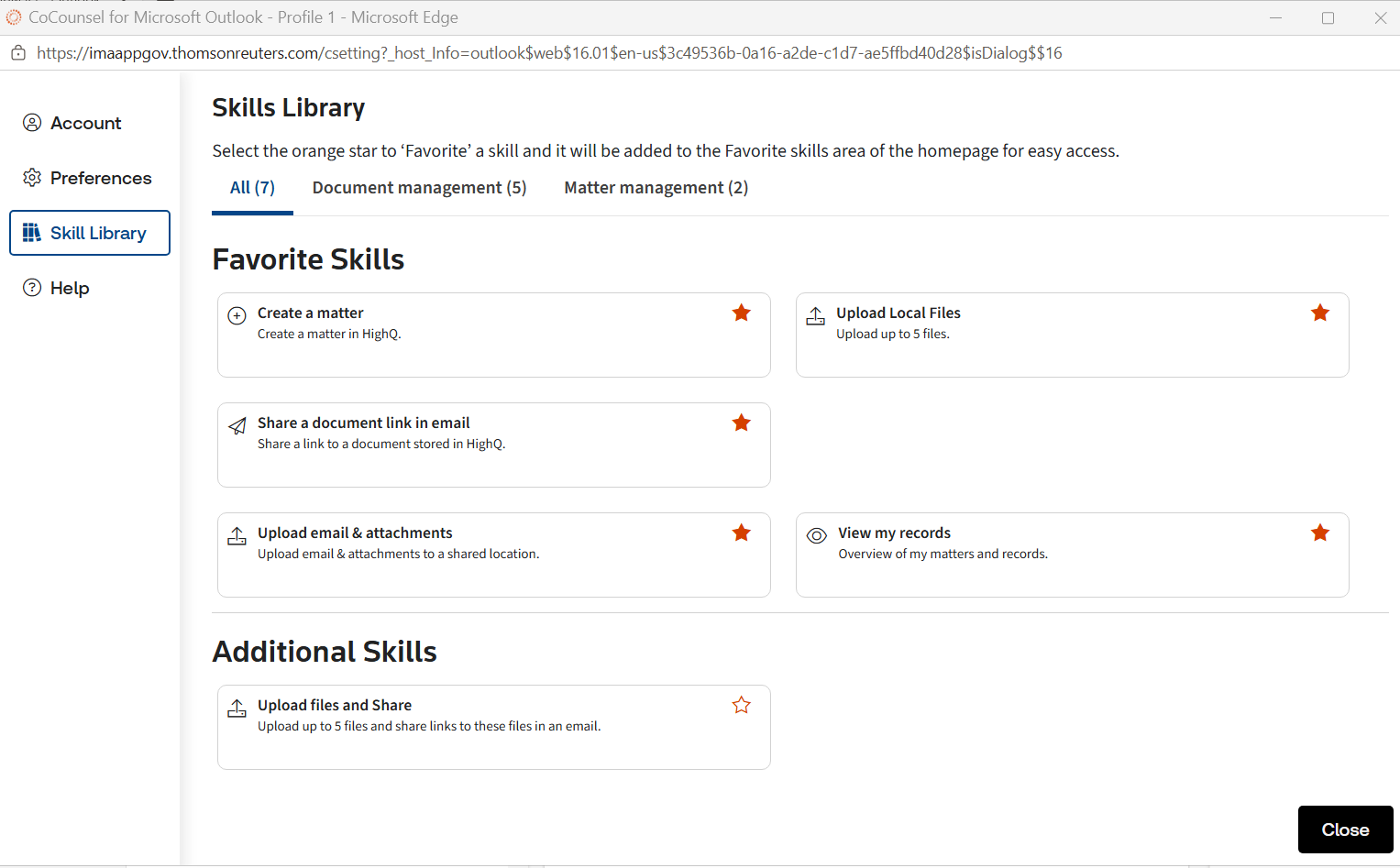
Matter management
Feature | Description |
|---|---|
Create a matter | Create a matter in HighQ. |
View my records | View an overview of your matters and records. |
Document management
Feature | Description |
|---|---|
Upload Local Files | Upload up to 5 files to HighQ. |
Upload email & attachments | Upload an email and its attachments to a shared location. |
Upload files and Share | Upload up to five files and share links to those files in an email. |
Share a document link in email | Share a link to a document that's stored in HighQ. |
What's not included in the Gov application
- CoCounsel AI drafting & skills
- Legal Tracker matter intake
- Westlaw / Practical Law lookups
Deploy the add-in to your organisation
Choose one of the two methods. Both of them install the same manifest and produce the same result.
Deploy via the Microsoft 365 Admin Center
- Sign in to the Microsoft 365 Admin Center (Government instance).Use an account with Global or Exchange administrator access, at your Government admin portal (for example, admin.microsoft.us or your tenant's GCC High or DoD equivalent).
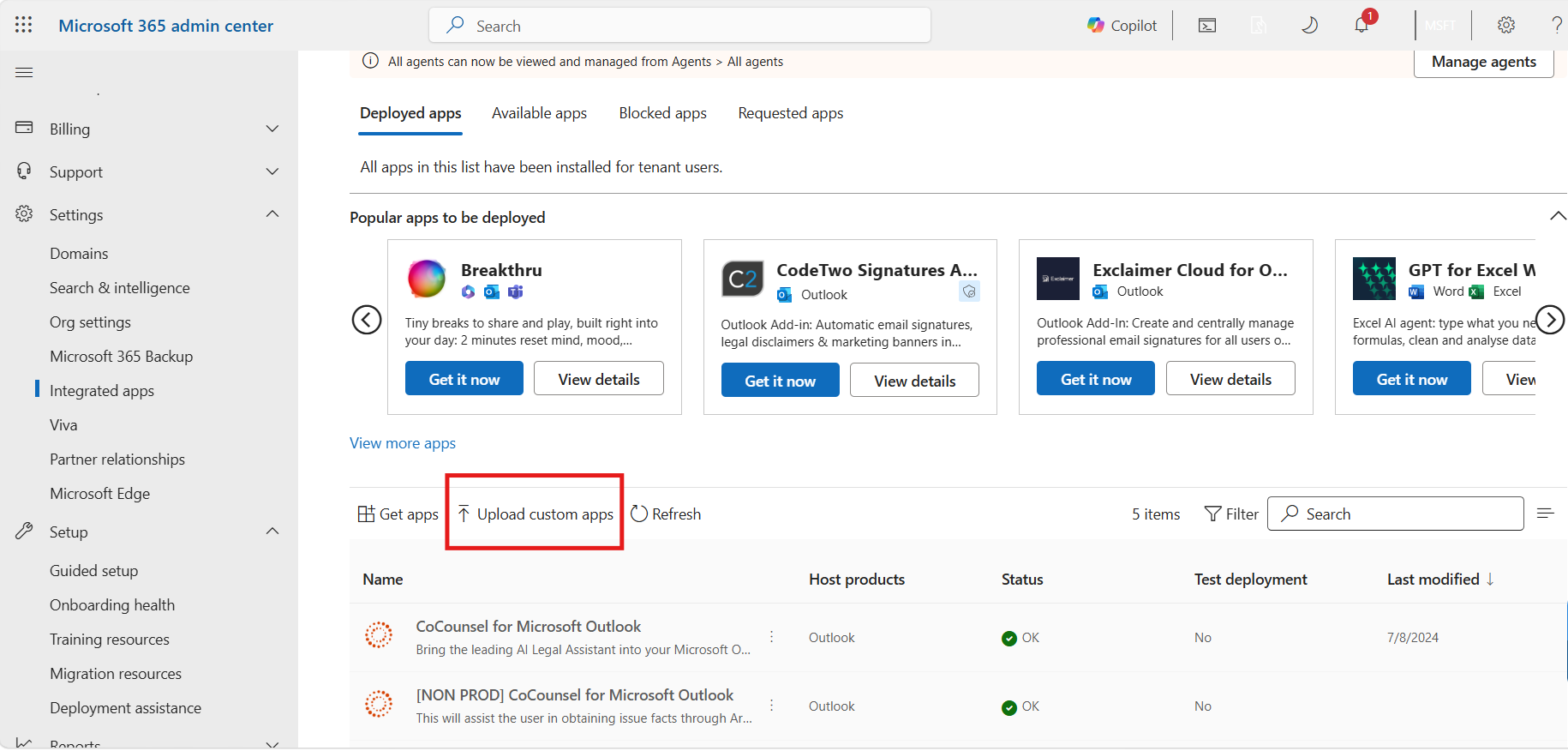
- Go toSettings>Integrated apps. Some tenants label this pageServices & add-ins.
- SelectUpload custom apps. ChooseOffice Add-inas the app type, then upload the Gov manifest file (.xml) provided by Thomson Reuters.
- Choose who the add-in is deployed to. SelectJust me(admin test),Specific users/groups, orEntire organisation, to match the scope you decided on in the Prerequisites.
- Review the permissions and deploy the add-in. For the full list of permissions, see Grant tenant-wide admin consent later in this article.
- Open the deployment detail view - not just the status banner.The top-level status can readCompletedwhile individual users within a group still failed. Select the deployment to check the per-user status before you consider the rollout finished.
- Have a test user fully sign out of Outlook and sign in again.Restarting the Outlook application alone is not enough. A full sign-out and sign-in lets Microsoft Entra ID issue a fresh token that reflects the new add-in assignment.
- Confirm that the add-in appears for that test user before you roll out further.Widen the scope only after a real test account can see and open CoCounsel for Microsoft Outlook (Gov) in the ribbon.
Deploy via the Microsoft Entra admin center
- Sign in to the Microsoft Entra admin center.Use your Government tenant's Microsoft Entra endpoint (for example, a.usvariant of entra.microsoft.com), and sign in as a Cloud Application Administrator or Global Administrator.
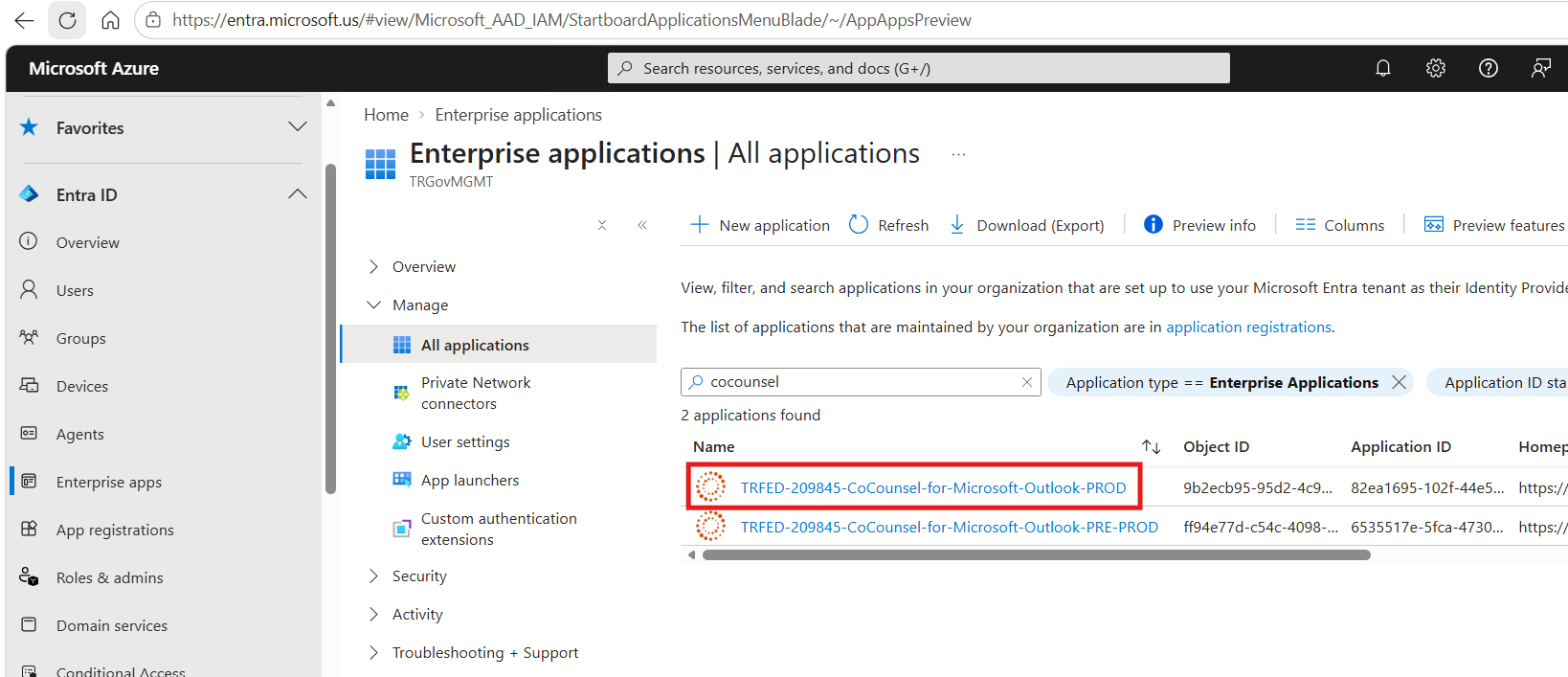
- Go toIdentity>Applications>Enterprise applications.Search forCoCounselto find the app. The production entry is namedTRFED-209845-CoCounsel-for-Microsoft-Outlook-PROD.
- UseManage>PropertiesandUsers and groupsto control who can access the app.To restrict sign-in to specific users or groups rather than the whole tenant, set Assignment required to Yes under Properties, and then assign users and groups. This is the Microsoft Entra ID equivalent of the scoping step in first (via the Microsoft 365 Admin Center) deployment method mentioned above.
- Deploy the manifest from the Microsoft 365 admin center or by using Exchange admin PowerShell.The Microsoft Entra admin center governs sign-in and permissions for the app. The manifest that puts the task pane into the Outlook ribbon is still uploaded through Integrated apps (via the Microsoft 365 Admin Center) or your Exchange Online management tooling.
In short,
Admin center | When to use |
|---|---|
Microsoft 365 Admin Center | Deploy via Settings > Integrated apps . The most common route for Exchange/M365 admins and the one Microsoft documents as its primary centralised-deployment experience. |
Microsoft Entra Admin Center | Deploy and manage the resulting app registration from Identity > Applications . Preferred by teams who already manage enterprise app access and Conditional Access from Entra. |
Permissions
Grant tenant-wide admin consent
The add-in calls Microsoft Graph, on behalf of the signed-in user, to read the user's profile and their own mailbox. Rather than prompting every individual user to consent the first time they open the add-in, Thomson Reuters recommends that your administrator grants consent once, for the whole organisation.
What the app asks for
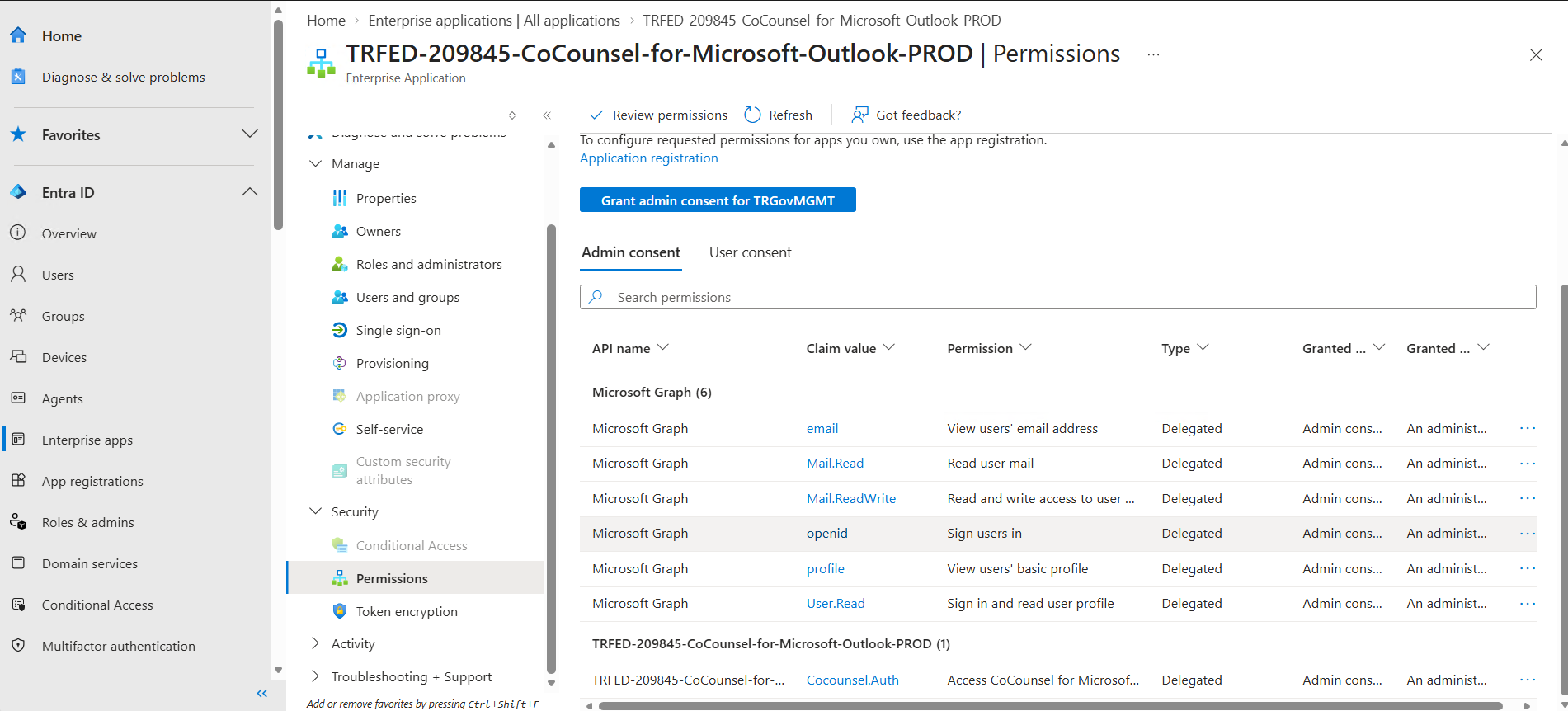
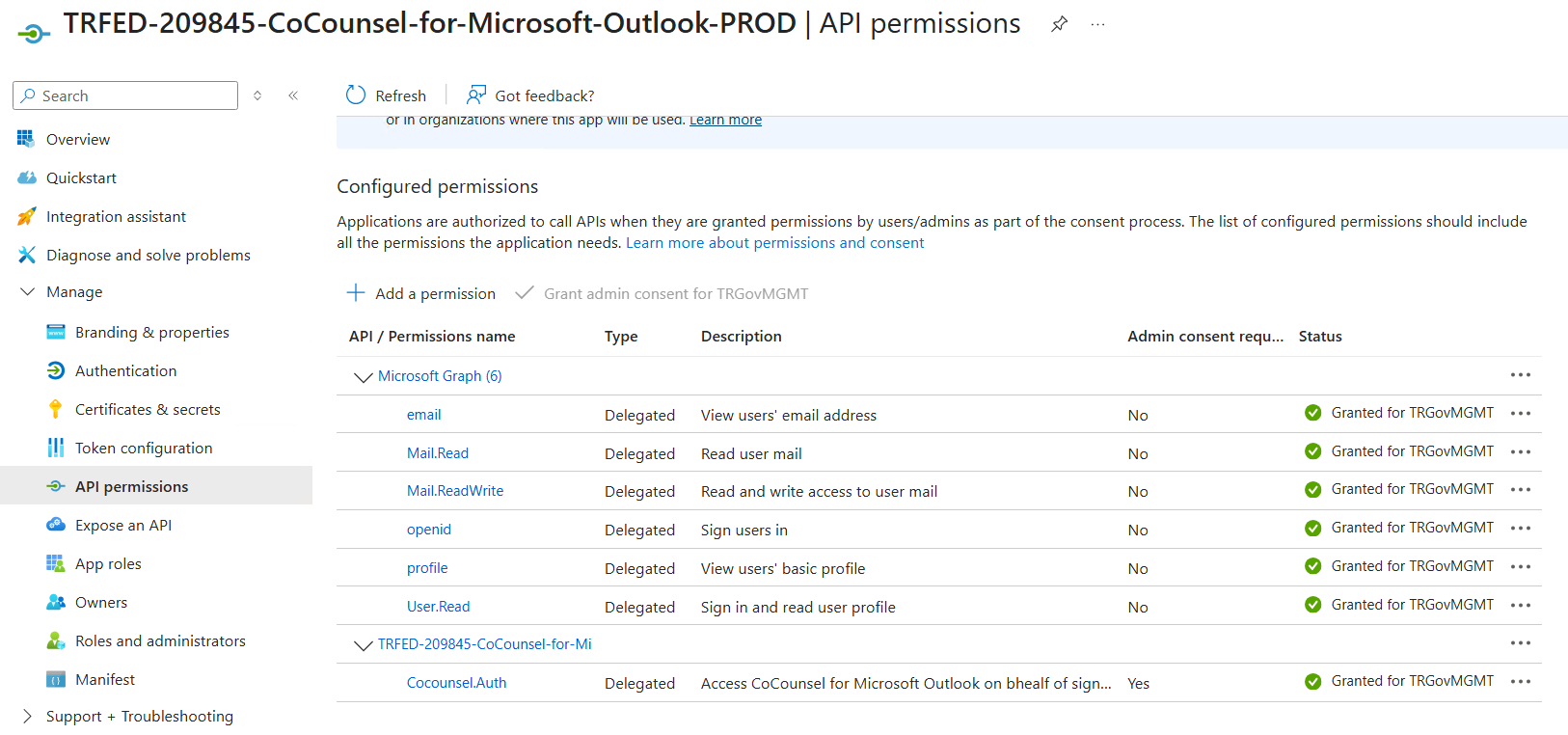
The following permissions are taken directly from the application's Microsoft Entra app registration (TRFED-209845-CoCounsel-for-Microsoft-Outlook-PROD).
Permission | Type | Description | Admin consent |
|---|---|---|---|
email | Delegated | View users' email address | Not required |
Mail.Read | Delegated | Read user mail | Not required |
Mail.ReadWrite | Delegated | Read and write access to user mail | Not required |
openid | Delegated | Sign users in | Not required |
profile | Delegated | View users' basic profile | Not required |
User.Read | Delegated | Sign in and read user profile | Not required |
Cocounsel.Auth | Delegated | Access CoCounsel for Microsoft Outlook on behalf of the signed-in user | Required |
All seven are delegated permissions, scoped to the signed-in user's own mailbox and profile. The app does not request application (tenant-wide-data) permissions, and does not request
Mail.Send
, Contacts
, Calendars
, Sites
, Files
, or Teams
scopes. Only Cocounsel.Auth
strictly requires admin consent. Granting consent for all seven permissions together in one step, as described in the following options, is simpler.note
Granting tenant-wide admin consent requires a Global Administrator, Privileged Role Administrator, Cloud Application Administrator, or Application Administrator role in your tenant.
How to grant admin consent
As with deployment, Microsoft gives you more than one place to grant consent. Choose the option that your team already uses to manage app permissions.
- In the Microsoft Entra admin center, go toIdentity>Applications>Enterprise applications.Search for CoCounsel, and then select TRFED-209845-CoCounsel-for-Microsoft-Outlook-PROD. Under Security, select Permissions. Review the scopes, and then select Grant admin consent.
- App registrations paneIn the Microsoft Entra admin center, go toIdentity>Applications>App registrations, and then select TRFED-209845-CoCounsel-for-Microsoft-Outlook-PROD. Select API permissions. Review the scopes, and then select Grant admin consent.
- Direct linkIf you already know your Government tenant ID, an administrator can browse directly to the following URL, replacing {your-tenant-id} with your tenant ID:https://login.microsoftonline.us/{your-tenant-id}/adminconsent?client_id=82ea1695-102f-44e5-88cb-797e57b971b0Signing in there as an eligible admin and accepting the prompt has the same effect as above options. This is optional, the admin center steps above don't require your tenant ID at all.
Whitelist the application domain
CoCounsel for Microsoft Outlook (Gov) connects to one application endpoint over HTTPS. Allow that endpoint on every network path that your users' Outlook clients use.
important
Allow outbound HTTPS traffic to
imaappgov.thomsonreuters.com
from every network that your users' Outlook clients connect through your corporate network, your VPN, and any secure web gateway (SWG) or proxy, including a cloud access security broker (CASB). If you don't, the add-in loads in Outlook but can't reach its service, and every action fails or hangs.Add the following entry to your outbound allow list.
Setting | Value |
|---|---|
Domain | imaappgov.thomsonreuters.com |
Protocol and port | HTTPS (TCP 443) only |
Purpose | The application endpoint that CoCounsel for Microsoft Outlook (Gov) connects to. |
Where to add it | Your outbound proxy or secure web gateway allow list. |
If this domain is blocked, the add-in loads in Outlook but can't reach its service, and every action fails or hangs.
Post-deployment and support
Allow time for the deployment to propagate
After you deploy the add-in through the Microsoft 365 admin center or the Microsoft Entra admin center, the admin experience typically displays a message that the change can take up to
24-72 hours
to reach every account, up to 24 hours for a new deployment, and up to 72 hours for a change to an existing deployment (for example, widening the scope from a pilot group to the whole organisation). If a user does not see the add-in in the Outlook ribbon right away, propagation delay is the most common explanation. Allow the propagation window to pass, and have the user fully sign out of Outlook and sign in again, before you troubleshoot further.Troubleshooting
If the add-in does not appear after the propagation window has passed and the deployment detail view shows success, work through the following steps in order.
- Check for a nested security group.Redeploy the add-in directly to 2-3 named users. If the add-in appears for the named users but not for the group, the issue is group resolution. Flatten the group, and then retry the deployment.
- Clear the add-in cache.Clear the cache for the specific Outlook client in use. Classic Outlook and new Outlook maintain separate caches, so check the client that your test user runs.
- Confirm that the user signed out and signed in again.Restarting Outlook alone does not force a new token. The user must fully sign out of Outlook and sign in again.
- If the add-in still does not appear for named users, escalate to Microsoft Support.This result points to a deployment propagation issue in Microsoft's service rather than to anything on the Thomson Reuters side. Escalate to Microsoft Support with the exact error text and your tenant ID. In parallel, Thomson Reuters can confirm that the manifest and the Gov app registrations are healthy.
- Add-in appears but sign-in fails for all users.If the add-in is visible but users cannot sign in, verify that the Outlook client meets the minimum build requirements for Nested App Authentication (NAA). See the NAA prerequisites in Microsoft's requirement set. CoCounsel for Microsoft Outlook (Gov) does not support an alternative sign-in method, so users on unsupported Outlook builds must update to a supported version before they can sign in.
Additionally, to request the Gov manifest file, or for help with any step in this process, contact your Thomson Reuters CoCounsel for Microsoft Outlook program team. Please include your Microsoft Entra tenant ID, your tenant name (GCC/GCC High/DoD), and the admin email you'll be deploying from, it speeds up getting you the correct manifest and app registration details.