
Files Panel
The Files panel allows you to provide files quickly and easily to your users. This can be used to show example guidance documents or other important information, to allow for quick and easy access to any relevant information and to aggregate information from multiple sites into one panel on your dashboard.
To add
Files
panel, click Edit dashboard
within your homepage and select Files
from the available panel options.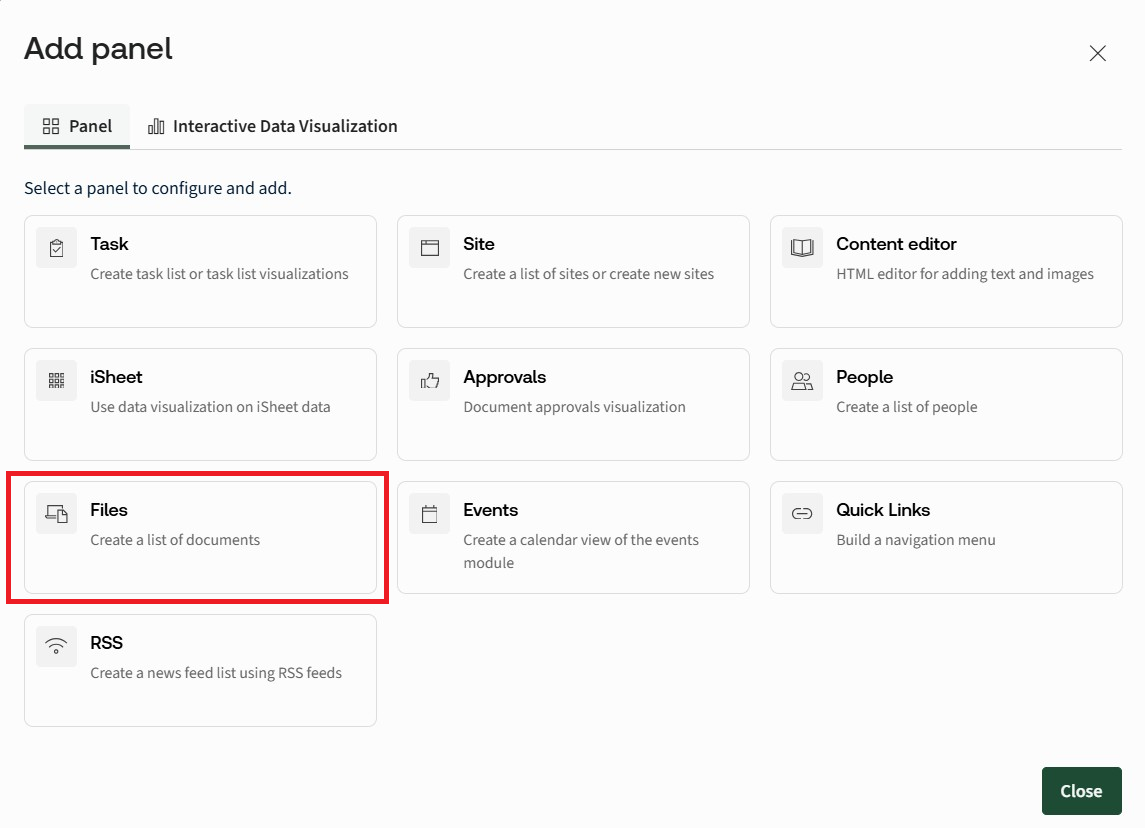
The
Add panel - Files
screen opens: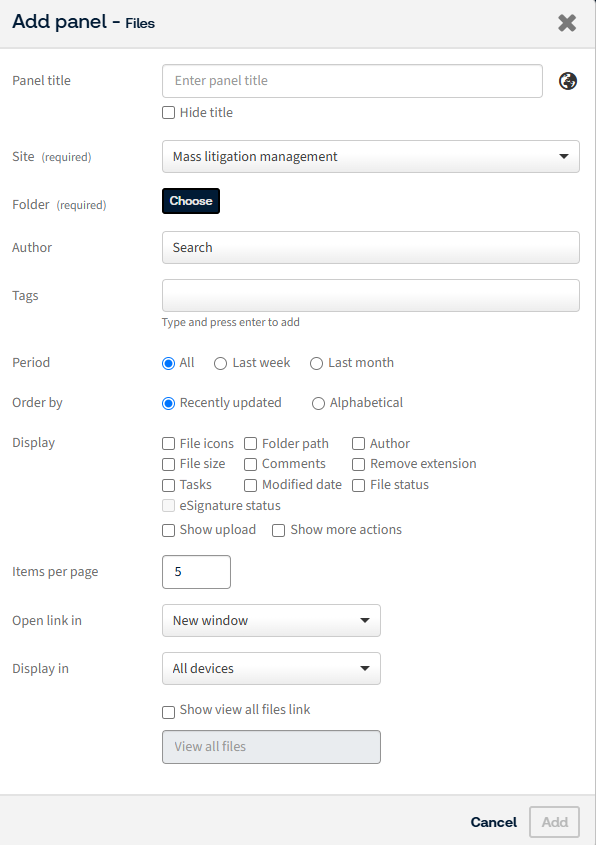
- Panel title- Enter the title of the panel. You can hide the title by selecting theHide titlecheckbox
- Site- Select the site you want to pull the files through from
- Folder- Select the folder within the site that your files are located in
- Author- You can search for a specific author you want to display files from
- Tags- Here you can tag your files
- Period- You can select a timeframe ofAll,Last weekorLast monthto decide how recent the files are that are displayed
- Order by- You can order your files by eitherRecently updatedorAlphabetical
- Display- This section lets you choose which bits of information about a user you want to display within the panel. Select each checkbox for the piece of information you want to display. If you select a checkbox, but a user does not have that information in their profile, nothing is shown. Please note thateSignaturestatus is greyed out untilFile statusis selected, as these two are linked
- Items per page- Enter how many contacts you want to display per page
- Display in- Select whether you want to display the panel on all devices, or just desktop/tablet
You can also display a link which takes the user to all available files. To enable this, select the
Show view all files link
check box. Enter a name for your link in the available text box:
Click
Add
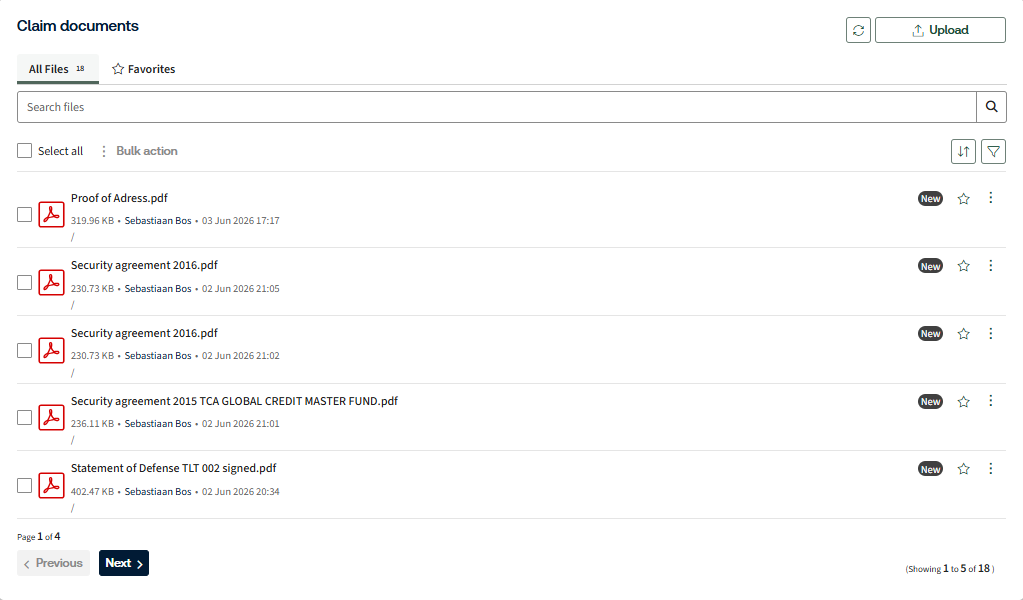
once you have added all of the relevant details. The new panel is displayed in your dashboard, containing the files you want to give easy access to, with a link to the additional files, if provided.note
With release 5.9.0, the Files Panel features an updated design. Users will now find a "View all" option within the Files Panel.
Advanced file actions
As of the June 2026 release, we have extended the panel functionality to support advanced capabilities such as uploading, searching, sorting, filtering, and performing file actions directly within the custom dashboard environment.
Uploading files
Upload files using the
Upload
button or by dragging and dropping them into the Files Panel. Users can upload multiple files, track progress, add metadata, and cancel uploads if needed, with files saved to the configured location. Errors display if uploads fail due to size, type, or security restrictions.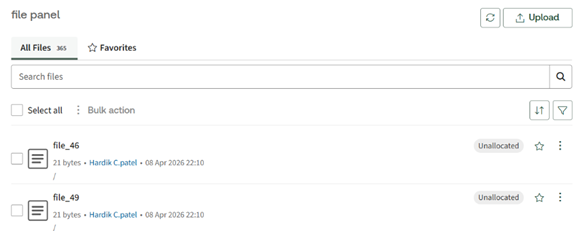
Sorting files
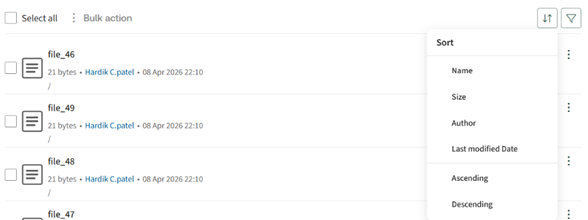
Use the sort icon in the toolbar to organise files by Name, Size, Author, or Last modified date. You can also choose ascending or descending order, and the file list updates instantly to reflect the selected sort option.
Filtering and Searching files
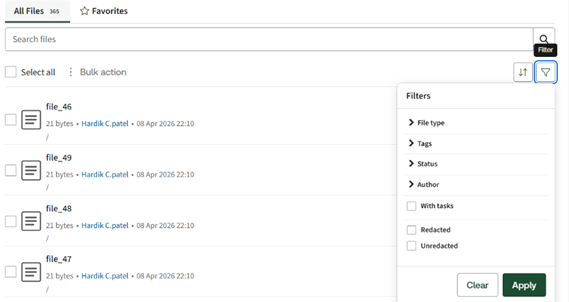
Use the search box to instantly find files by name or metadata as you type. Apply advanced filters (such as file type, date, or tags), manage them as removable chips, and reset them as needed; filters persist while you remain on the page.
Performing file actions
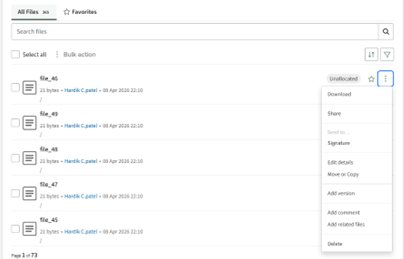
- Single file actions: Select the more options (ellipsis) icon next to a file to open the action menu. From the menu, choose actions such as download, share, send, edit details, move or copy, add a version, add a comment, add related files, or delete. The selected action is applied immediately, with updates reflected in the list and notifications displayed.
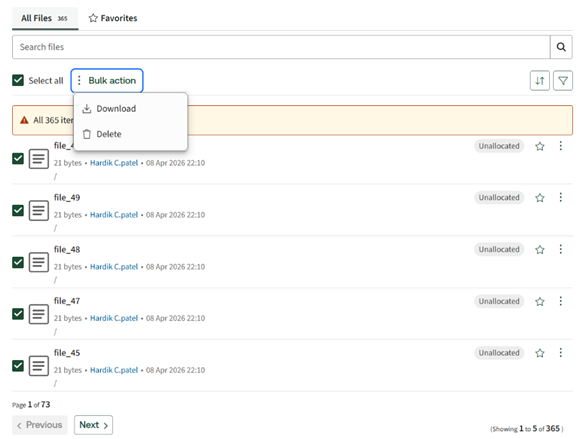
- Bulk actions: Select multiple files using the checkboxes or theSelect alloption, then use theBulk actionmenu to perform actions such as download or delete. The selected action applies to all chosen files at once, with updates reflected immediately and relevant notifications displayed.
Related Content
-
Panels for Custom pages and Site homepages
Format: Article