
People Panel
The People panel allows you to provide client contacts or manual contacts. This can highlight key contacts for specific organisations or even just a list of users who might update the content on the page with the panel.
To add
People
panel, click Edit dashboard
within your homepage and select People
from the available panel options.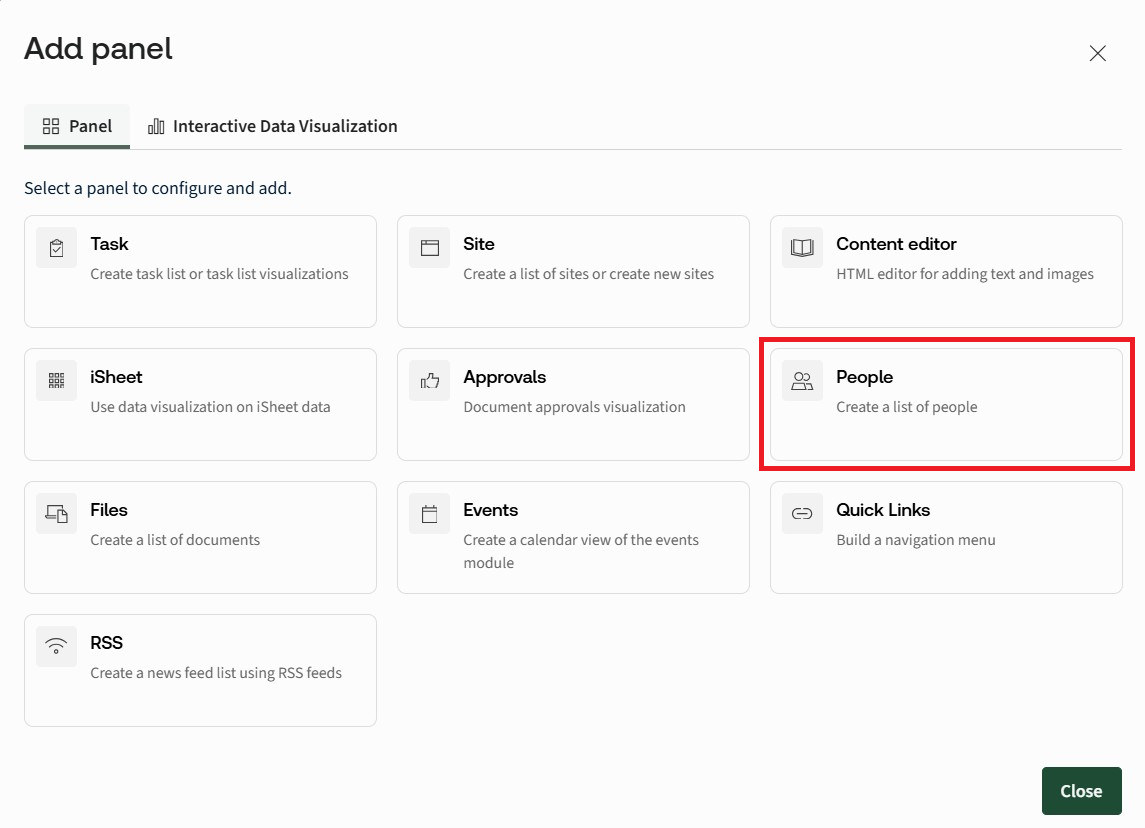
The
Add panel - People
screen opens: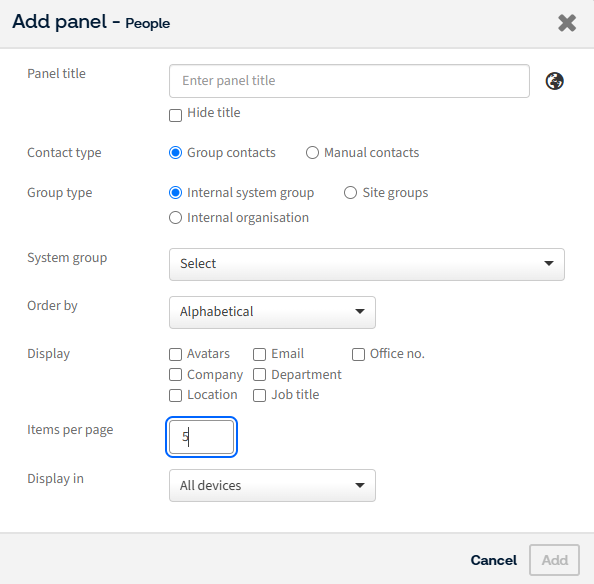
- Panel title- Enter the title of the panel. You can hide the title by selecting theHide titlecheckbox
- Contact type- Select the source for the panel. This can be either Group contacts or Manual contacts. If you select manual contacts a newContactsfield is displayed, where you need to search for the contacts manually.If you select Group contacts, theGroup typesection will be displayed, enabling you to choose from either anInternal system group, aSite groupor anInternal organisation. Depending on the type of group selected, the drop-down menu will change to eitherSystem group,SiteorOrganisation, where you can select the relevant group to display users from.
 noteYou can only see the users you have permission to see. You can also see external groups but can only see internal users within these groups and you cannot see users that aren't in any site groups.
- Order by- When you have selected a Group contact group, you can only order by Alphabetical order. If you have selected Manual contacts, you have the option of Alphabetical or Custom:

This lets you drag-and-drop or use the arrows to change which order people are displayed in; click the red
x
to remove people from this panel.- Display- This section lets you choose which bits of information about a user you want to display within the panel. Select each checkbox for the piece of information you want to display. If you select a checkbox, but a user does not have that piece of information within their profile, nothing will be shown
- Items per page- Enter how many contacts you want to display per page
- Display in- Select whether you want to display the panel on all devices, or just desktop/tablet
Click
Add
once you have added all of the relevant details. The new panel will be displayed within your dashboard, containing the information you want to display:With release 5.9.0, we have updated the profile page design, featuring enhanced and visually appealing avatars.

Click
Save
to save your dashboard changes. How do permissions work in the People Panel?
Below is a matrix explaining how permissions work for certain users with certain permissions:

Related Content
-
Panels for Custom pages and Site homepages
Format: Article