
RSS Panel
The RSS Panel allows you to display external RSS feeds in a single dashboard. This update includes the option to display relevant news and updates from an external source. It also features pagination and configurable display options, helping users stay informed and up to date.
The RSS panel can be added to both a
Custom Page
and a System Dashboard
.To add
RSS
panel, click Edit dashboard
within your homepage and select RSS
from the available panel options.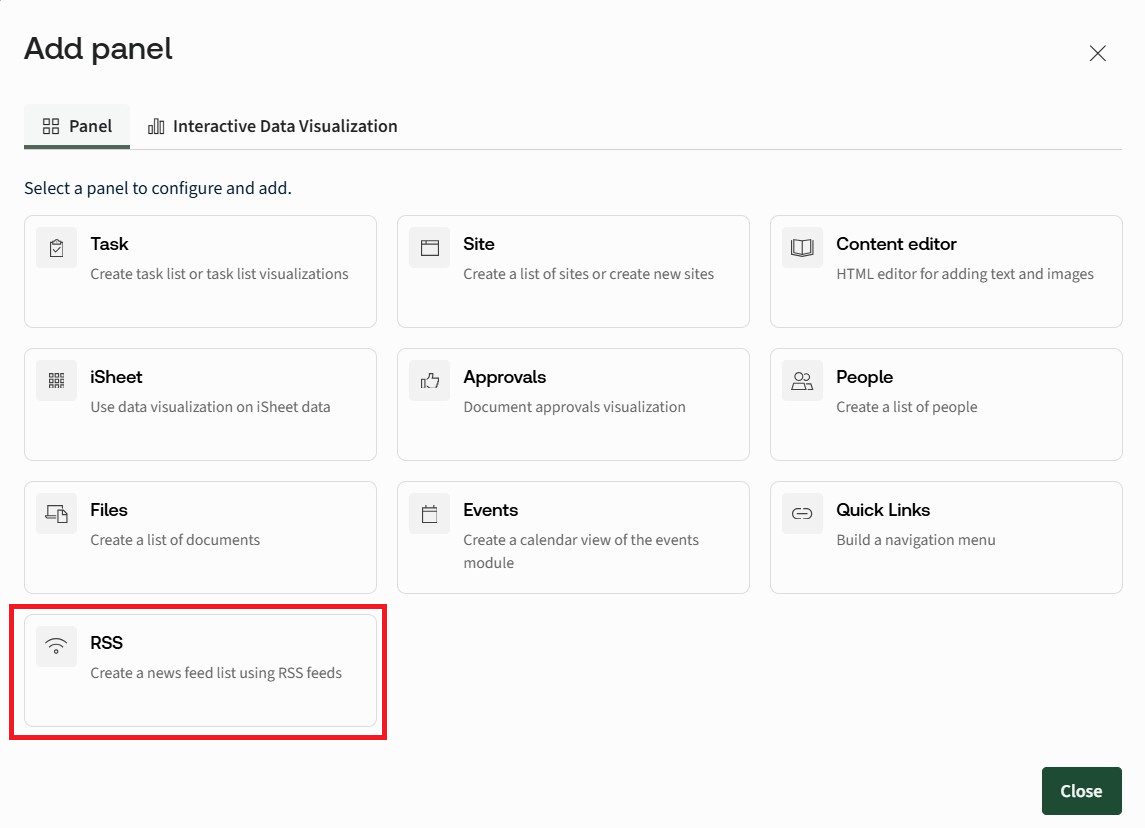
The RSS panel screen opens:
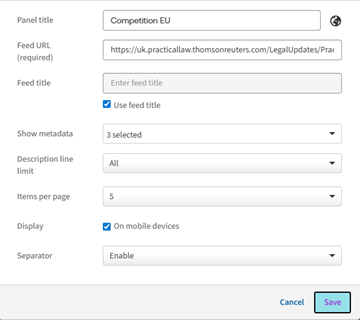
- Panel title- Enter the title of the panel. Alternatively, you can hide the title by leaving it blank.
- Feed URL- Paste the RSS feed URL from the external site you want to display content from.
- Feed title- By default, Use feed title is selected. When enabled, the title provided by the RSS feed will be displayed. Alternatively, you can enter a custom feed title.
- Show metadata- This section allows you to choose which pieces of article information you want to display in the panel. By default, all available metadata options are enabled.Each option can be individually selected or hidden depending on how much information you want to show.
- Content snippet- a brief description of the article.
- Publication date- the date the article was published.
- Author- the article author, if provided by the feed.
- Description line limit- You can choose how many lines of the content snippet are displayed, such as 1, 2, 3, or All lines, to control how much of the article description is shown in the panel.
- Items per page- Enter how many articles you want to display. You can choose All, 5, 10, 15, or 20. When a specific number is selected (for example, 5), pagination controls automatically appear, allowing users to move between pages of articles.
- Display on mobile devices- This option is enabled by default. When selected, the RSS panel is supported on mobile devices, ensuring content remains accessible on smaller screens.
- Separator- This option is enabled by default. It displays a thin separator line between articles to improve readability and visual clarity.
The panel is displayed in your new section.
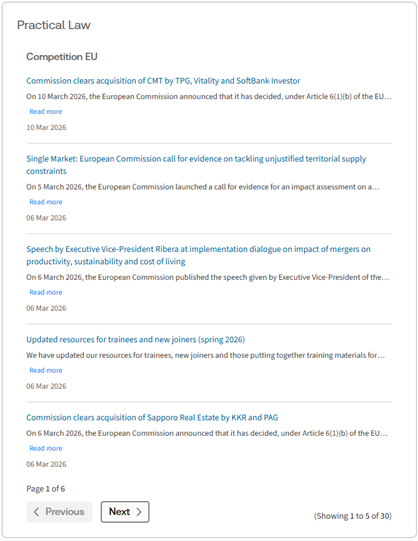
Users can read article titles, snippets, and metadata directly within HighQ. If item limits are applied, users can navigate between pages using the Next and Previous pagination buttons. Selecting an article opens the linked content from the external source.