
Task Panel
The Task panel lets you display tasks on your dashboard.
To add the
Task
panel, click Edit dashboard
within your homepage, then select Task
from the available panel options.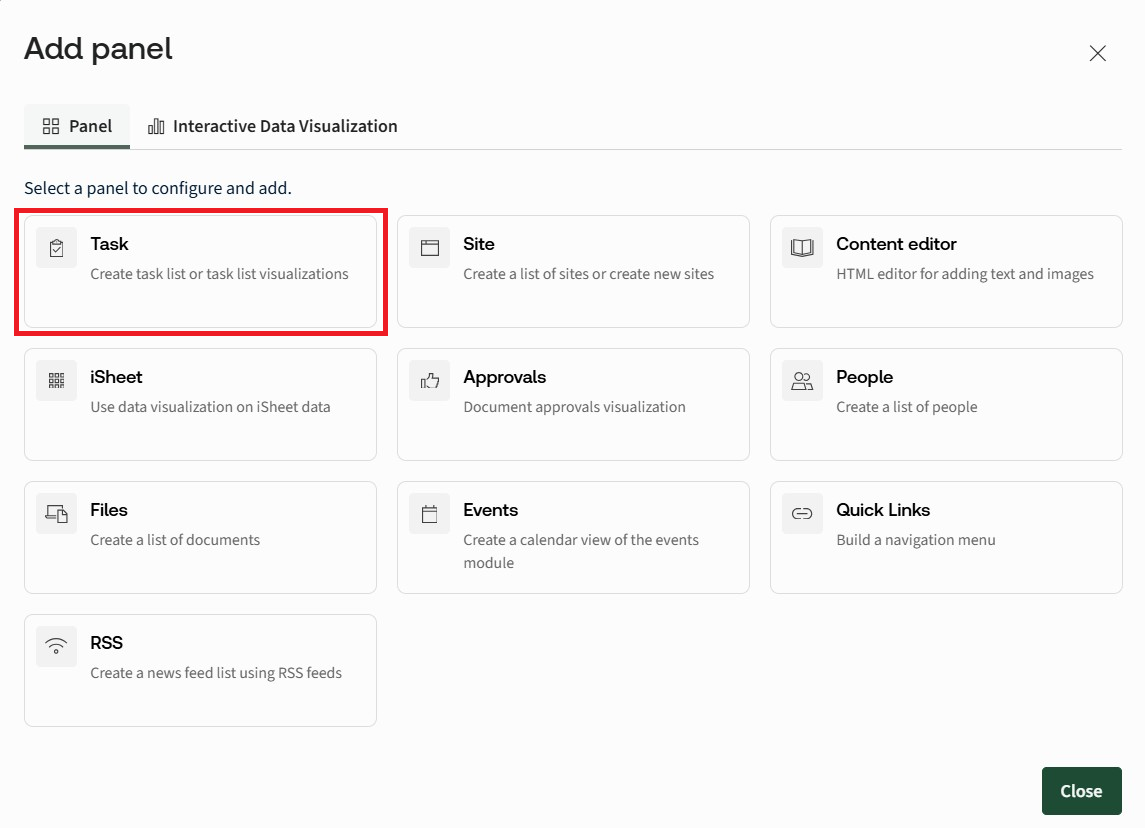
The
Add panel - Task
screen opens: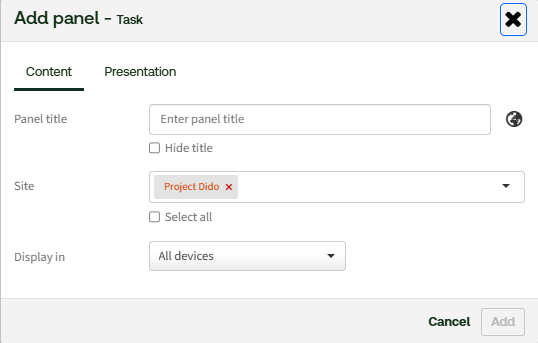
Give the panel a title (which you can hide if you wish, by selecting the
Hide title
check box) and select which site you want to pull tasks through from. Select all, if you want all available sites to be selected. Additionally, you can select whether or not to display this on all devices, or Desktop/Tablet only.Click the
Presentation
tab: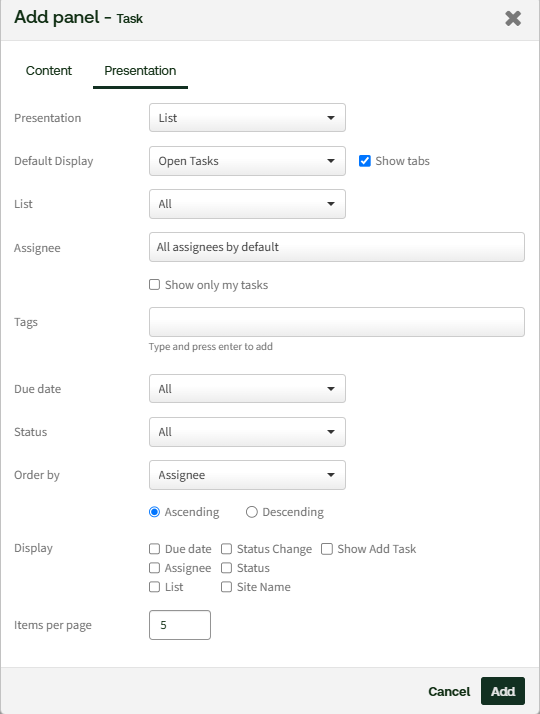
- Presentation- Select how tasks are displayed in the panel. The available presentation options determine the layout and organisation of task information.
- Default Display- Choose the task view displayed when the panel first loads. EnableShow tabsto allow users to switch between available views directly from the panel.
- List- Select a specific task list to display. ChooseAllto include tasks from all available lists.
- Assignee- Filter tasks by assignee. Select a specific user or chooseAll assignees by defaultto display tasks assigned to all users.
- Show only my tasks- Display only tasks assigned to the current user.
- Tags- Filter tasks by one or more tags. Enter a tag and pressEnterto add it to the filter.
- Due Date- Filter tasks based on their due date.
- Status- Filter tasks by status, such as open, completed, or other available task states.
- Order By- Select the field used to sort tasks, such as assignee, due date, or status.
- Ascending / Descending- Choose whether tasks are sorted in ascending or descending order.
- Display- This section lets you choose which bits of information about a user you want to display within the panel. Select each checkbox for the piece of information you want to display. If you select a checkbox, but a user does not have that information in their profile, nothing is shown.SelectingShow Add Taskhelps you add tasks directly within the panel.
- Items per page- Specify the maximum number of tasks displayed on each page of the panel. This enables you to paginate the tasks in this panel, based on the number entered.
This window manages the presentation of the tasks and the task panel.
The layout of the
Add panel - Task
screen is different to the site home page task panel. For example, we have introduced the Show tabs
check box. If checked, all tabs will be shown. If unchecked, you can select whether to display all or only tasks assigned to you.You can also assign additional assignees, via the
Assignee
tab: 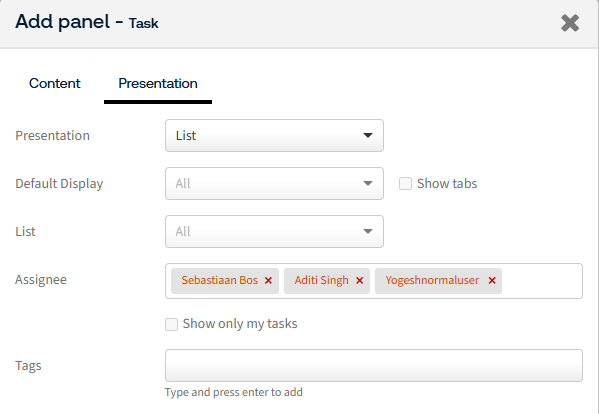
Simply search for and select the users you want to assign this task to. This will help you create tasks that can then be assigned to multiple users.
Click
Add
to add the panel to the section. The panel is now visible in your new section.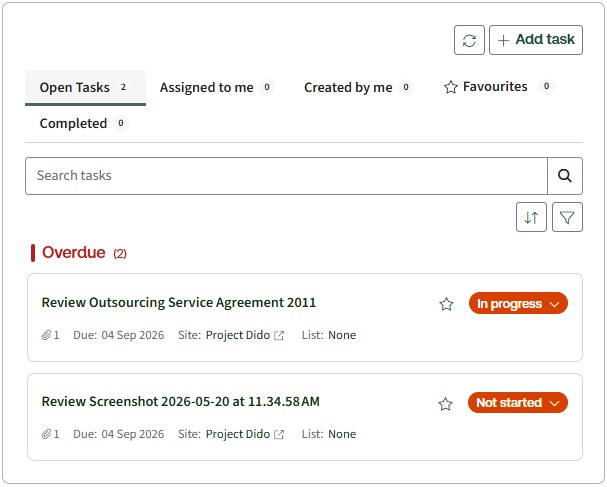
Related Content
-
Panels for Custom pages and Site homepages
Format: Article