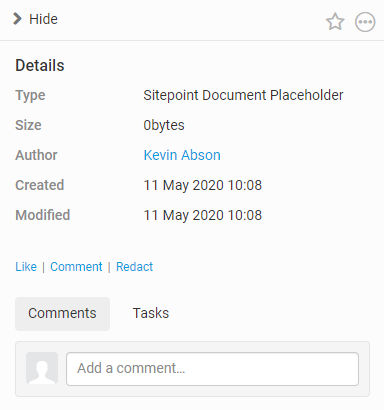
Add a placeholder file
A placeholder file can be used to manage file lists and supports many standard file features, such as tags, versioning and tasks.
For example, you can organise files into groups and use a placeholder file as a title for the group, or add a placeholder file as a reminder to add a file or complete a task.
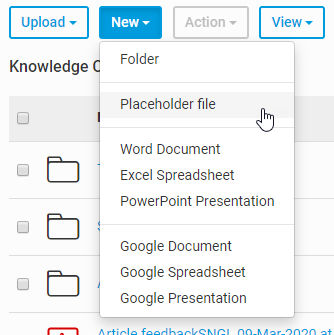
In
Files
, select New
, then select Placeholder file
.
note
You may also add a placeholder file in
My Files.
The
Add Placeholder file
screen opens: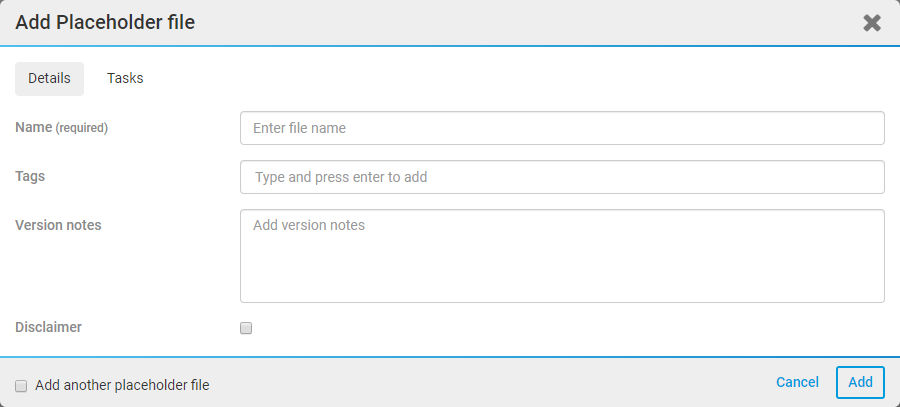
Enter the name of the Placeholder file in the
Details
tab, then add any further information such as tags and version notes.To add a disclaimer to the file, select the
Disclaimer
checkbox. Select Add
to save changes and create the placeholder file.If the
Add another placeholder box
is selected, after the current placeholder file has been added the window will be refreshed so you can enter the details for the second placeholder file. A message saying The placeholder was added successfully
displays to confirm the placeholder file has been created.
Adding Tasks
Tasks
can be added to a placeholder. Select the Tasks
tab, then Add
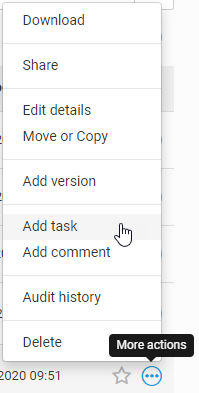
, while creating the Placeholder file, or select More actions
then Add task
from the file list.While creating a Placeholder file:
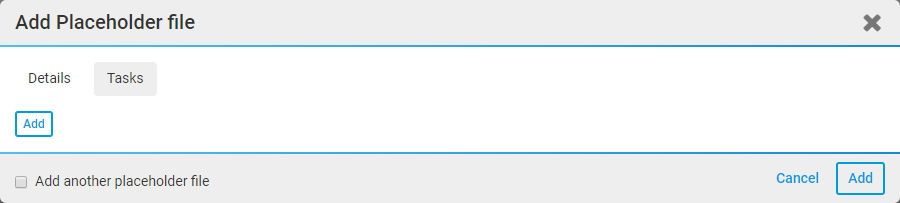
Add a task to an existing Placeholder file:
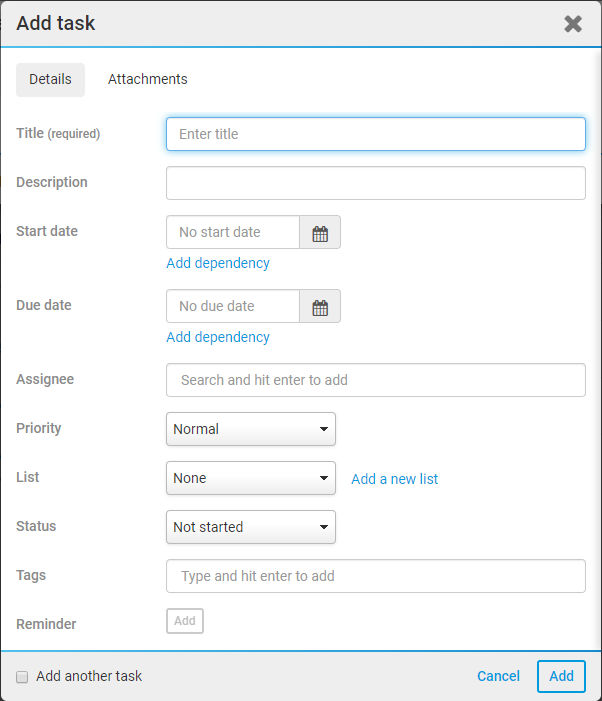
Enter details for the task including title, description, priority, and status:
note
A reminder can only be set if a due date has been entered.
Select the
Attachments
tab to add attachments; browse for files or drag a file to the Add task
window.Select
Add
to add the placeholder file with its tasks and any attachments.Placeholder files will be listed in the
Files
list.
Select the placeholder file to view or download the file and see the contents such as tasks and attachments. Select the
More actions
icon to see more options.If you open the Placeholder file, tasks and comments are shown in the right-hand pane.