
Change folder properties
Users with the appropriate privileges (site and content administrators and users in groups with folder administration permissions) can change folder names and other folder properties.
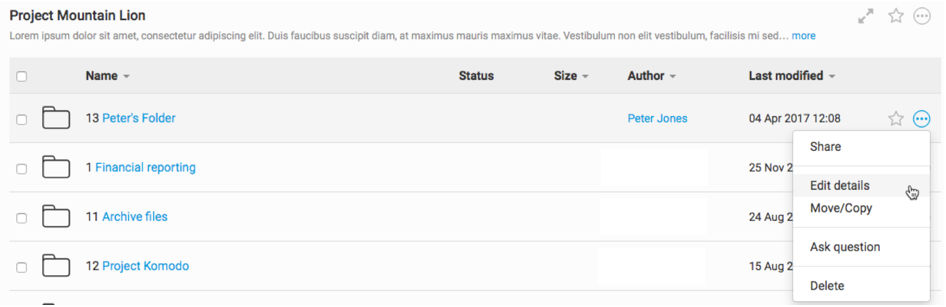
Accessing the edit folder page
To access the
Edit folder
page, navigate to More
> Edit details
.
The
Edit Folder
screen opens:
The default tab that displays when opening this window is the
Details
tab. The fields within the Details
tab are explained below:- Name (required):A user can change the folder name by replacing the text in this field
- Description:A user can add or edit a description. These comments only appear to users with permission to edit folders
- Location: This field displays the full path to the folder in theFilesmodule.The folder location cannot be edited from here.
- Site ID:The ID of the site the folder is located
- Folder ID:The ID of the folder
In the
Permissions
tab:- Permissions:This setting only appears ifDocument permissionsare set toSite & folderorSite, folders & fileswithin theFilesadmin page. Site and content administrators can control whether this folder inherits permissions from its parent or can be configured with custom folder-level permissions. The default setting isInherit parent folder permissions. The permissions matrix provides information about which permissions are assigned to users or security groups. Click the?to expose the permissions matrix.
In the
Settings
tab:- Settings:The Settings tab lets you choose how the folders and files can be sorted and viewed. The folder render view can either be a list view or a thumbnail view and the files or folders can be sorted byCreationdate,Lastmodified,AlphabeticalorCustom. If you have enabledEmail Metadatayou can choose whether to display those columns (ON) in your folder listing e.g. To, From, Cc, Sent and Received. If this is set to OFF any email metadata columns will not be displayed. SelectSaveto keep your changes or selectCancelto revert to any previous settings

Changing folder permissions

To break permission inheritance, a site or content administrator can un-select the
Inherit parent folder permissions
checkbox, which will make it possible to edit the Folder
and Files
settings in the permissions matrix. Permissions can be granted or removed by selecting the options for each user or user group. For more information on changing permissions, see here.If a user selects the checkbox, the following message will be displayed:
Inherit permissions? Checking the 'Inherit parent folder permissions' checkbox will cause the selected folder to inherit the permissions of its parent folder. This change will affect EVERY group that has access to the selected folder, not just this group. Are you sure you want to continue?