
Uploading files from a zipped archive
Users with appropriate permission (Site and Content administrators and users with Folder Admin rights) can use the
Zipped Files
upload to both upload
and
expand
the contents of the archive so they are available as individual files and folders.note
On most mobile devices the
Upload
button is replaced with the Add
button. On iOS devices, the
Add
button is displayed, but only files stored in a user's photo library can be added through this method.Please view the site as a 'Desktop site', or use the HighQ Drive app to bulk upload files in a ZIP file.
The basic steps to upload multiple files or folders are:
- Create a ZIP file that contains all files and folders to be uploaded.
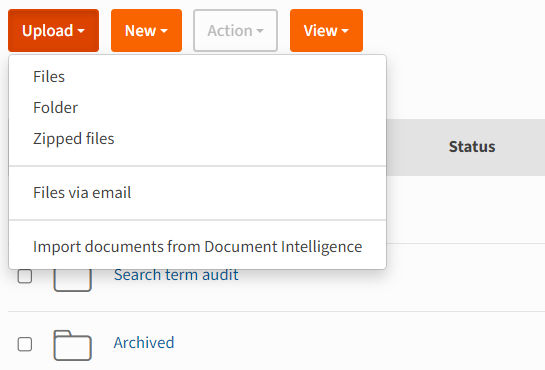
- In theFilesmodule, selectUpload, thenZipped Files:
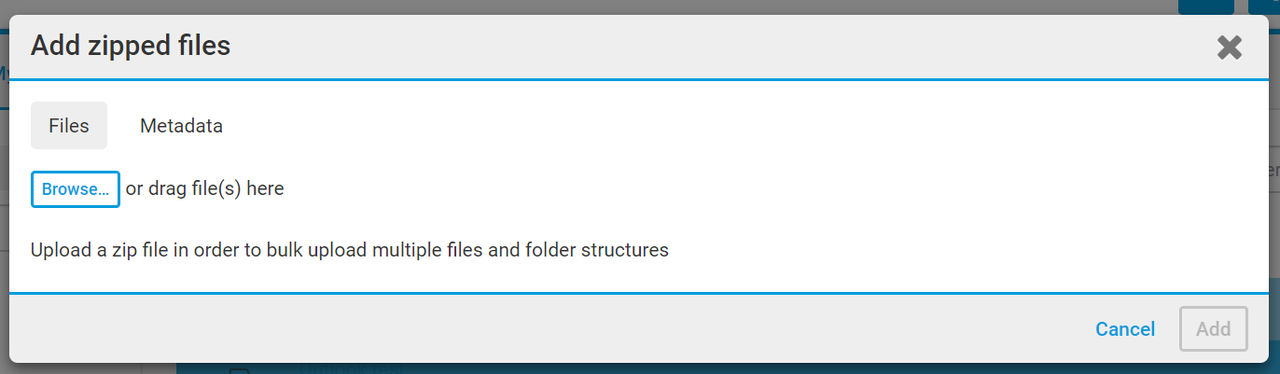
- Browse to the zip file or drag and drop the file into the box.
- Use theMetadatatab to add any further metadata such as tags.
- SelectAdd.
- The files and folders are uploaded to theFilesmodule with the same file and folder structure in the zipped archive, saved under the folder selected in theFilesmodule.