Audit history for Files
note
You need to be a Site Admin to view the Audit History of files. If you are not a Site Admin, you only see the Version History, and the audit information is not displayed
Accessing the Audit history page
Open
More Actions
> Audit History
for the file.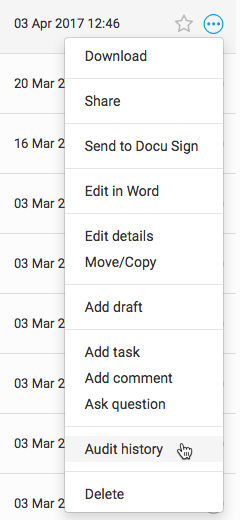
note
Alternatively, the site in which the file has been saved may be configured to open the audit history page when a link to a file is accessed. For example, the file name in the list of files in the Files module, a link to a file in Recent Activity or in an email alert can be configured either to download the file directly or display the file's information page
The Audit history page
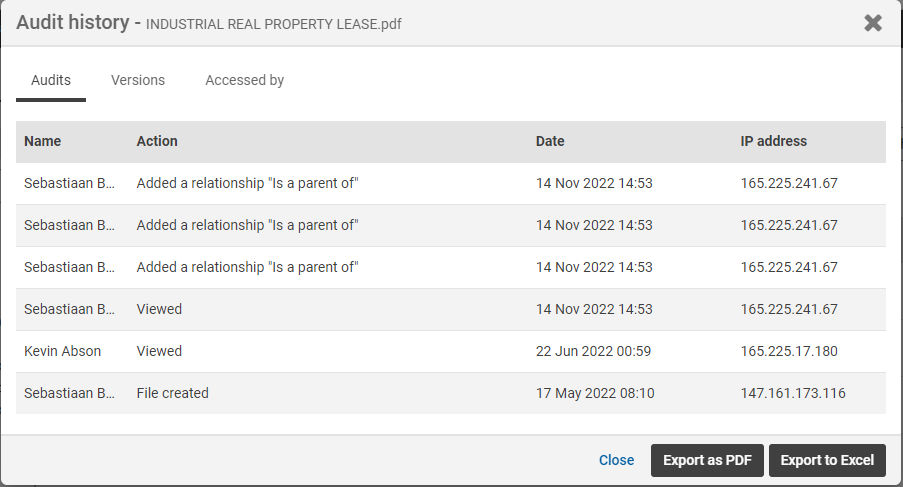
The audit history page displays basic information about the file, including a list of
audits
, notes
about the current version (users also can add new notes if they have the correct permissions), access to the file's previous versions
and the option view who has accessed
the file and who has not.note
As of May 2025, the audit includes 'Ask CoCounsel'.
Depending on user's permissions and how the site was configured, there may also be options to
download the original version
of the file, such as if digital rights management is enabled.Finally, the file information page is also the location where
comments
about the file can be viewed and added, provided that commenting is enabled for the Files module. Any user who can view a file can add a comment, except for bidders.note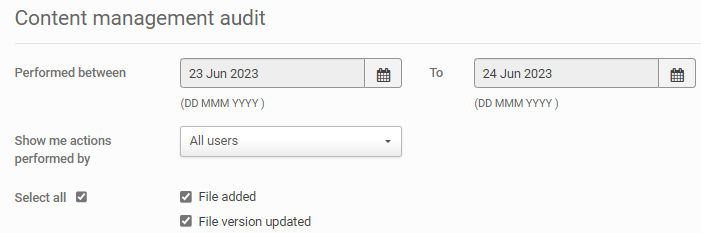
By default, the audit shows actions for the previous 30 days. To change the selected period, open
Admin
> Content management
(under Audits and reports
> Audits
)Change the dates for
Performed between
and To
> Save
your changes:The period is reset after the audit is created.
Audits tab
Versions tab
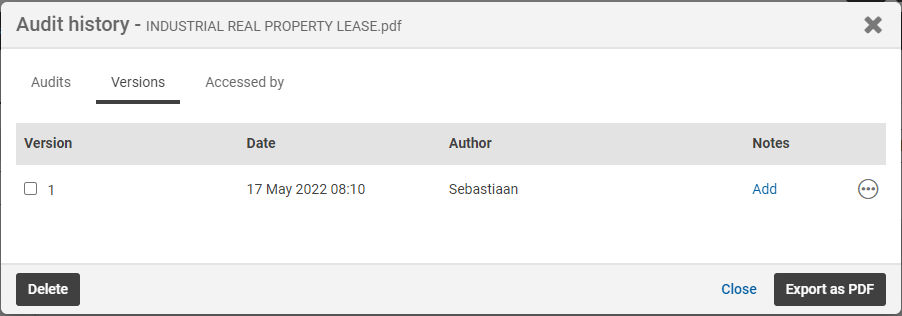
Accessed by tab
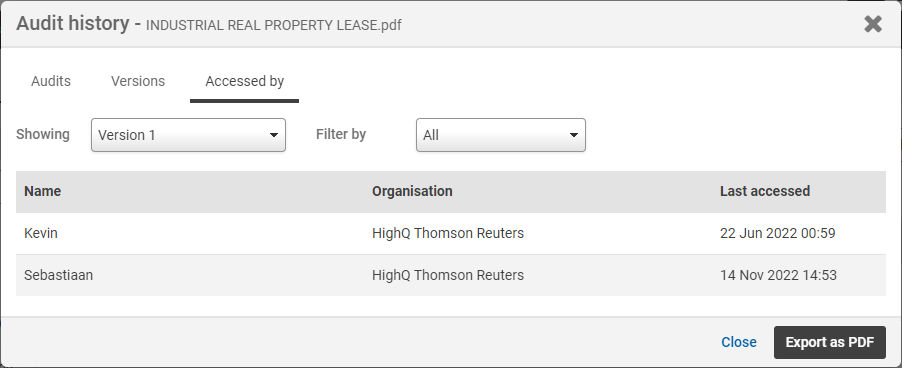
The
Accessed by
tab includes the Showing
and Filter by
menus:- Showing- if a document has multiple versions, select the version to audit.
- Filter by- selectAll,Never accessedorAccessedto adjust the users included in the audit.
Export to Excel or PDF
When viewing audit history click
Export to PDF
or Export to Excel
to download a copy of the current audit tab.note
Export to Excel
is not available for all tabs.Depending on your browser type the file will be
downloaded
and available to be opened.
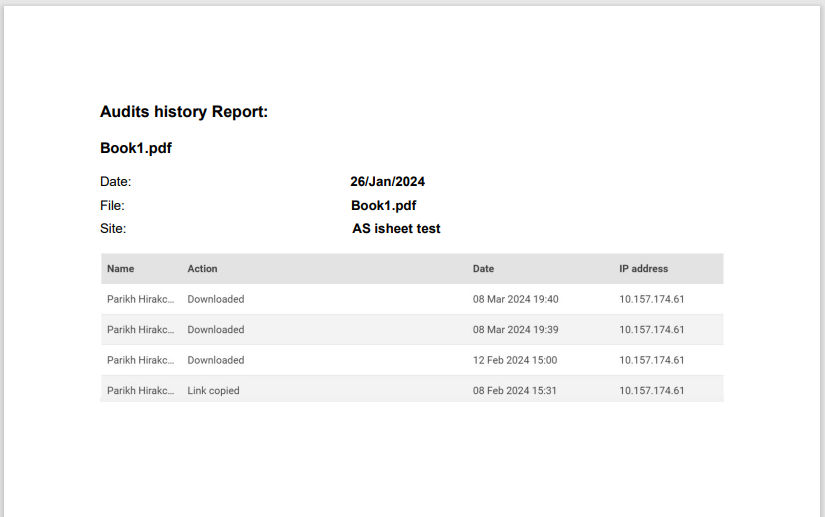
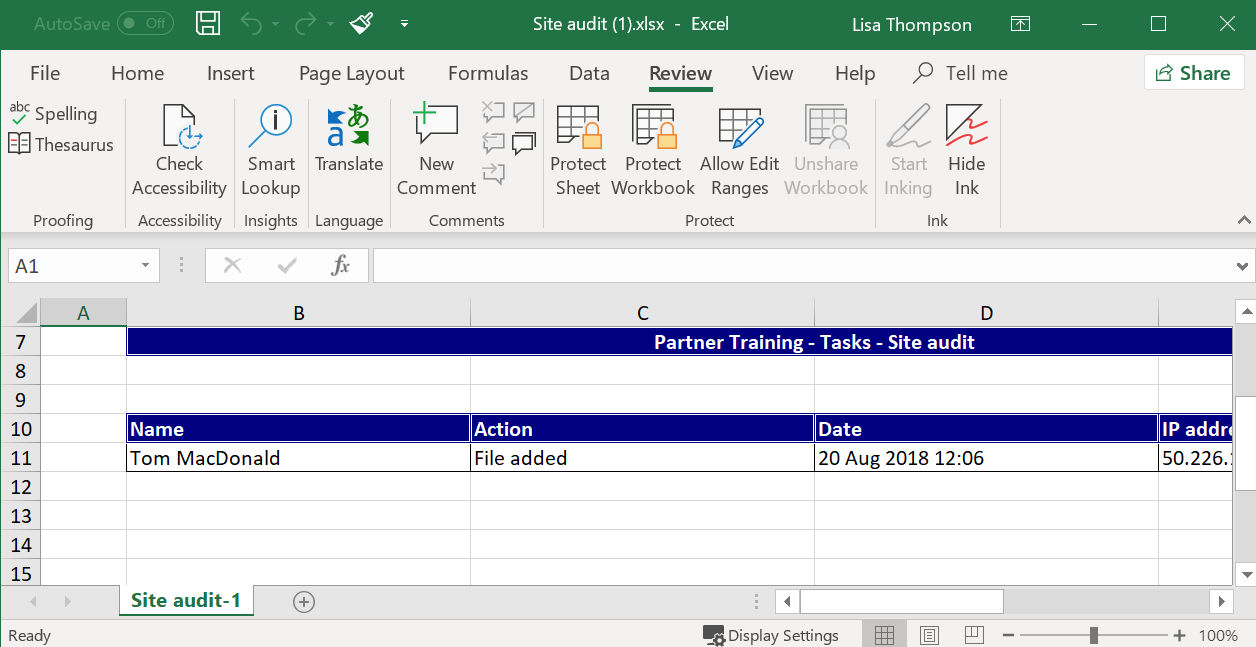
Open the file to see the exported audit history information:
Excel download
Non-editable PDF download