
Import a Dataroom structure
Users can download an Excel file from one dataroom platform, containing the folder and file structure, and recreate that structure in another HighQ site. The new files in this structure are empty placeholder files that represent the actual files stored in the other dataroom platform.
For reference, file extensions (like .docx) are displayed as part of the filename; however, the placeholder file does not open in the associated app. For example, a reference to 'Agreement.docx' in the Excel file creates a file called 'Agreement.docx', but it is a placeholder file, not a Word file, and it does not show the Word icon, but a placeholder icon.
note
This setting is turned off by default in all instances of HighQ. Please contact your account manager or Thomson Reuters Support to enable this feature.
Importing a dataroom structure
Open site
Admin
, then open Settings
under Files
, in Module settings. Scroll down to Import folders and file structure from Excel
and select Import
.
The
Import folder and file structure
screen opens.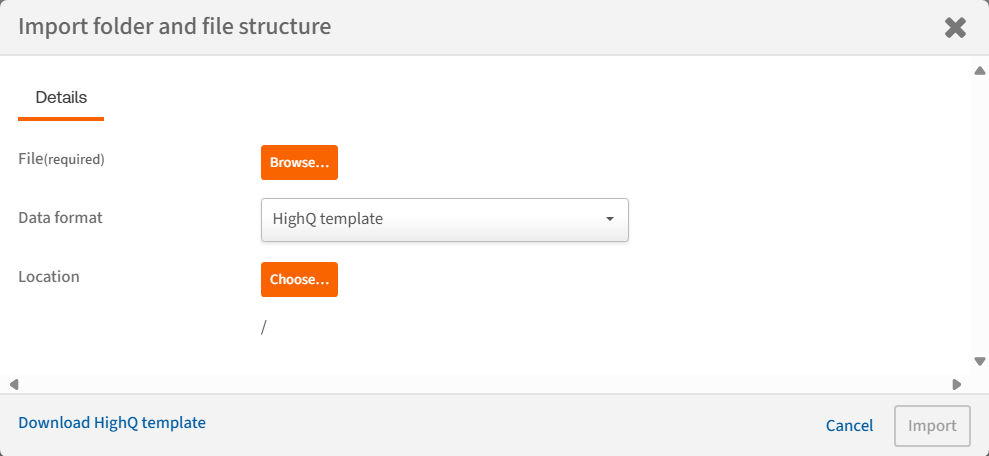
note
Click the
Download HighQ Template
link at the bottom of the screen to download an example of the HighQ Template. A copy of the template is also available here.
Select
Browse
and find the Excel file. Select the file and select Open
. After the file uploads, a message opens to inform you that the upload was successful.
Next, select a
Data Format
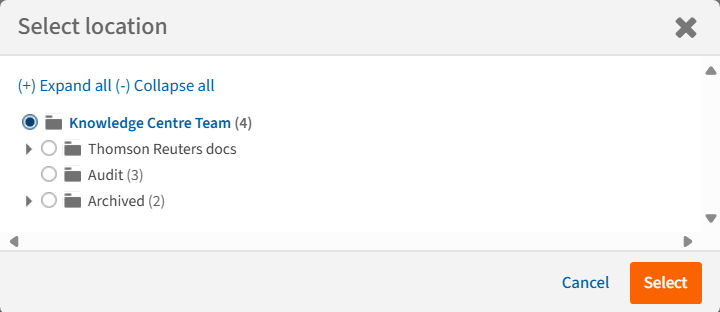
. Finally, choose a
location
for where the file should be stored on your HighQ site. The parent folder is selected by default, but a child folder can be selected. Once a folder has been chosen, select Import
.
HighQ processes the uploaded Excel file according to the selected data format. First, HighQ ensures that the Excel file conforms to the selected data format.

Then, you are asked to confirm the folder and file structure determined from the Excel file. The window displays a preview of the folder structure.
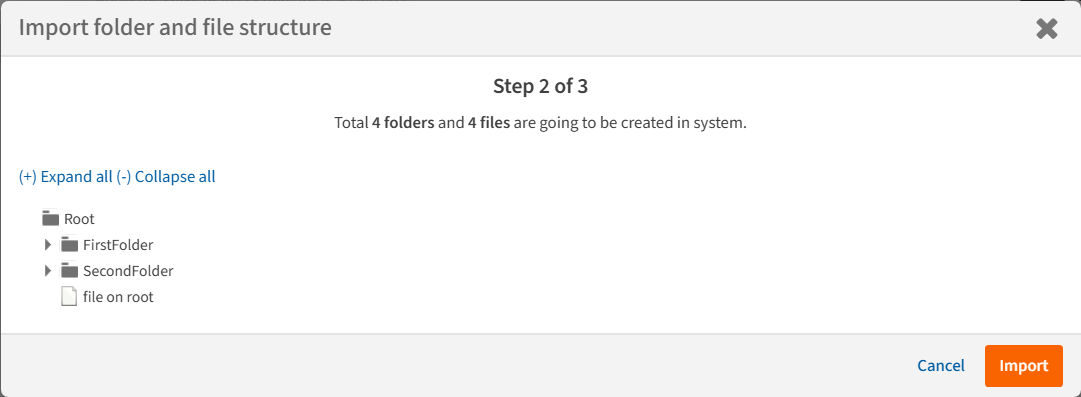
Select
Import
to create the files and folders. The window shows that the import has started, and you can leave the page. Later, a notification message shows if the import completed successfully.
note
An email is also sent to notify if the process was successful. If there are errors in the Excel File, you will be notified so that you can examine and correct the Excel file.
Permissible data formats
To avoid errors, ensure that all rows in the Excel file
after
data rows are entirely
blank, or HighQ attempts to process them. The process fails if HighQ detects that rows contain data but do not otherwise conform to the required format.For each data format, column headers can use any name (use a name that makes columns easy to identify). But, there MUST BE a column header row, all the columns must be included, and the columns are in the correct order.
note
For data formats that contain a unique identifier, that identifier must always remain unique. If this feature is used more than once to import files and folders into the same site, then the same ID cannot be repeated across all import attempts.
Data format templates
HighQ template
Click the
Download HighQ Template
link at the bottom of the Import folder and file structure
screen to download an example of the HighQ Template. note
A copy of the template is also available here.
The HighQ Template is an Excel file with these four columns. The first row is the column header row:
- Type- The value here must be eitherFileorFolder.
- Index- Each file and folder listed must have a unique index number. The index number uses the dot numbering notation, with the top-level files and folders having single-digit index (like 1, 2, 3, etc.), any child of a top-level folder having index numbers like 1.1, 1.2, 2.1, etc., any grandchild items having index numbers 1.1.1, 1.1.2, etc., down as many levels as the structure goes.
- Title- The name of the file or folder. File names may optionally include an extension. The file or folder name is limited to 500 characters.
- uniqueID- Every file and folder must have a unique identifier, like 00001, 00002, etc. Any identifier value (numbers, letters, etc.) can be used, but it must be unique among the files and folders added to the site.
Index structure template
In this data format, the first row of the Excel file is not imported (therefore, this row can be blank or contain any data).
note
This row is ignored, but must still be included in the file.
The second row contains the column headers, in the order specified below.
note
Only four of the columns contain data used during the import process; they are marked with an asterisk *. The values in the other columns are ignored and may be empty.
The first data row under the column header row must have a blank index number and a doc type of 'Fileroom', which represents the dataroom itself.
- Fileroom.
- *Index- Each file and folder listed must have a unique index number. The index number uses the dot numbering notation, with the top-level files and folders having single-digit index (like 1, 2, 3, etc), any child of a top-level folder having index numbers like 1.1, 1.2, 2.1, etc., any grandchild items having index numbers 1.1.1, 1.1.2, etc., down as many levels as the structure goes. However, no index is permitted for the Fileroom item, which is a required data row.
- *Title- The title of the file or folder. The file extension need not be included as part of the file name, but can be if helpful. (Values in the File Type column are ignored, so the only way to include the file extension is here.) The file or folder name is limited to 500 characters. No title is required for the Fileroom row, and any title provided here is ignored.
- *Doc Type- Either "Document", "Folder" or "Fileroom". Fileroom items are ignored, but there must be one Fileroom row.
- Page Count.
- Printable.
- Downloadable.
- File Type- This value may be entered for Document items (for reference), but is ignored.
- Color Document.
- Date Loaded.
Unique file ID template
In this data format, the first two rows of the Excel file are not imported (these rows can be blank or contain any data).
note
These rows are ignored but must still be included in the file.
The third row contains the column headers, in the order specified below.
note
Only four of the columns contain data used during the import process, and are marked with an asterisk *. The values in the other columns are ignored and may be empty.
- *Kind- This must have a value of 'Folder' if the row represents a folder, otherwise it can represent any type of file. However, the value entered to represent a file is otherwise ignored. For example, the value could be 'File', 'Document' or 'Adobe Acrobat'.
- *#- Each file and folder listed must have a unique index number. The index number uses the dot numbering notation, with the top-level files and folders having single-digit index (like 1, 2, 3, etc.), any child of a top-level folder having index numbers like 1.1, 1.2, 2.1, etc., any grandchild items having index numbers 1.1.1, 1.1.2, etc., down as many levels as the structure goes.
- *Title- The title of the file or folder. The file extension need not be included as part of the file name, but can be if helpful. (Values in the Kind column are ignored in determining the file type, so the only way to include the file extension is here.) The file or folder name is limited to 500 characters.
- Ownership.
- *ID- Every file and folder must have a unique identifier, like 00001, 00002, etc. Any identifier value (numbers, letters, etc.) can be used, but it must be unique among the files and folders added to the site.
- There are ten other required columns, which can be viewed in the attached example, but they are all ignored and the data can be empty in those columns.