
Document Assembly - Insert signature page
Document Assembly
gives you the ability to add, remove and export pages to or from a PDF document, including the ability to insert signature pages, or extract signature pages to create a signature bundle.Enabling document assembly
Document assembly must be enabled at system admin level. Navigate to your profile drop-down menu and select
System admin
. In the System admin
screen, navigate to System settings
and search for Document Assembly
: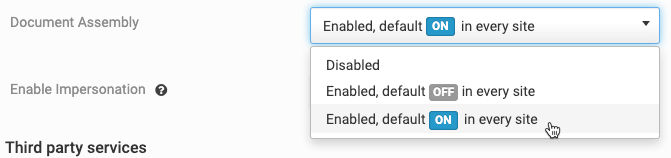
Select either
Enabled, default ON in every site
or Enabled, default OFF in every site
. If you select default OFF in every site
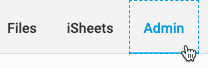
, Document assembly must be enabled for each site that requires the function. In a site, navigate to Site admin
:
In the
Site admin
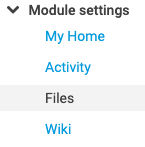
screen, navigate to Module settings
> Files
:
In the
Files
screen, search for Document Assembly
: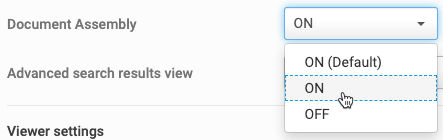
And select
ON
.Document Assembly is now enabled.
Managing your PDF document with document assembly
On your site, navigate to the
Files
module:
The
Files
module opens. Locate and select the document from which you want to extract a page, sign and re-insert the page.In the document viewer, find the
Assemble pages
button: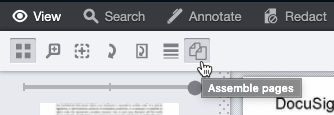
Select the page that requires a signature and click
Assemble pages.
The Assemble
pages
screen opens: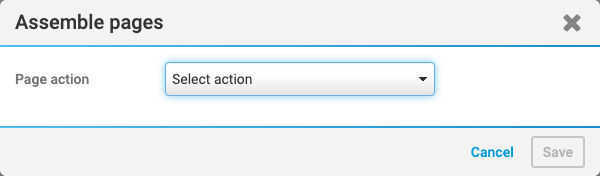
Select
Extract
from the Page action
drop-down. The following fields open:- Page(s)
- New file name
- New file location
note
If you want to extract several pages, separate the page numbers in the
Page(s)
field with a comma. Additionally, a page that has been extracted must have a replacement page. If you want to remove a page entirely, please use the delete option.Enter a new name for the file, select the location you want to extract it to and select
Save
.After the page is extracted, a screen showing the file name, folder, and folder path opens.
Select
Done
and navigate to the folder shown in the Pages extracted
window.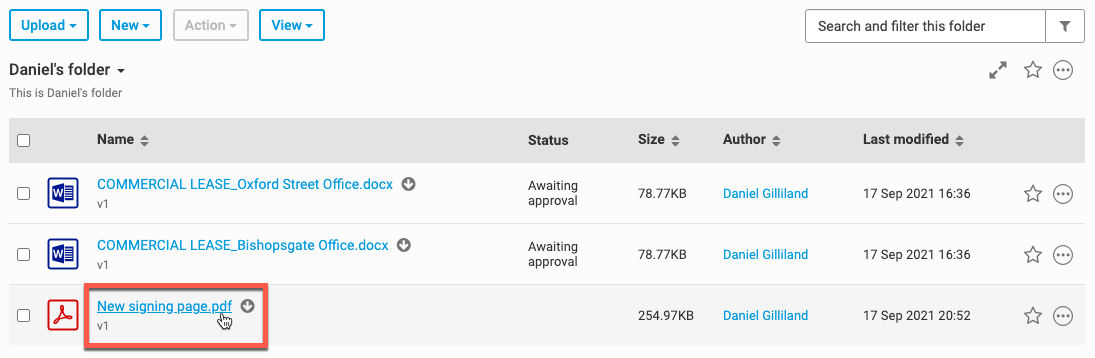
Download the PDF of the page, and then open it on your computer. Use tools in a PDF editor to sign the page and re-save it.
In the
Files
module, navigate to the original document and select Assemble pages
. Select Insert
from the Page action
dropdown menu: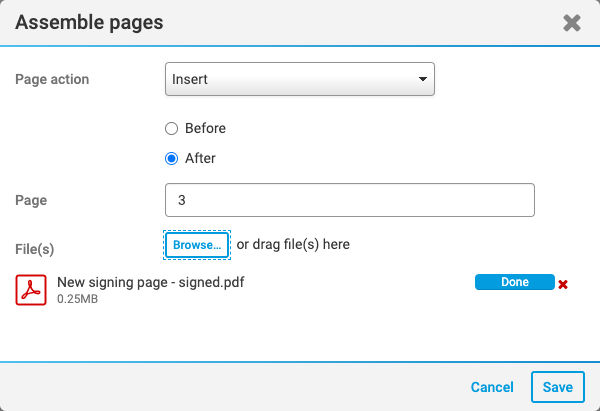
Select
Before
or After
, then the page number of the adjacent page. In this example, we extracted page 4, so want to insert this new page After
page 3
. Then either drag and drop the signed page to the window, or browse to and select the new signed page.After it passes the virus check, select
Save
.The following message opens after the page(s) are successfully inserted:
Page inserted 1 page inserted successfully.
Select
Done
. Your newly signed page is now inserted into the document.note
Delete pages
Please note that in addition to extracting and inserting pages, you can delete pages outright. Select
Delete
from the Assemble pages
screen and enter one or more page numbers to delete.