
Use File relationships to associate files
File relationships
allow you to create and track links between two or more files e.g. amendments to documents, or to see that a file was created from a certain contract template.HighQ provides system-defined document relationships, and you can also create custom document relationships, such as heads of terms and supporting schedules.
A file can have multiple types of relationships defined, each related to a different file (e.g. as both a parent-child relationship and as a duplicate of another file)
note
Doc Auto Contract Express automatically creates a Doc Auto Parent/Child relationship when a document is created
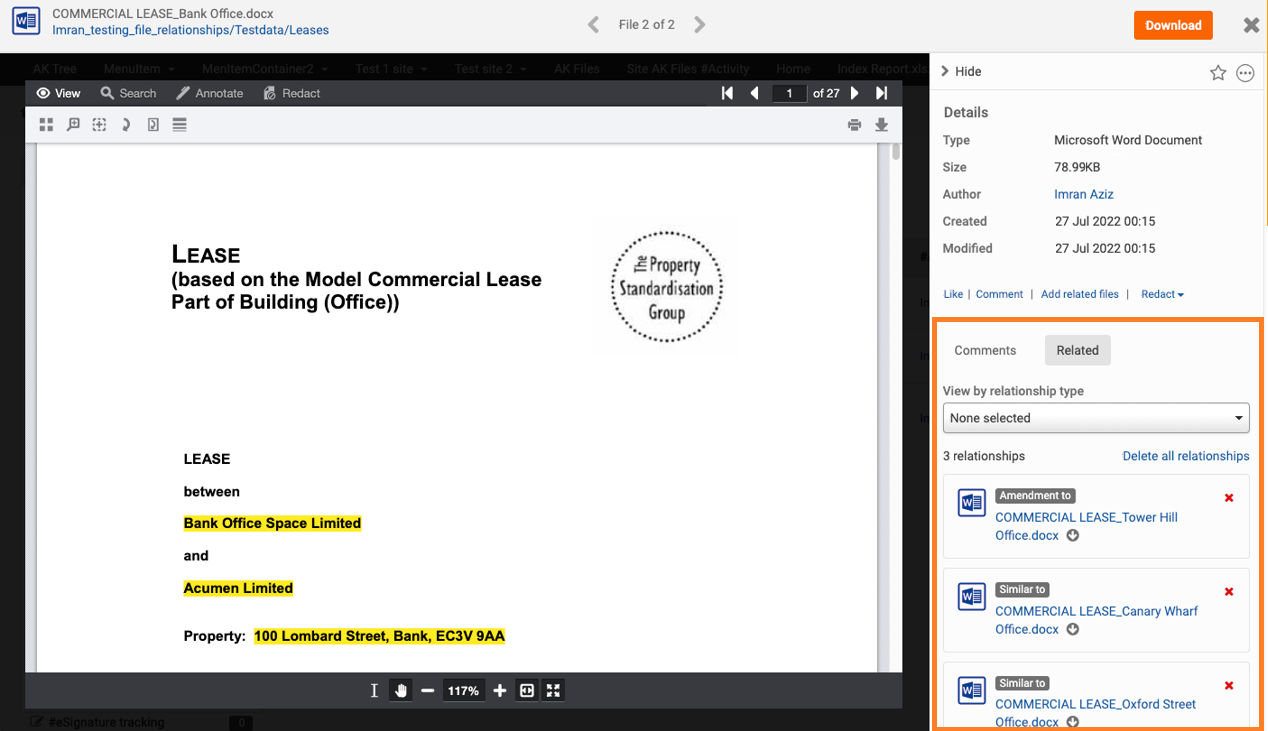
Relationships are displayed in the
Related
tab on the Details
panel of the Document viewer. On this tab, you can also use the View by relationship type
dropdown list to filter relationships, Delete
individual relationships, and Delete all relationships
.
note
A user can only see relationships if they have access to both files in the relationship.
HighQ provides these types of relationships by default (these are 'system-defined')
- Parent/child- when a file creates or amends another
- Sibling- a user can create a relationship to show files are associated with another
- Duplicate- the file was copied from another file
- Doc Auto parent/child- this relationship shows when a document is automatically created from a Doc Auto Contract Express template; this type cannot be added manually
You may also create custom relationships so that you may:
- Define custom relationship types based on business needs
- Benefit from a central source of relationships for consistency
- Reuse system-defined relationships
- Define relationships based on matter needs
- Create other relationships between documents
note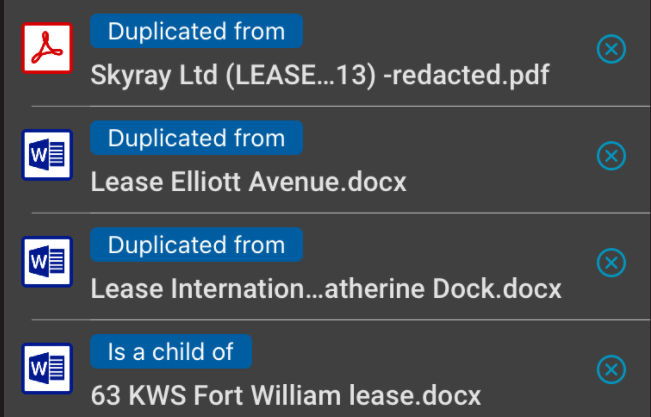
File relationships such as "duplicated from" and "is a child of" are also displayed in HighQ Drive.
System and site settings for File relationships
File relationships are enabled by default. System and site options allow a system or site admin to control access.
To change the setting at system level, select your
Profile
, then System admin
. Select System settings
then go to the File relationships section.By default,
Enabled, default ON in every site
is selected. Select the option to change access to File relationships.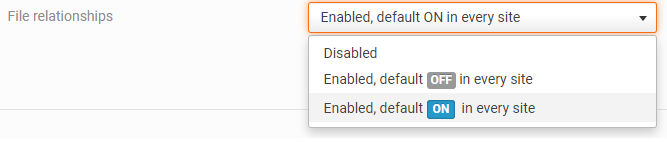
Select
Save
.Access relationship types at system level
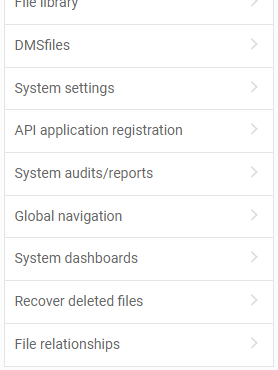
To change the definition of system-created relationships, or add custom relationships for all sites, select your
System admin
from your Profile
menu. Select File relationships
.
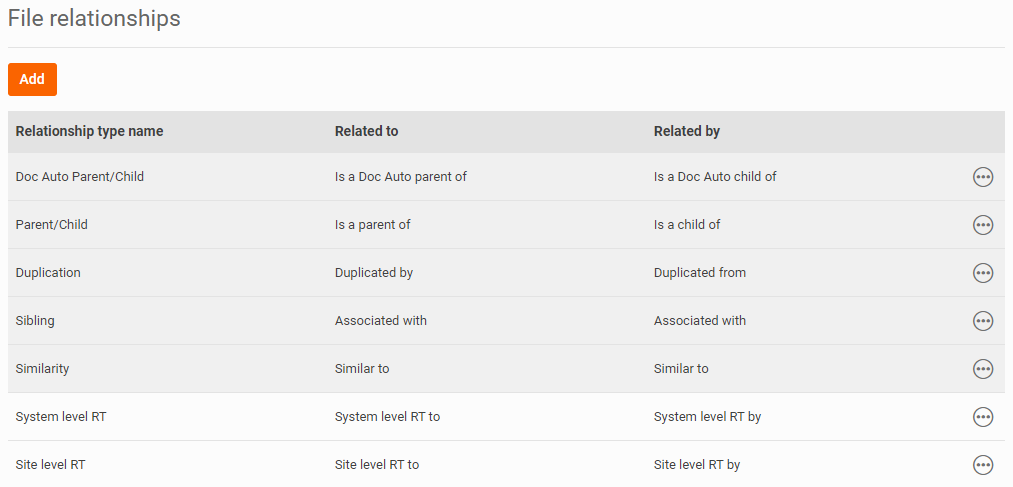
The
File relationships
window allows you to Add
or Edit
relationships available for each site on your instance. Both system-defined and custom relationships can be changed.note
System-defined types are marked with a grey background.
note
This list includes all relationship types created on all sites on the instance.
Select
More actions
then Edit
to edit a system-defined relationship type.
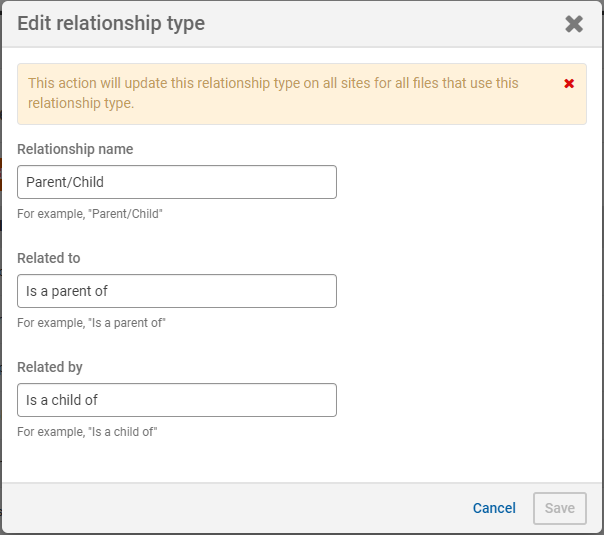
On the the
Edit relationship type
window, you can change the Relationship name
of the relationship type, and how the relationship is described in the site and document viewer (in Related to
and Related by
):
Select
Save
to confirm changes to the descriptions.Add, edit or delete custom relationship types
Select
Add
to add a custom relationship type
You can enter the
Relationship name
of the relationship type and how the relationship is described (using Related to
and Related by
) in the site and document viewer: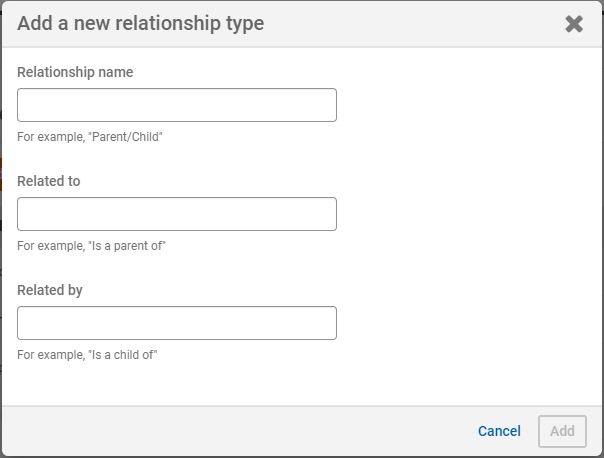
Select
Add
to confirm the descriptions.After you have added the relationship type, select
More actions
, then Edit
or Delete
the type, or to view a Site list
of sites that use the relationship type.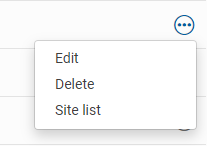
Check for sites that use a custom relationship type
You can see which sites have files that use custom relationship types. This allows for easier management should you need to edit or delete the option.
Select
More actions
then Site list
to view a list of sites that use the selected relationship type.Select the
Site name
to open File relationships
settings for that site.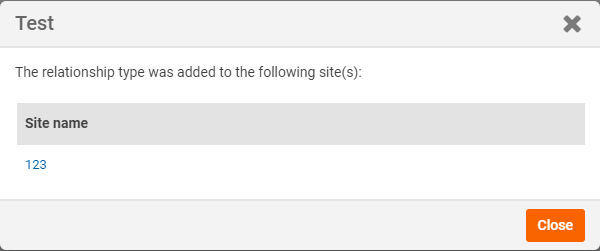
note
If no sites use the relationship type, you see a
There are no sites using this relationship type
message.Access relationship types at site level
To change this setting at site level, go to
Site admin
and select Relationships
from Module
sections, then files.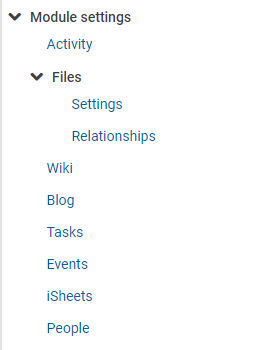
Enable or disable File relationships at site level
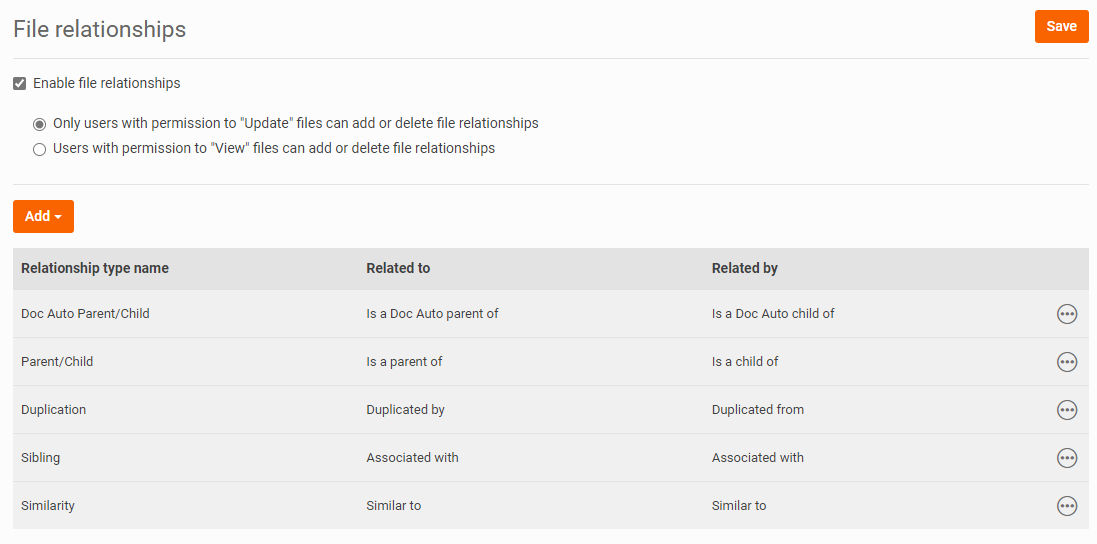
Select or clear the
Enable file relationships
checkbox, then Save
to enable or disable File relationships
:When you select
Enable file relationships
, you can also choose one of the following: Only users with permission to 'Update' files can add or delete file relationships
Users with permission to 'View' files can add or delete relationships
.
Select
Save
to confirm your changes.note
Existing file relationships are hidden if the File relationships option is disabled. Relationships are restored if this option is re-enabled later.
Creating a custom relationship type in a site
The
File relationships
page allows you to Add
or Edit
relationships available on the site. Both system-defined and custom relationships can be changed. The page gives a list of relationship types by Relationship type name and shows their Related to and Related by relationships.
note
Changes to system-generated relationship types (grey background) are only applied to the relationship types in the current site
Changes to custom relationship types that are only used on the current site are applied to the relationship types listed at both the site and system level.
Changes to custom relationship types that are used on more than one site are not applied to other sites - a new relationship type is listed at the system level that applies only to the current site. This type may later be used on other sites.

Select
More actions
then Edit
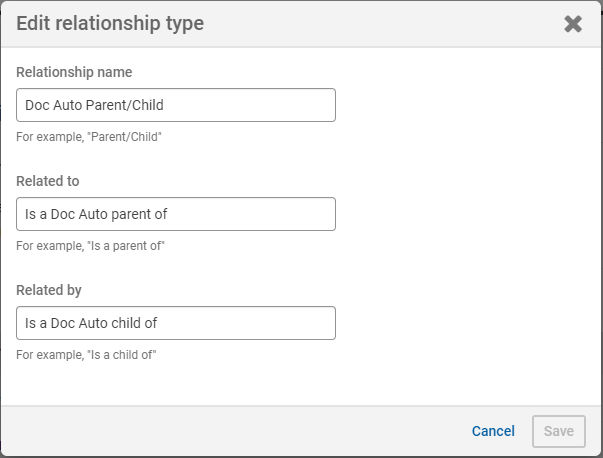
to edit a system-defined relationship type (system-defined types are marked with a grey background).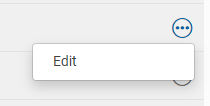
You can change the
Relationship name
of the relationship type, and specify the relationship using Related to
and Related
:
Select
Save
to confirm changes to the descriptions.Add, edit or delete custom relationship types
Select Add
to add a custom relationship type:
You can add the
Relationship name
of the relationship type, and how the relationship is described in the site and document viewer by using the Related to
and Related by
fields: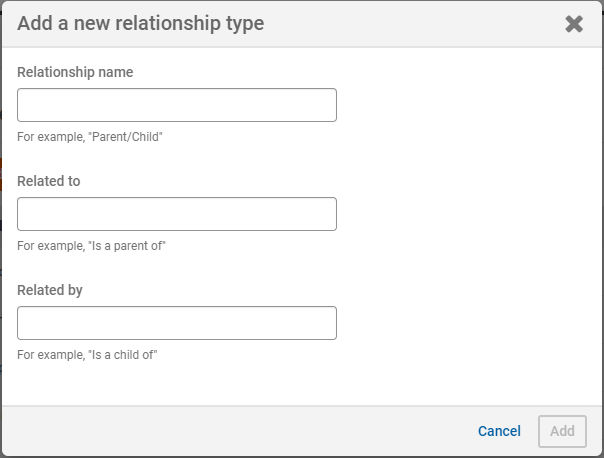
note
Select The
Relationship name
is only visible in the File relationships admin page; only Related to
and Related by
are used in the Files module and document viewer.Add
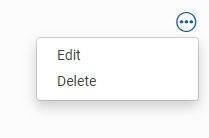
to confirm the descriptions.After you have added the relationship type, you can select More actions
then either Edit
or Delete
.
Add a relationship to files
You can add and remove relationships, including relationships created by Doc Auto Contract Express, in the files and folder list and the Document viewer.
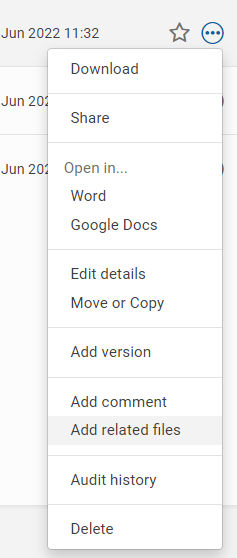
In the Files module, select
More actions
then Add related files
.
note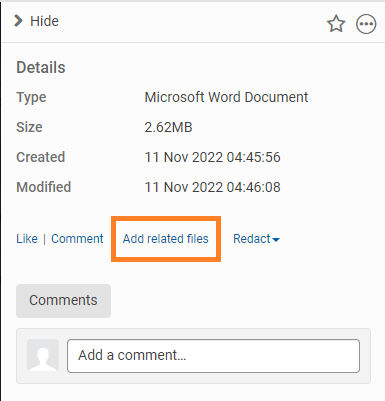
Alternatively, add a relationship directly to a file in the Document viewer by opening the file and selecting
Add related files
in the Details
panel:The
Add related files
window opens.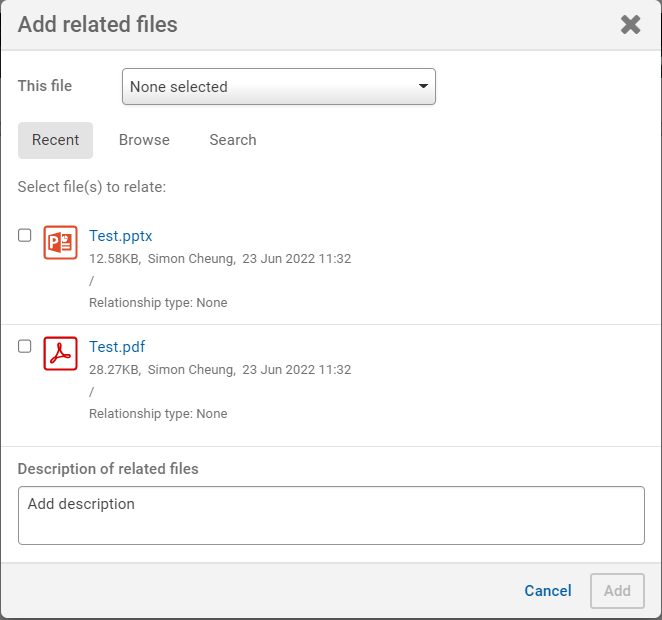
The window shows the relationship types for each file in the list. For example, "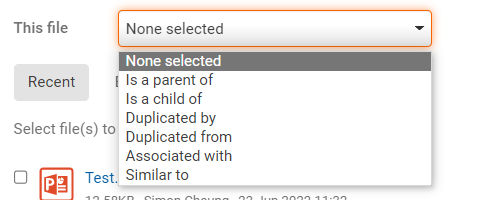
Relationship type: Associated with
". If a file in the list is not related to the selected file, then it will show "Relationship type: None
". Use the This file
dropdown list to choose the type of relationship from:
- None selected
- Is a parent of
- Is a child of
- Duplicated by
- Duplicated from
- Associated with
- Similar to
Then select one or more files to assign this type of relationship. Use the
Recent
, Browse
, and Search
tabs to select files from across the site.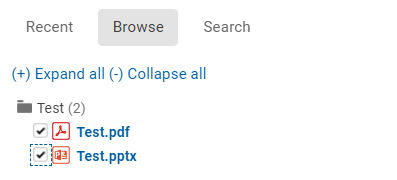
Add a 
Description of related files
to help identify the relationship. note
This description is displayed in the
Related
tab of the Details
pane in the Document viewer.Relationship information in the file and folder list
Files with relationships include additional information under the file name in the list of files. This information shows how many files are related to the file, such as "1 relationship" or "2 relationships". Open the file for more information.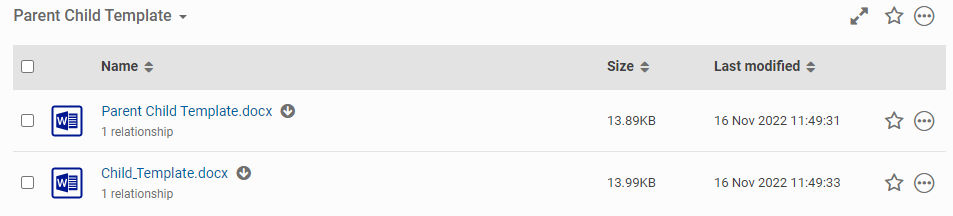
Automatically generated relationships
Some system-defined relationships are added automatically in the scenarios described below:
Duplicate files
The system-defined
Duplicate
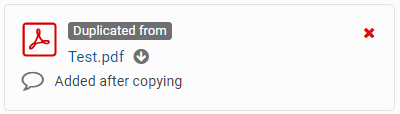
relationship is automatically added to both files when a file is copied, or a duplicate file is uploaded.Copying a file
The
Duplicated by
tag is added to the original file and the Duplicated from
tag is added to the copy. An
'Added after copying'
description is also added to both files.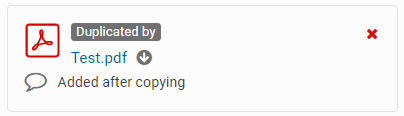
Uploading a file
If a file is uploaded to a folder where a file already exists with the same name (including the file type), both files are marked as related.
The
Duplicated by
tag is added to the older file, and the Duplicated from
tag is added to the newly uploaded file. An 'Added after a duplicate file was detected
' description is added to both files.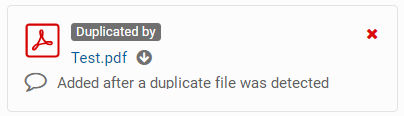
note
Enable duplicate file detection
needs to be turned On in Files admin settings to add file relationships during upload:File relationships from Doc Auto (powered by Contract Express)
When a file is created by Doc Auto (powered by Contract Express), the system-defined
Doc Auto Parent/Child
relationship is added automatically. In the list of files, an additional tag will appear next to the number of relationship. For example, '1 relationship'
'Is a Doc Auto parent of'
note
The tag is created with the
Related to
or Related by
description in the Add new relationship
or Edit relationship
window.If the description is changed, then all tags change to match the new description.


View related files in the Document viewer
Open a file and select the
Related
tab to view related files.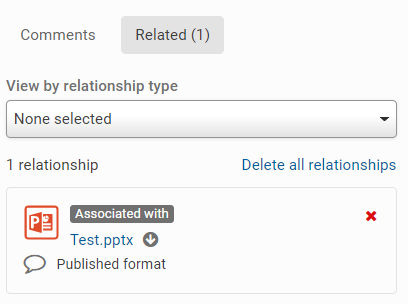
If a file has many related files, you can use the
View by relationship type
dropdown list to filter them.Click the name of the related file to open it, or click the download icon to download a copy.
note
You must have permission to view both files to see the relationship in this list.
Delete relationships with other files
In Document viewer, select
Remove
to delete the relationship to a single file.note
Content admins or higher can also select
Delete all Relationships
to remove all relationships.Changes are reflected in both the edited and the related file.
note
Relationships are removed if you delete one, or both, of the related files. if a deleted file is restored, relationships are also restored.