
Set up HighQ MCP in Claude
Everything you need to know about a matter is already in HighQ: the documents, the team, where things stand. Connect it to Claude and you can use all of that without exporting files or pasting details into a prompt.
Claude can read the matter information and documents you already have permission to see, so you can get straight to the work itself.
You can use HighQ within Claude in the following places:
- Claude chat and cowork: Just ask. "Where are we on the Henderson matter?" "Find the latest signed engagement letter." "Who's on the deal team?" Plain questions, straight answers from your HighQ content.
- Claude in Office apps: Stay in the tools you already work in. Working in Word, Excel, PowerPoint or Outlook, you can bring in HighQ matter details and documents without switching windows. Draft a client update in Word using the latest matter facts, build a status summary in PowerPoint, or reply to an email with the right document context at hand.
- Multi-step tasks: Ask Claude to take on bigger jobs, such as drafting an email or message from the latest matter update, keeping track of actions, or running a task on a schedule. Install and connect the HighQ plugin first so Claude can reach your matter content.
Prerequisites
Before you begin, make sure you have:
- A Claude Pro, Team, or Enterprise plan (any plan that supports connectors)
- An active HighQ Collaborate account and login for your instance
- Your HighQ instance URL, in this format: https://[yourinstance].highq.com/[site-name]/mcp
- Claude on the web, or the latest Claude Desktop app (claude.ai/download)
Connect HighQ in Claude
To connect HighQ in Claude:
- In Claude Desktop or web, SelectCustomizein the left sidebar.
- SelectConnectorsto browse the available connectors.
- Open theLegalcategory (Department: Legal). It lists legal connectors such as HighQ and CoCounsel Legal. Alternatively, typeHighQin theSearchbar at the top right of the page.
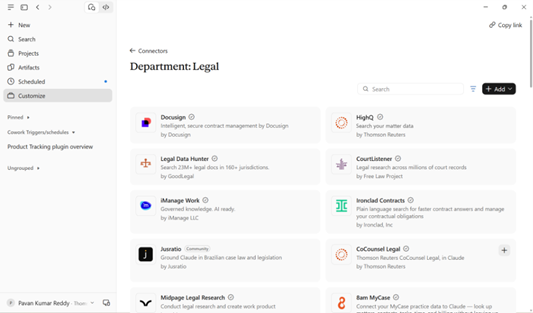
- SelectHighQand clickAdd.
- Go toCustomize>Connectors>Yours. HighQ now appears in your list.
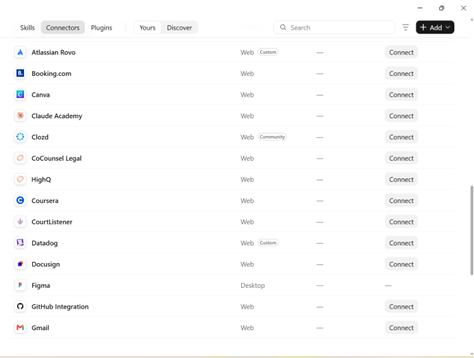
- SelectConnectnext to HighQ. You will be directed to the Thomson Reuters-hosted page; enter the URL of your HighQ instance, and then selectContinue.
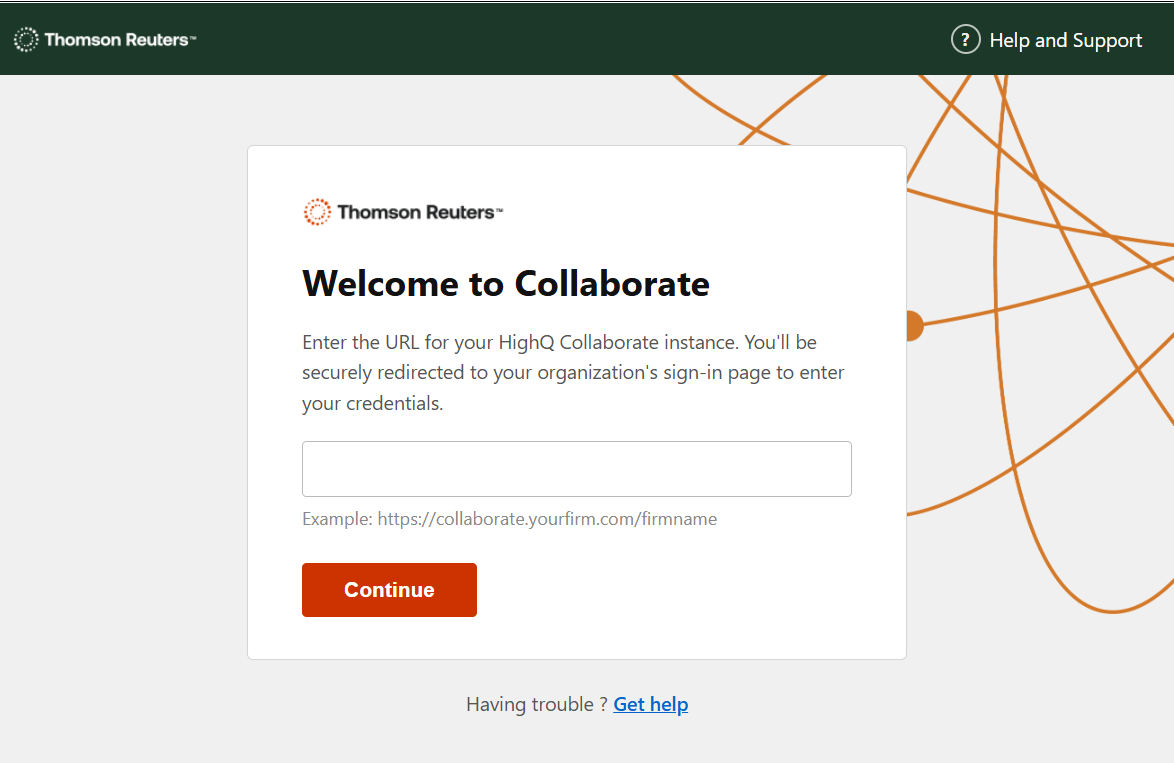
- On the HighQ login page, sign in using your HighQ credentials.
- When prompted, selectAllowto authorise Claude to access HighQ on your behalf.
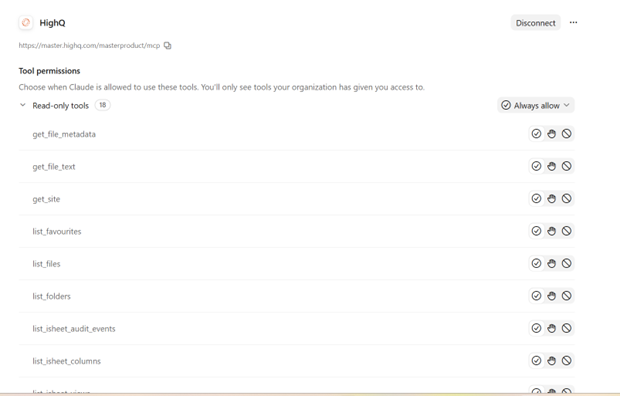
- You are redirected back to Claude automatically. HighQ now appears underConnectorsas enabled, with its list of available tools.
Use HighQ MCP in a Chat and Cowork
Once HighQ MCP is connected:
- OpenChatin Claude.
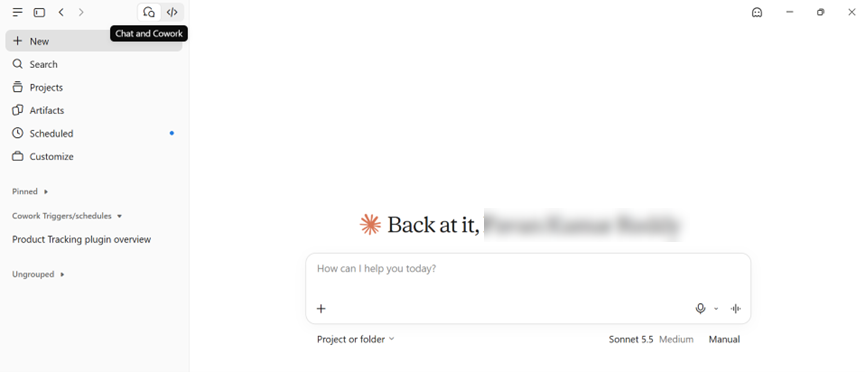
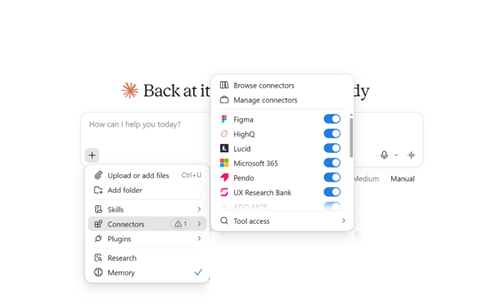
- Click the+button to access connectors. HighQ appears among your available connectors.
- Enable it to start querying your HighQ data.
Automate a HighQ review in Claude
Watch the example video below to see how Claude automates a daily review of new contracts added to the Contract Intake folder on a HighQ site. To do this by hand, you would need to check the folder and its subfolders every morning, open each new document, assess whether it is ready for execution, and compare share purchase agreements against your playbook. Claude does this on a schedule, returning a verdict, the top open items and any playbook deviations with their risk level for each new document, while staying read-only so nothing in HighQ is changed, moved or uploaded.
In the video, you see how to describe the review you want in plain language, such as running every weekday at 9am IST. Before it creates the task, Claude may check which tools are available and ask how you want results delivered. Also, Claude can’t post to Teams because the connection is read-only, so it offers alternatives such as Outlook drafts. You then review the task instructions and select Schedule, and each morning Claude leaves one draft per document. Check any notes in the drafts before you act on them, as they point to documents Claude couldn’t read or check, and review the task’s permission setting, because tasks set to Auto run without asking for approval.
Test your connection
Try these prompts in Claude to confirm your setup works. Replace the site and folder names with ones that exist in your instance.
If a test fails, see the Troubleshooting section.
Test | Prompt |
|---|---|
Connection | Give me the name and key details of the last site I accessed in this HighQ instance. |
Folder navigation | List all folders in the Project Blue. |
Document search | Show me documents uploaded to the Active Matters folder in the last 7 days in the Project Blue. |
iSheet access | What iSheets are available in the Project Blue? |
Document content | Find documents in the Litigation folder containing "summary judgment". |
Manage tool permissions
HighQ MCP provides 16 core content tools and 2 audit tools (for administrators). To review them, go to
Settings
> Connectors
and open HighQ MCP
. You can set a permission for each tool:- Always allow:Claude uses the tool automatically without asking.
- Ask first:Claude asks for your permission each time.
- Block:Claude cannot use the tool at all.
Use HighQ in Claude in Excel, Word, and PowerPoint
With the HighQ plugin for Claude in Microsoft Office, you can bring your HighQ matter data straight into Word, Excel and PowerPoint and work with it in plain English. In Word, Claude can fill in a draft agreement from your matter details and adapt the wording from a precedent. In Excel, it can check a spreadsheet against your HighQ records and flag what doesn't match. PowerPoint uses the same connection. You stay in the Office app you already use, and you stay in control of every change.
New to this? This guide takes you from your first sign-in to two worked examples. Let's get started.
Sign in to Claude
The first time you use the add-in, you sign in once. We'll see Word here; Excel and PowerPoint work the same way.
- In Word, go toHome>Add-ins, search for "Claude by Anthropic", and selectAdd.
- On theHometab, selectClaudeto open the pane, then selectLog in.
- A code appears. SelectContinue in browser.
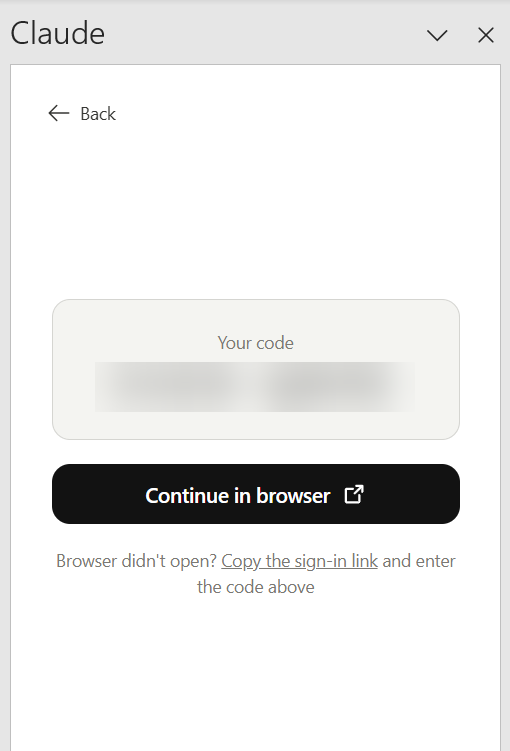
- In the browser, update the code to match the one in Word, then selectConnect.
- Review the permissions and selectAuthorize.
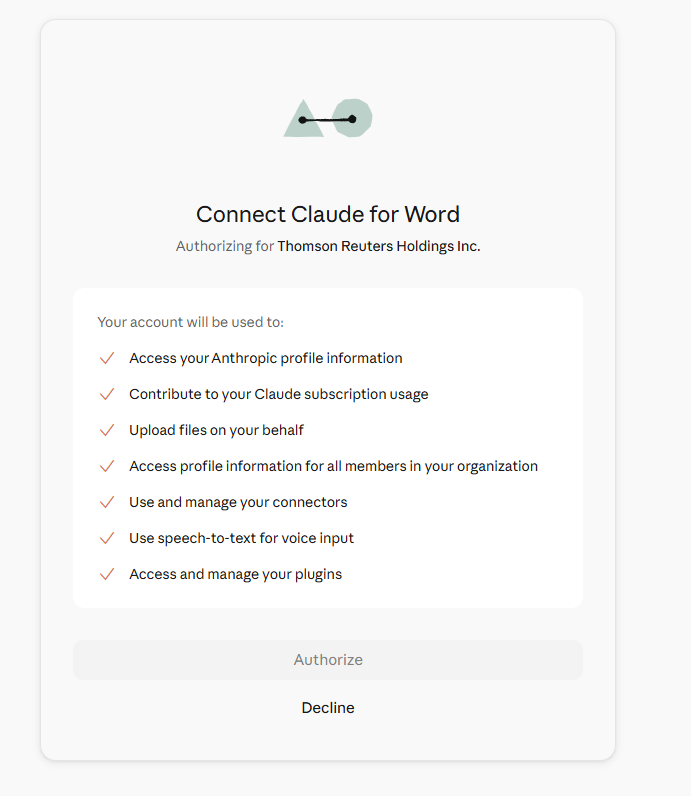
- When you see "You're signed in," return to Word. The add-in finishes connecting automatically.
Connect HighQ
Now let's link Claude to your HighQ data. You only do this once.
- In the Claude pane, select theAdd +button under the message box.
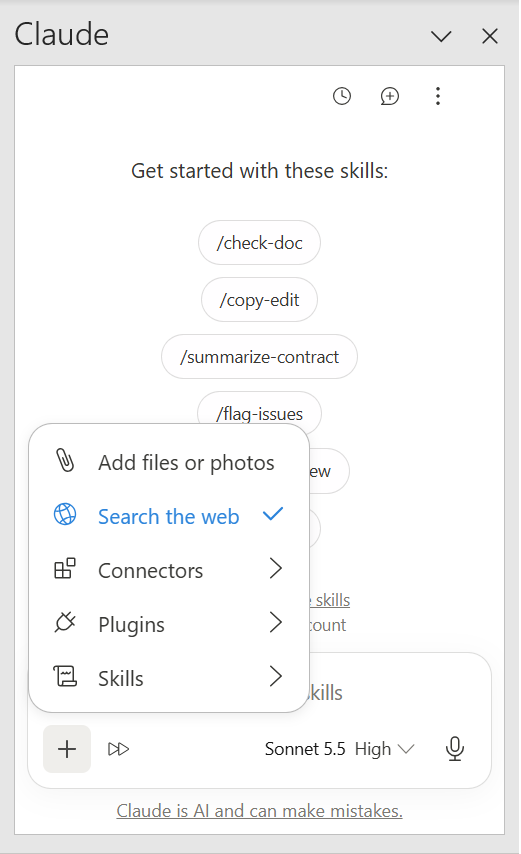
- FindHighQin the list of connectors and select it.
- Enter your HighQ instance URL, then sign in with your HighQ credentials.
- SelectAuthorize. HighQ now appears as a connected source in the Claude pane.
Fill in a settlement agreement template
Watch the example video below to see how Claude fills in a settlement agreement template that is full of placeholders. You don't need to copy details from HighQ by hand. Instead, you ask Claude to:
- Fill in the matter details from the matter register.
- Base the wording on an existing precedent.
- Flag anything that needs to change for German law.
- Say what it couldn't find.
In the video, Claude searches HighQ and asks how you want changes applied, for example as tracked changes, before it edits the document. You then review each suggestion and accept the suggestions one at a time or all at once. At the end, Claude lists the items that still need your review.
tip
Choose
Tracked changes
if you want to review everything before it becomes part of the document.Excel
Check a claims list in Excel
Watch the example video below to see how Claude checks a claims list in Excel against the matter register in HighQ. Claude matches each row to a matter, flags any matters that are missing from the register and highlights differences in claim value or status. It adds its findings in new columns next to your data, so your original data stays the same.In the video, Claude doesn't guess when a row is unclear. Instead, it:
- Lists the possible matches.
- Marks any claims it can't find.
- Shows both values when the statuses don't match.
tip
Ask Claude to leave the original columns alone and put its answers in new columns, as in this example. That keeps your data safe and your review quick.
PowerPoint
The Claude add-in is available in PowerPoint too, and you connect HighQ in the same way. Select
Claude
on the Home
tab and use the +
button to choose HighQ
.Key takeaways
- Identify the matter: Include the matter name or number.
- Specify the source: Identify the relevant HighQ site, iSheet, or register.
- Reference existing content: Name the document and date when you want to follow a precedent.
- Account for missing information: Ask the AI to identify what it cannot find rather than make assumptions.
- Define the output: Specify where the results should appear, such as new columns in Excel.
- Review the results: Verify the output and check any information the AI could not confirm.
Related Content
-
Claude
Format: Article