
HighQ MCP with Microsoft Copilot
Overview
Your matters already live in HighQ, so you should not need to re-upload documents or re-enter information when working with Microsoft Copilot. Connecting HighQ to Copilot allows supported Copilot experiences to access the matter details and documents you are authorised to use.
How you access HighQ depends on the Copilot experience you are using. Choose the experience that best suits what you want to do.
- Copilot Chat: Ask questions about HighQ content in plain language, such as checking the status of an open matter, finding a document, or identifying members of a matter team.
- Researcher: Use HighQ as a source when a research task requires a detailed, report-style response based on HighQ content.
- Copilot Cowork: Install and connect the HighQ plugin to run multi-step tasks across Microsoft 365, including preparing emails or Teams messages from matter updates and tracking actions. Cowork can also run recurring tasks and deliver results through supported Microsoft 365 channels.
- Copilot for Legal: Use HighQ matter content with legal workflows in Word and Copilot Cowork, including contract review, drafting from a precedent, extracting obligations and deadlines, and preparing a case chronology.
- Copilot Workspaces: Combine HighQ matter content with shared documents in one workspace, so a team can ask questions and follow up from the same context, for example when reviewing a due diligence site.
Before you begin
- Confirm that your Microsoft Copilot licence supports plugins. Plugins require a Copilot (Premium) licence.
- Cowork is available as an add-on to Copilot Premium and requires a separate subscription in addition to the Copilot Premium licence.
- Confirm that HighQ MCP is enabled for your HighQ instance. If you are unsure, contact HighQ Support.
- You have the URL of the HighQ instance you want to connect to.
- You have valid HighQ login credentials for that instance.
Connect HighQ to Microsoft Copilot
Connect HighQ to Microsoft Copilot to access your authorised HighQ matter context from supported Copilot surfaces. Follow the instructions for the Copilot surfaces you want to use.
To connect:
- Open Copilot.
- In the upper-right corner, select the ellipsis (...), and then selectSettings.
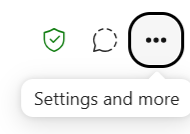
- On theSettingspage, search for HighQ, and then selectConnect.
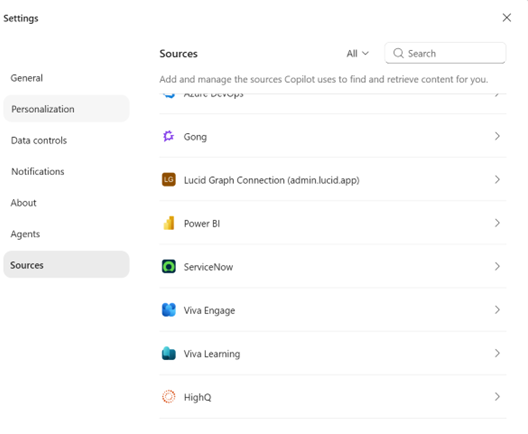
- You are directed to the connection page.
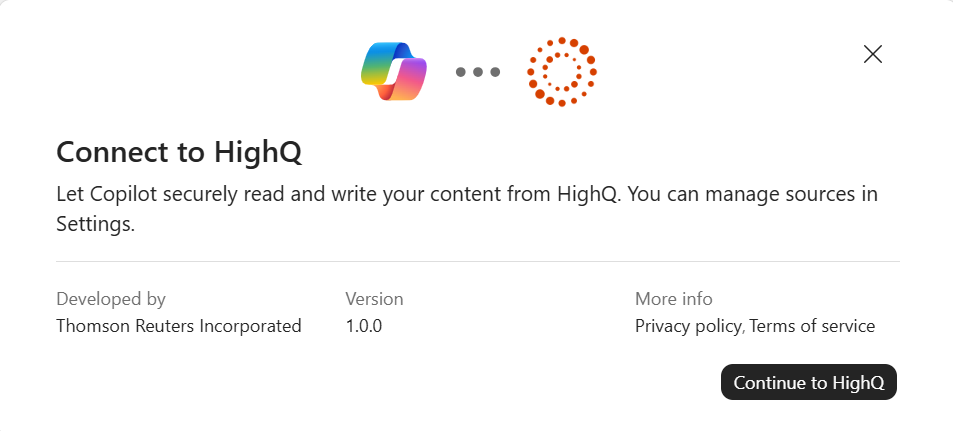
- SelectContinue to HighQ. On the Thomson Reuters-hosted page, enter the URL of your HighQ instance, and then selectContinue. For example:https://collaborate.yourfirm.com/firmname
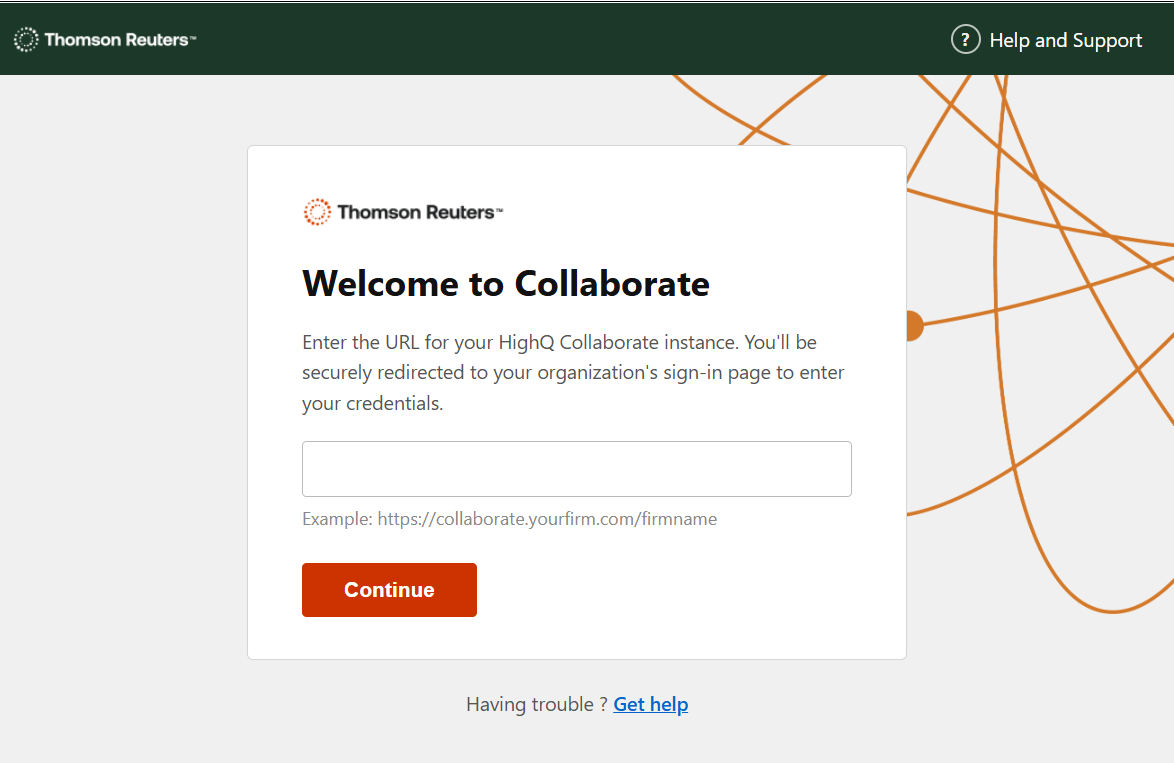
- On the HighQ login page, sign in using your HighQ credentials.
- When prompted, selectAllowto authorise Copilot to access HighQ on your behalf.
- After you return to Copilot, confirm that HighQ is enabled and that the available tools are displayed.
Use HighQ as a source in Copilot Chat
Use HighQ as a data source when you want Copilot Chat to retrieve information from your connected HighQ instance.
- Open Copilot Chat and start a new chat.
- Select the plus (+) icon, and then selectChange data sources.
- UnderSources, selectHighQ. It appears alongside other available plugins.
- Enter a prompt and run it. Copilot retrieves relevant information from HighQ.
note
If several data sources are available, mention HighQ explicitly in the prompt to identify the intended source. For example: @HighQ, [enter your prompt]. If your use case is specific to HighQ, we recommend disabling other plugins.
Analyse an iSheet
Watch the example video below to see how Copilot can analyse an iSheet to help you triage open requests. In the video, Copilot sorts the open requests, identifies who owns each one, calculates how long each request has been open, checks for missing documents and recommends the order in which to handle them.
For a clear, structured response, add specific criteria to your prompt, such as the fields you want returned or how requests should be prioritised, mention @HighQ in the prompt so that Copilot retrieves the information from the right source.
Use HighQ in Researcher
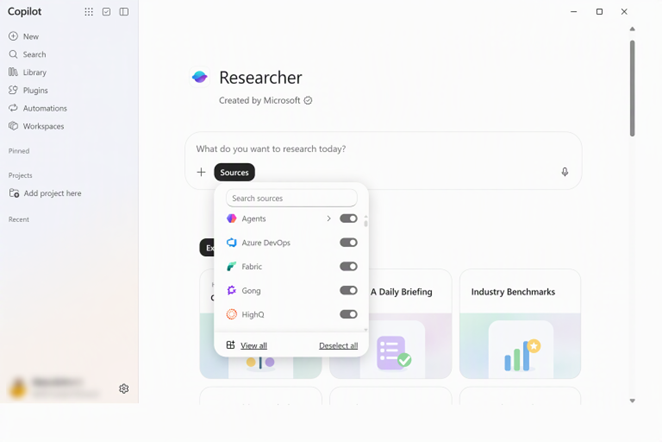
Researcher is a Microsoft-built agent that produces detailed, structured reports. When your research question requires information from your HighQ instance, select HighQ as a source. Researcher uses the HighQ connection you already set up in Copilot Chat, so no separate setup is needed.
- In Copilot, open Researcher.
- Select HighQ as a source.
Compare an iSheet with source documents
Watch the example video below to see how Researcher compares the Lease extraction iSheet on a HighQ site with the original lease documents in the Lease agreements folder. To do this by hand, you would need to open each document and find its record in the iSheet. Researcher checks both sources for you.
In the video, Researcher returns the lease title, lease amount, break clause and linked file for each abstracted lease. It also lists any lease documents in the folder that haven't been added to the iSheet yet.
Before it starts, Researcher may ask a few clarifying questions, such as how to match records or how long the report should be. It then shows a research plan that you can edit, checks off each step as it works, and delivers a report with an executive summary, supporting tables and warnings. Read the executive summary for the direct answer, then use the tables to find documents marked Not abstracted. Check any warnings before you continue, as they point to information Researcher couldn't verify or access.
Use HighQ in Copilot Cowork
Cowork carries out multi-step tasks, displays its planned and completed actions, and can repeat tasks on a schedule. It can also deliver results by email and Teams where configured.
Install and connect the HighQ plugin
- In Copilot Cowork, select the plus (+) icon, and then selectplugins.
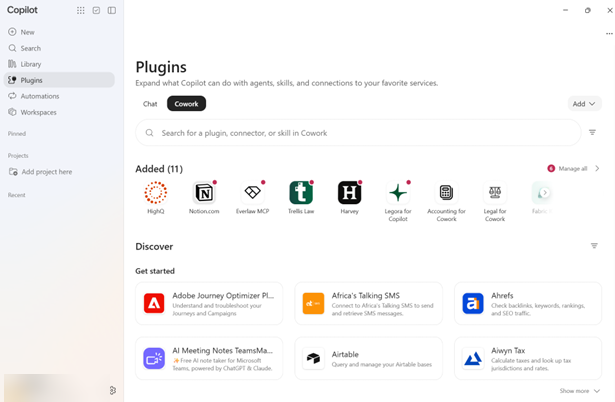
- Open the marketplace and search for HighQ. If HighQ has not been added previously, it appears underGet started.
- Open the HighQ plugin and selectInstall. Plugins are disabled by default the first time, so you must enable it. SelectConnect, if not connected already.noteInstalling the plugin does not connect it automatically.
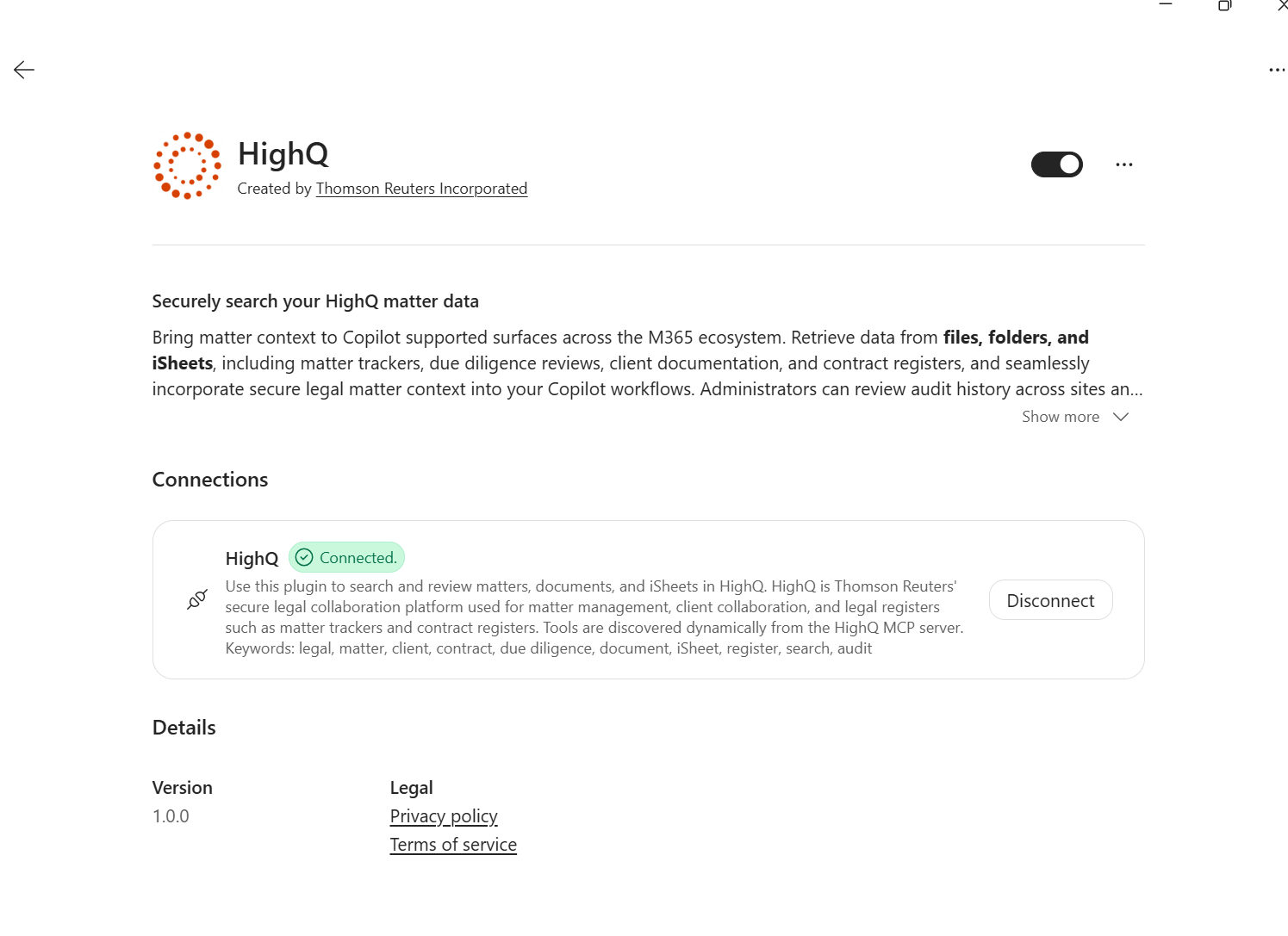
- You are then directed to the instance URL page. Enter your HighQ instance URL, sign in with your credentials, and authorise access.
- You are then returned to Cowork, and the plugin displays aConnectedstatus.
- SelectNew task, and you can run a prompt straight away.
Review claim documents and summarise Statements of Claim
Watch the example video below to see how Cowork uses HighQ matter content to review claim folders and summarise Statements of Claim. You can ask Cowork to go through every claim in the Litigation overview iSheet, find each claim's linked case files folder and list the documents in it.
In the video, Cowork then opens each Statement of Claim and summarises the allegations, the parties and the period covered. It also flags any claim whose folder is empty or is missing a document.
When you start the task, Cowork names it after your request and shows its planned steps, including which plugins it's using, such as HighQ. Under
Skills & Plugins
, you can see that the HighQ plugin is in use. As it works, Cowork lists sites, iSheets and folders, searches the iSheet and reads the text and metadata of each file, and every action appears in the task workspace. The result is a table that shows each claim, its linked folder, and its documents, whether a Statement of Claim is present, and any gaps that need attention.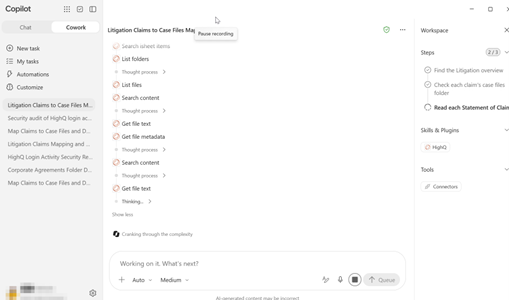
Once the workflow gives you the result you need, you can ask Cowork to run it on a regular schedule, for example with a prompt such as
"Please create a weekly automation for this workflow."
Cowork drafts a recurring task with a name, schedule and instructions, which you can review and change before you select Schedule
. If Run once now
is selected, Cowork also runs the task straight away. You can then pause, run or edit the task from the Automations
page.You can also ask Cowork to send the results to you and your colleagues, for example with a prompt such as
"Send the results to me and others by email, with a reminder in Teams."
Cowork adds delivery instructions to the task: an email with the full report and a shorter reminder in Teams. Each time the task runs, Cowork checks HighQ and can compare the latest result with the previous one.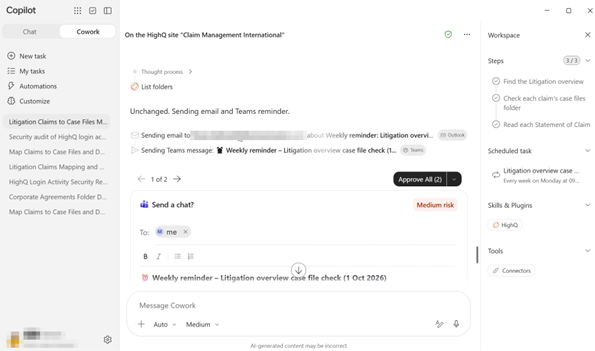
You review and approve the email and Teams message before anything is sent. If you select
Always allow
, future messages to the same recipient may be sent without asking you first. The report arrives as a formatted email in Outlook, and the Teams reminder points back to it.Use HighQ in Copilot Workspaces
Copilot Workspaces provide a shared environment where you can bring together documents, HighQ matter information, and other work content in one context.
With Workspaces, you can:
- Combine different information sources:Add local or shared documents to the workspace and connect them with the relevant matter information in HighQ, so the workspace holds both your working documents and HighQ data. Other plugin contexts can also be added where needed.
- Collaborate with others:Add colleagues to the workspace so the team can work from the same information, ask follow-up questions, and collaborate on a use case specific to a team or group. This is particularly useful when information is distributed across HighQ, SharePoint, and local documents.
Set up a workspace with HighQ
- In Copilot, selectWorkspaces, and then selectNew workspace. The workspace screen opens.
- Select the + icon in the message box. In the list, select thePlugins and Skillstab.
- ChooseHighQ. A HighQ tag then appears at the start of your message.
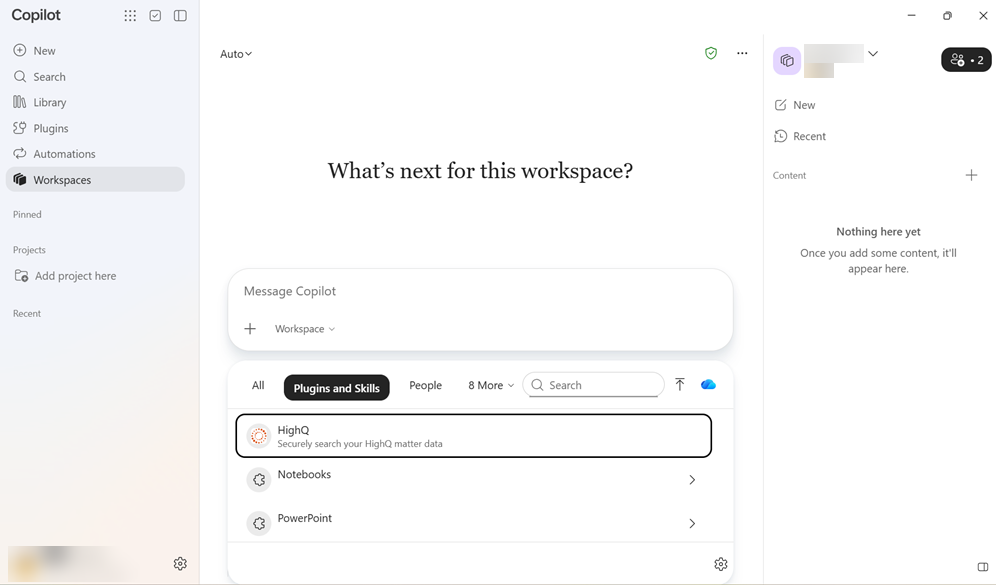
- Enter your prompt after the HighQ tag. Include the name of the HighQ site and the information such as iSheets you want Copilot to use. For example, a workspace can use HighQ matter content to give a deal team one shared place to ask questions about a HighQ site, without logging into HighQ each time.
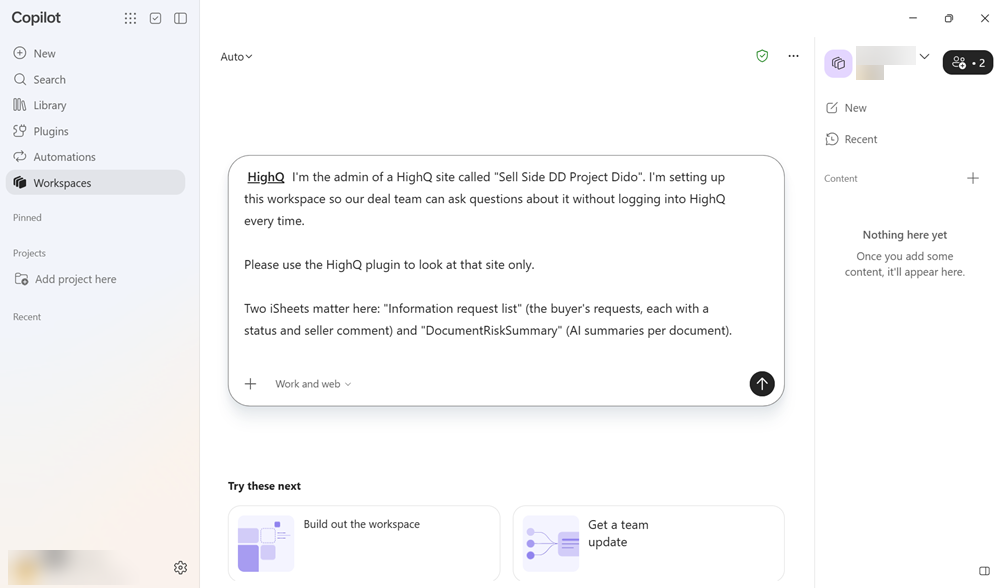
- SelectSend(the arrow button).
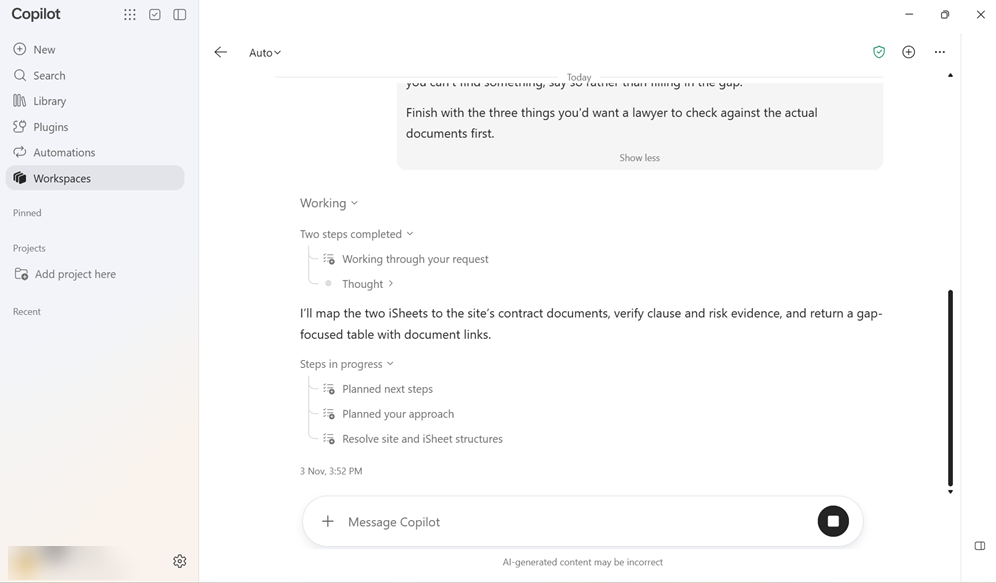
- While Copilot works, it shows its progress underWorkingandSteps in progress, such asPlanned your approachandResolve site and iSheet structures. You can select the stop button at any time. When it finishes, review the response. In the example below, Copilot returns a table with links to the documents. Check the results against the source documents in HighQ.
Use HighQ with Copilot for Legal
Copilot for Legal provides legal workflows in Word and Copilot Cowork that can use content made available through the HighQ plugin. To use HighQ in legal workspace:
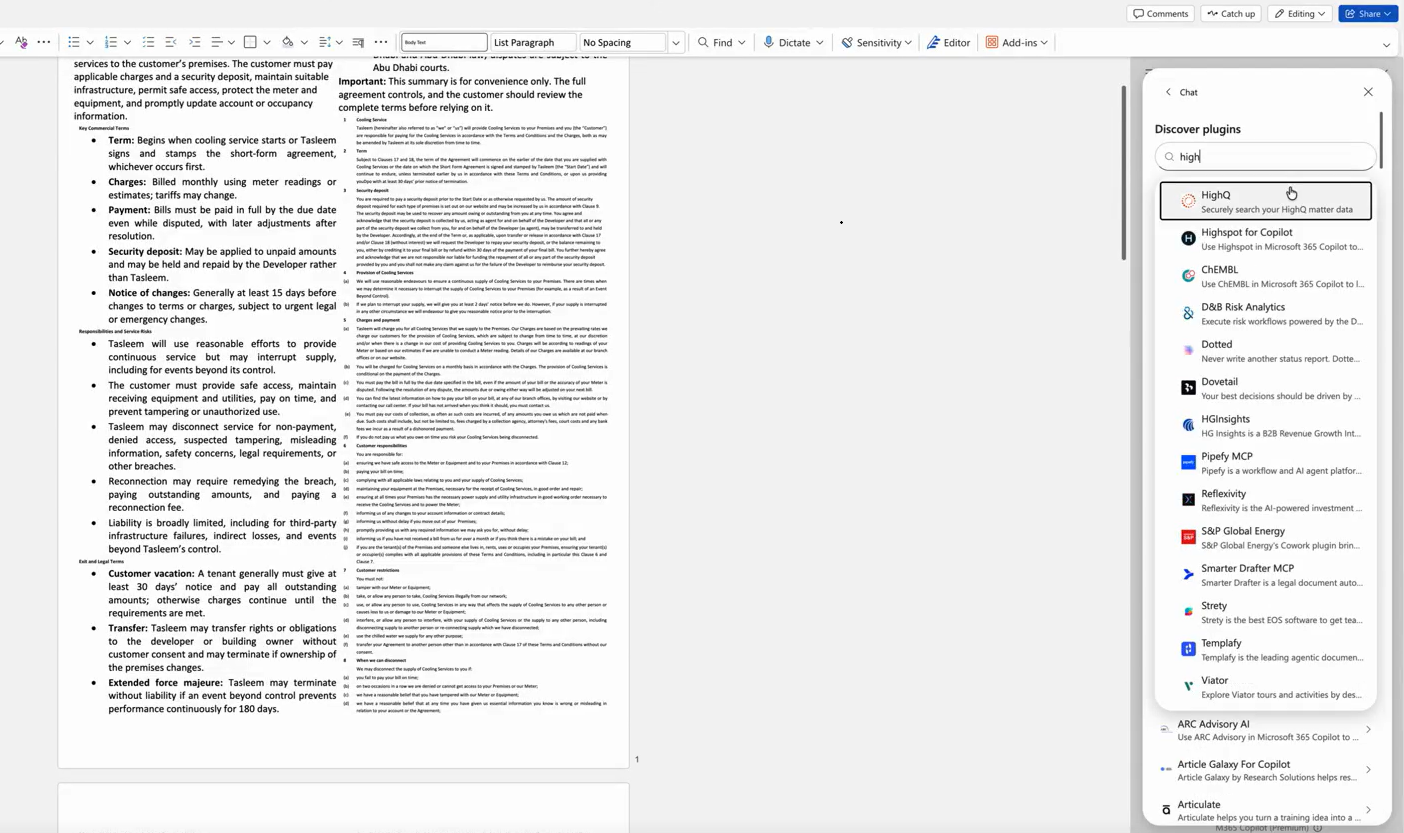
- Select the plus (+) icon in Copilot to see the legal mode option.
- You will see plugins; the same way connectors appear in Chat.
- With HighQ, you can pull in HighQ matter context, transaction management and use other connectors, such as SharePoint or Microsoft 365 content (email and Teams messages), 20+ other connectors Microsoft launched, and combine them with iSheet context to prepare a document.
Use HighQ content in Supported Microsoft 365 Apps
Copilot can turn information retrieved from HighQ into practical outputs across Microsoft 365. Use Word to create structured documents.
Use HighQ matter content in Word
Use Copilot with HighQ content to turn matter information and document analysis into a structured Word document. Copilot can retrieve information from HighQ sites, folders, files, and iSheets, analyse relevant content, and organise the results.
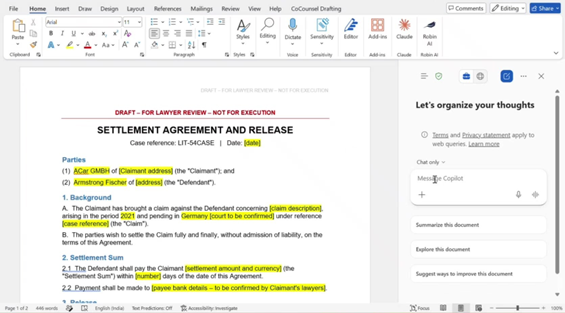
For example, when comparing contracts, Copilot can present information such as the document name, contract ID, parties, dates, review information, extraction status, sources, and supporting links. The resulting document can be opened in Word, downloaded, or shared.
HighQ content can also support legal drafting workflows, such as creating a playbook from an agreement stored in HighQ. Copilot can request additional information where required and generate a structured playbook that can be opened and edited in Word.
This reduces the manual work involved in locating HighQ content, reviewing documents individually, compiling findings, and creating a separate document.
Which one should I use?
Not sure where to start? Find the thing you are trying to do in the left-hand column.
I want to | Go to | Because |
|---|---|---|
Ask a quick question, or explore step by step | Copilot Chat | Answers come back in moments, and you can keep asking follow-ups. |
Get a thorough write-up on one specific question | Researcher | It shows you its plan first, then writes a structured report. |
Run a longer job, or have it repeat every week | Copilot Cowork | It shows every step, can run on a schedule, and sends the results to your email and Teams. |
Work with my team on one shared set of documents and HighQ content | Copilot Workspaces | Everyone works from the same shared context, with HighQ data and your documents together, and can keep asking follow-ups without logging into HighQ. |
Make sure Copilot looks in HighQ | Say so in your prompt | Starting with "In HighQ, ..." leaves no doubt about where to look. |
See how Copilot reached an answer | Open its progress panel | Chat has "Reporting findings", and Cowork lists every step in the Workspace panel. |
Related Content
-
Supported MCP Clients
Format: Article