
iSheet OData Manager
OData is a protocol for accessing and querying data over the web using standard URLs, functioning similarly to a database query but delivered through HTTP. It enables you to filter, sort, and retrieve specific data from an API without the need to write custom code for each request.
With the iSheet OData manager, you can create OData data sets directly from your iSheets. The resulting OData URLs can be used in other systems, such as data lakes or middleware applications. This guide describes how to use the OData Manager to connect iSheet data to a Power BI dashboard.
Create an OData manager from an iSheet
To create an OData manager using an iSheet as the data source:
- Open the custom page dashboard where you want to display the iSheet data, and select Edit.
- Add a new panel and chooseEnhanced Interactive Data Visualisation>iSheet OData manager.
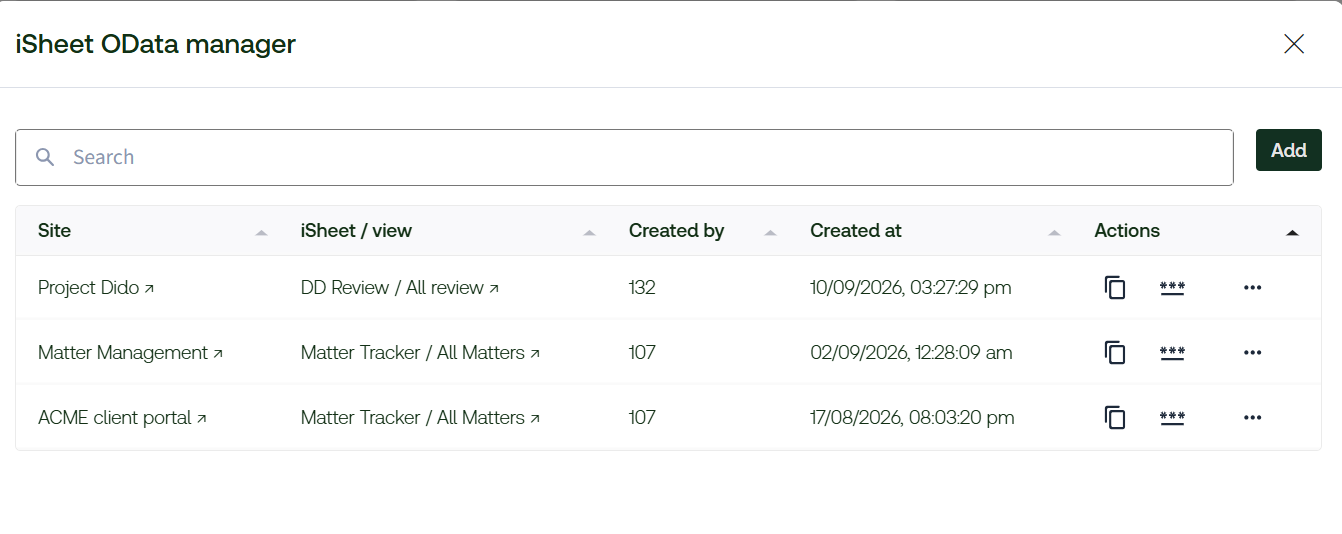 noteThe OData manager list displays all configured OData sources in the instance, not only those for the site you currently have open.
 - SelectAdd.
- Choose aSite,iSheet, andiSheet View.
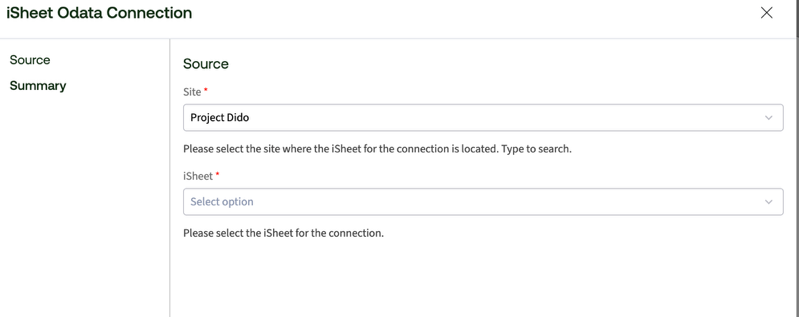
- SelectNextto create the data source.
Manage OData manager details
Once the OData Manager has been created.
Click on the Access details icon  to view the URL, username, and password information.
to view the URL, username, and password information.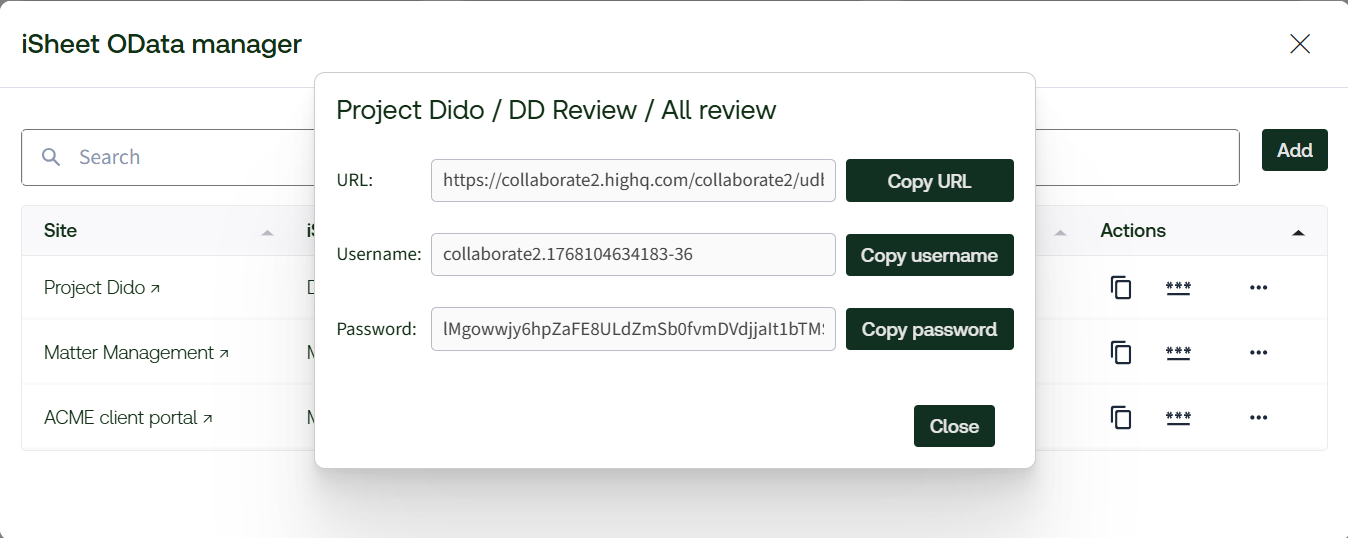
note
- The username and password are unique to each site, iSheet, and view combination, and are generated automatically when the OData manager is created.
- Any user with Dashboard edit rights can open OData manager list and view this connection information, including OData sources created for other sites.
To remove a data source, select the delete icon from the more actions  menu.
menu.
menu.Connect Power BI to the OData feed
After configuring the OData source, connect it to Power BI using the following steps.
- In Power BI (Desktop or web), create a new report and selectGet Data.
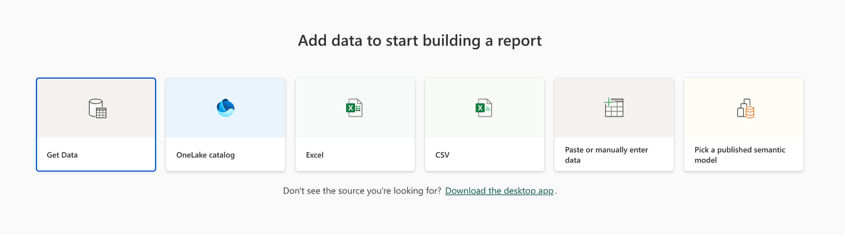
- Search for OData and select the OData (Other) source.
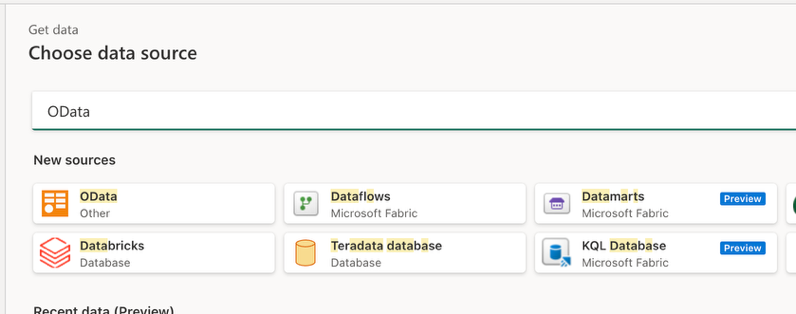
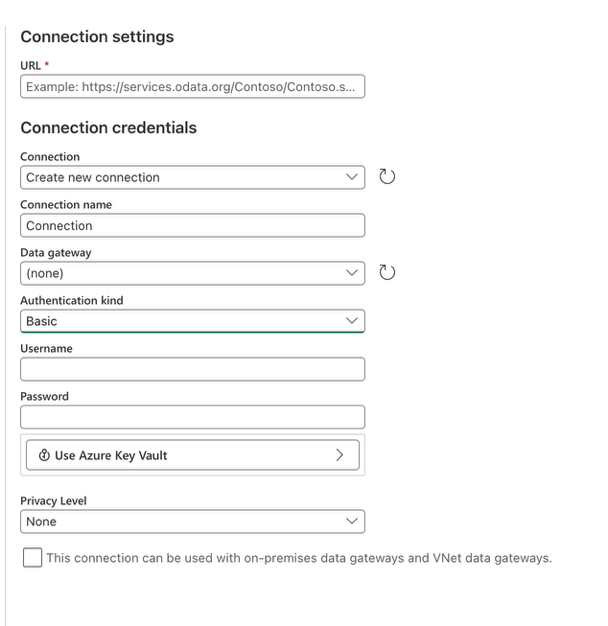
- In the connection settings, paste theURLcopied from the OData manager into the URL field.
- Change theAuthentication kindtoBasic.
- Copy and paste theusernameandpasswordfrom the OData Manager into the corresponding fields.
note
You can configure data refresh intervals to keep iSheet data up-to-date within your Power BI reports. For more information, see data refresh in Power BI.
Once connected, you can build Power BI dashboards using iSheet data as a live data source.
Authentication overview
The OData connector exposes selected HighQ iSheet views as OData feed URLs, with each feed secured using HTTP Basic Authentication and credentials scoped at the HighQ instance level.
The username follows the format
{sanitized-instance-name}-{instance-id}
, while the password is a randomly generated 32-byte URL-safe token; because these credentials are scoped instance-wide, they remain consistent across all registered feeds on that instance.Power BI Desktop and other OData clients use these credentials to authenticate against the feed and import iSheet data as a dataset. It's important to note that since feed credentials are shared across the entire instance, customers are responsible for managing access to these credentials appropriately, including controlling who has Dashboard edit rights, as this determines who can view OData manager connection details.
Related Content
-
Power BI Panel
Format: Article