
Power BI Configuration
Configure a Power BI tenant to use Power BI Enhanced Interactive Data Visualisation panels in HighQ.
To use the Power BI Enhanced Interactive Data Visualisation panel in HighQ, you must first configure your Power BI tenant. This configuration is also required when you use the Power BI panel in trial mode, which lets you add one Power BI panel to a site.
Before configuring the integration, you need the Power BI workspace ID and the Microsoft Entra ID Tenant ID. Instructions for locating both are provided below.
Finding the Power BI workspace ID
The Power BI workspace ID identifies the workspace that HighQ uses to access Power BI reports. You can find the workspace ID directly in the Power BI portal by following the steps below:
- Sign in to the Power BI service.
- In the left navigation pane, selectWorkspacesand select the workspace you need the ID for.
- Select the workspace that you want to use with HighQ.
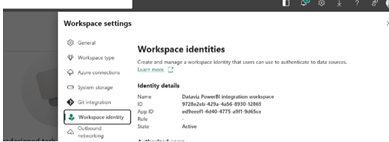
- Once the workspace loads, look at the address bar in your web browser. The URL will follow a specific structure.The Workspace ID is the long set of characters immediately following. An example of how the URL will look like:/groups/https://app.powerbi.com/groups/123ab456-c789-012d-e3f4-567g8hi9j01k/reports/....From our example, the Workspace ID is123ab456-c789-012d-e3f4-567g8hi9j01k.
Finding the Tenant ID
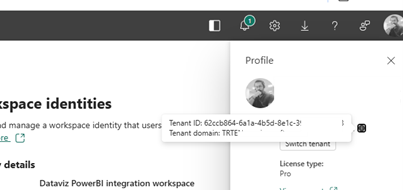
You can find your Power BI Tenant ID directly from the Power BI Service by clicking the help icon (
?
) in the top-right corner and selecting About Power BI
.
You can also find the Tenant ID in the Power BI service following the steps below:
- Sign in to the Power BI service.
- Select the profile icon in the upper-right corner.
- In the Profile pane, locate theTenant IDandTenant domain.
- Copy the Tenant ID value to your clipboard.
Data refresh interval
The data refresh interval applies only to the embed token creation process.
If a Power BI report is changed and republished, the updated report is displayed on HighQ dashboards after the configured data refresh interval has passed.
Configure Power BI integration
As a system administrator, you can configure the Power BI integration:
- Navigate toSystem admin>System settings>Enhanced Interactive Data Visualisation>Power BI integration.
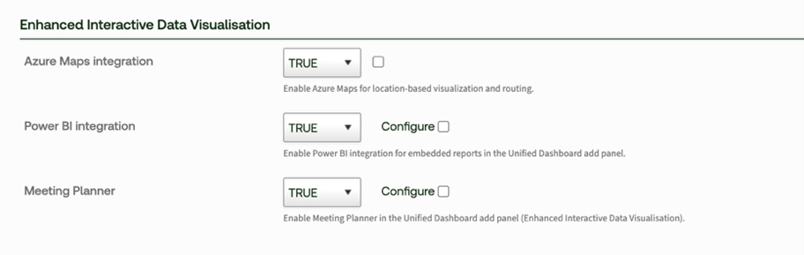
- ClearConfigureto enable editing of the Power BI configuration settings.noteWhenConfigureis selected, the Power BI configuration fields are read-only. ClearConfigureto make the fields editable.
- SetPower BI integrationtoTRUE.
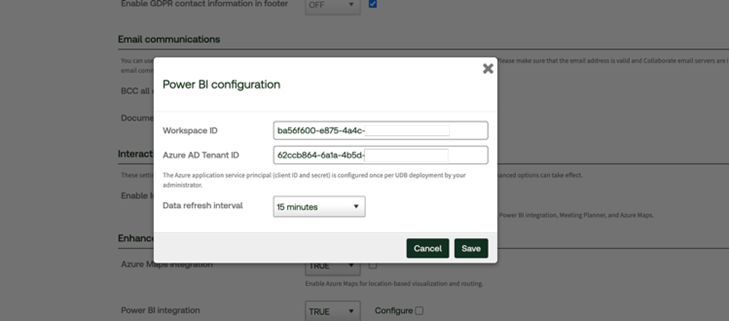
- Enter the required workspace ID, Entra ID (previously Azure AD), Tenant ID, and application authentication details. Below is an example of how the configuration window looks like.
- Save the configuration.
note
Screens and available configuration fields can differ depending on your HighQ environment.
Authentication and security
HighQ uses the OAuth 2.0 client credentials grant flow to authenticate against the customer's Entra ID tenant.
A registered service principal uses the Client ID, Tenant ID, and Client secret to obtain an access token. The access token is scoped to the following Power BI service at https://analysis.windows.net/powerbi/api/.default.
HighQ uses the access token to call the Power BI REST API
GenerateToken
endpoint, which returns a short-lived, report-scoped embed token that is delivered to the end user's browser.Each customer tenant requires its own Entra ID application with the appropriate Power BI workspace permissions.
Additional security information
For more technical and security information, see the HighQ Security Cloud whitepaper.
Related Content
-
Power BI Panel
Format: Article