
Share iSheet records
You can share a selection of records from an iSheet, only the columns from the selected view will be shared. The recipient either receives an email or notification with a link to the shared records, or you can copy a link and share it from another application.
note
The link opens a filtered view in the iSheets module. Further access is limited by the user's permissions.
You must have View permissions to share iSheet records.
Share one or more records
Share a single record
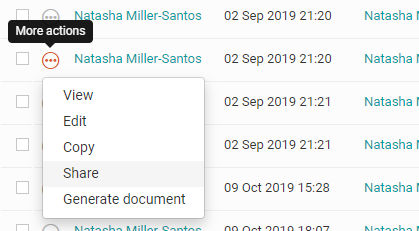
To share a single record, select
More actions
next to the record, then Share
.
The opens.
Share
windowShare multiple records
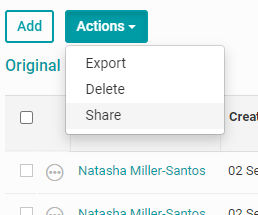
To share multiple records, select the checkbox next to each record to share, select
Actions
, then Share
:
note
An Admin can limit the number of records shared in one action (this does not apply if sharing the entire iSheet). If you select more records than are permitted, a message is shown with a reminder to remain within the limit.
The
Share
window opens with the Email
tab active. 
Choose how the selected records will be shared:
Email
, Link
or Message
.- Email- send an email to the recipients
- Link- create a link that can be copied and shared
- Message- send a notification message to a HighQ user
If you choose
Email
or Message
, enter the names of the recipients, edit the subject, and add a message to accompany the link.If you choose
Link
, copy the link, then paste the link into the target application.Select
Send
to finish.note
If you choose multiple records, the default 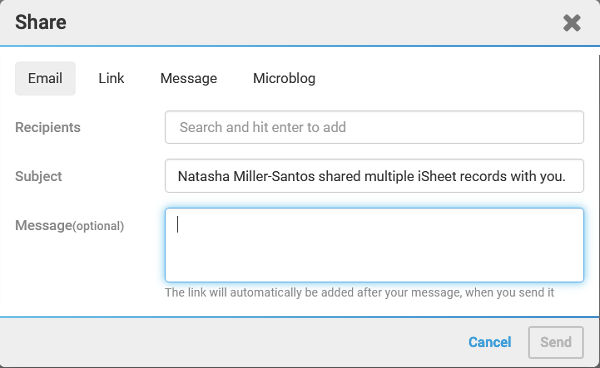
Subject
in the Share
window is adjusted to match:
Receiving a link
Recipients receive a message with a short link. If they click on the link, they are taken to an iSheets page limited to a view containing only the selected records.
Further access and options are limited to the recipient's access permissions.
Related Content
-
Add items (records) in iSheets
Format: Article