
Date and time column
If you need to record a date in your iSheet, you can do so by using a Date and Time column. By selecting this column type the system will correctly identify the value as a date and will, therefore, apply proper chronological sorting and filtering when required. Date and Time columns can also be used to trigger date-based alerts.
Format
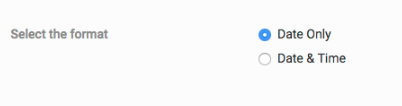
There are two options for formatting the date entered into this column:
Date Only
and Date & Time
. Which format you choose will depend upon the requirements of your use case. By default, the format is set to Date Only
.
Date format
This setting will allow you to determine how a date will be displayed once the value has been entered.
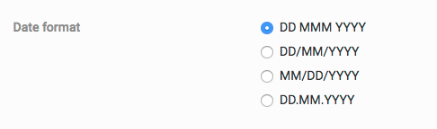
Below are examples of how the same date will be presented in each different format:
DD MMM YYYY =
16 Nov 1979
DD/MM/YYYY =
16/11/1979
MM/DD/YYYY =
11/16/1979
DD.MM.YYYY =
16.11.1979
Default value
Like with many other columns, it is possible to set a default value. You have two options to choose from:
Today's date
and a specified date. Today's date
will take the system date when the new iSheet item is created. The other option will give you access to a date picker which allows you to select any date.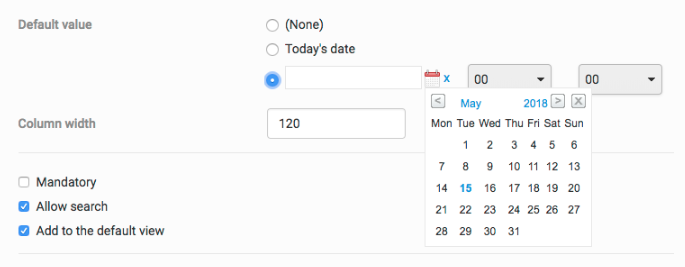
Allow search
Allow search is checked by default for new date and time columns. Date and time columns available for search will have
From
and To
fields, allowing a user to select a date range for the column to limit their search results.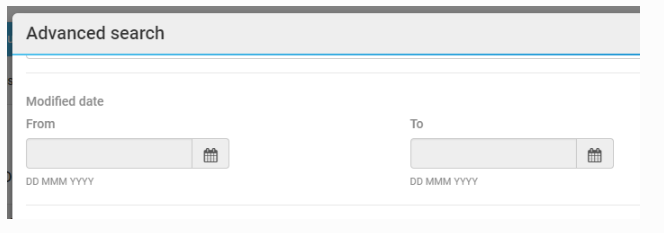
Related Content
-
Column types
Format: Article