Create a new wiki page
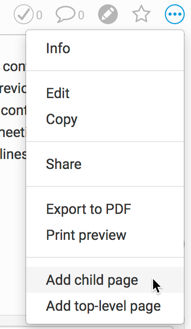
To create a wiki page you must.
- Give the wiki page a title
- Enter content in the main section (this can be left blank, but is not recommended)
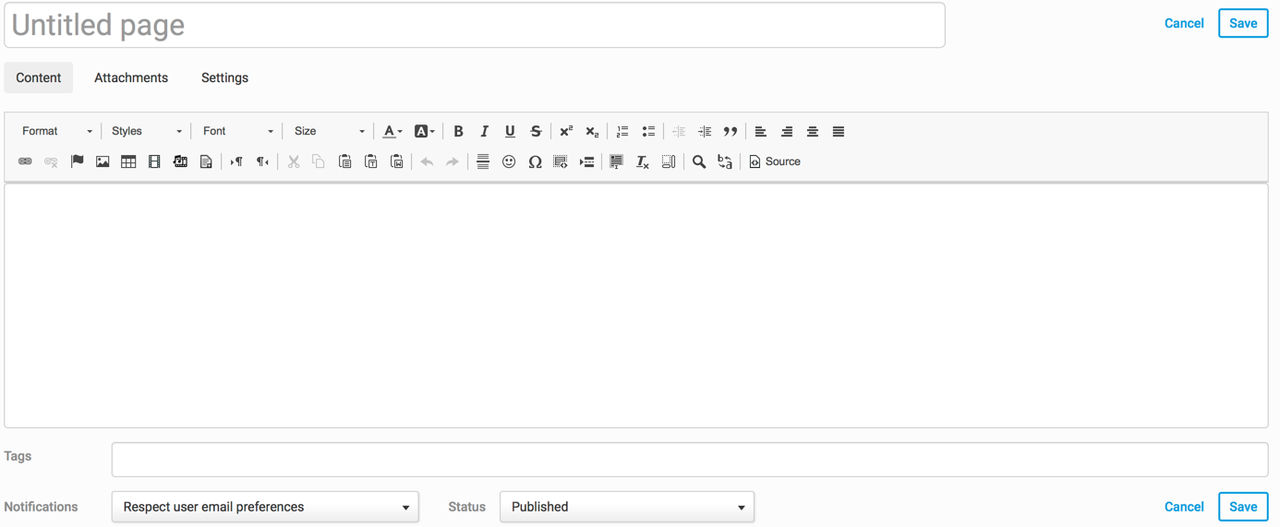
Select
Save
to save the new wiki page.In addition to the above steps, other options are available.
- Status- A user can save the wiki page as a draft or as a published wiki page
- Attachments- Click theAttachmentstab to access attachments.
Either
Browse
your computer for the file you want to attach or drag and drop the file into the area. Select Save
to save your attachments.- Tags- You can add one or more tags to the page
- Permissions- By default, a child page will inherit permissions from the parent page. To access permission settings, navigate toSettingstab>Permissions.
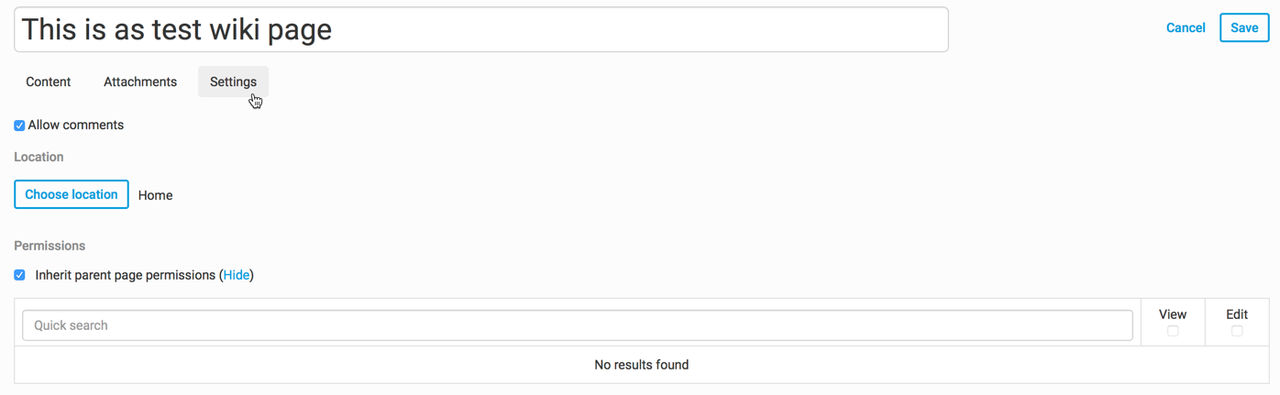
Select
Show
to show all available permissions. You can filter permissions by entering information into the Quick search
box. Select the permissions you want to apply to this child page, then select Save
.- Page location- By default, the page will be saved as a child to the parent page. However, the parent of the new page can be any page in the Wiki module that you can access
note
If the parent is changed, the permissions available may also change.
Select
Choose location
within Settings
.To display the
Select location
screen.You can select a different site or another wiki page on the current site. Select
Save
to save your changes and move the page.- Notifications- You can determine whether other site users will receive anemail notificationabout the new page or any changes to the page.
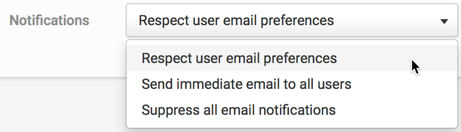
- Allow comments- If the Site Administrator has configured the Wiki module toAllow Comments, this setting will be displayed in the Settings tab:
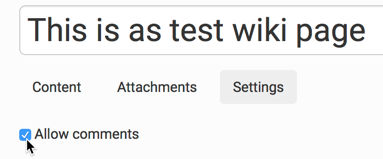
The page author may set if comments will be allowed for this page, but as default, comments are permitted. This setting can be changed by the author (or another user with edit rights).
Autosaving
As a precaution, Wiki pages are autosaved every minute while being drafted. If the page author attempts to
Cancel
, they will receive the following message:Auto-saved draft: The system automatically saves a draft as you are editing. Auto-saves can be accessed by clicking your name in the top right and selecting "My Drafts". Do you want to keep your auto-saved draft?
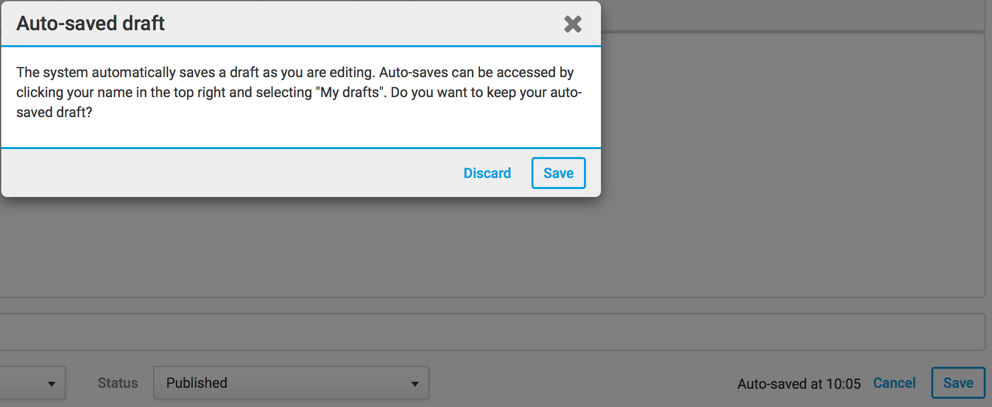
You can
Save
the page as a draft and return to editing it later. If you select Cancel
, navigate away from the page without saving, lose your internet connection or session, or your computer crashes, the last auto-saved version of the page is available in the Drafts page.Approval Workflow
If the Site Administrator has enabled approval workflow for the Wiki module, when a non-administrative user attempts to save or edit the wiki page in any way, a site or content administrator must
approve the changes
. The user will receive a message similar to:"Some or all of this content requires approval before it can be published".
Read-Only Page View
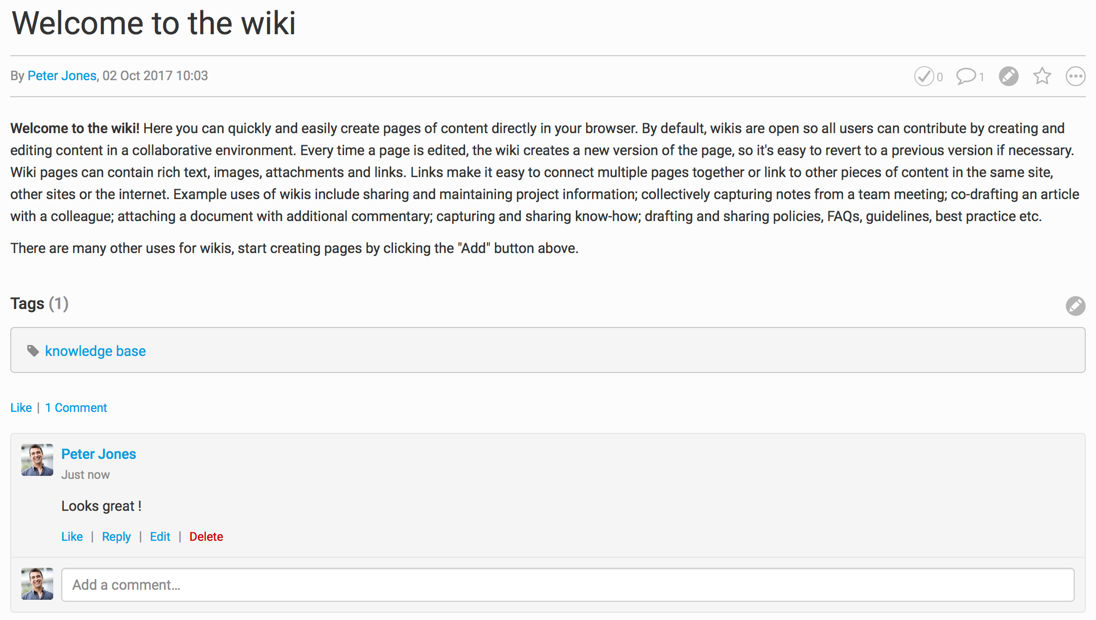
Once the page has been saved, the page opens in read-only view. The following information is shown.
- The person who created the page (the author)
- The last person to update the page
- The date the page was last updated
- Other information, like comments and tags
Any time a user accesses this page, they will be shown the read-only view by default.