
Site notices
Configuring site notices
There are three different types of site notices found in the
Site settings
section:- Splash pages
- Announcements
- Terms and Conditions
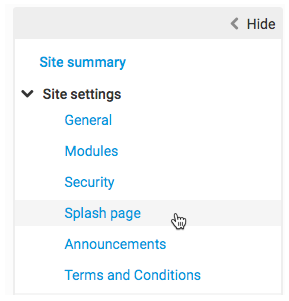
Navigate to the appropriate administrative page to configure the notice that is required.
Announcements
If there is a need to alert all site users about an important event or circumstance relating to the site or the matter the site was created for, that can be done through an announcement. For example, there may be an announcement that the site content will be unavailable for some time or that the Site administrator will be on vacation for a week and to contact someone else during this time. Typically, an announcement will be displayed only for a limited period, although this is not required.
To access the
Announcements
screen, go to > Announcements
.To configure an announcement:
- Select theEnable site announcementcheckbox
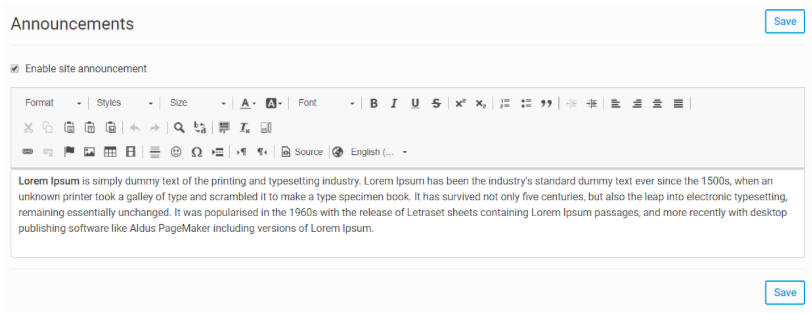
- Enter the announcement content. Here we use a rich-text editor where you can enter the content or copy it from another source, such as a Word document. The announcement can include any text, images, and links.
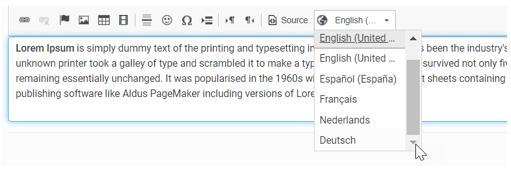
- You can choose a language from theLanguagedropdown list. This field has a Globe icon which signifies user-generated content can be translated. Users can provide content translations by adding the translated content into the relevant language field
- SelectSaveto save your changes.
Once the site announcement has been enabled, a site user accessing the site will be presented with the announcement at the top of every page on the site (see below) and the user is not prompted to take any action. Because the announcement takes up space at the top of every page, it is recommended that the height of the announcement content be limited. An announcement will look like this:

The configuration of the announcement can be changed at any time. It can be disabled and re-enabled, the frequency can be changed and the content of the splash page can be changed. Select
Save
for your changes to take effect immediately.Other uses for announcements
Announcements can also be used for other purposes. For example, an announcement can be used to add a custom level of navigation to a site from every page on that site. This could include providing links to specific iSheets or specific folders in the Files module. The full text editor is available for this purpose. Unlike a module and lists added to pages, if a user does not have access to the content referenced by a link added manually to an announcement, that user still sees the link, although they cannot access the underlying content.
Terms and conditions
Often, due to the sensitive nature of the information stored on a site, it is necessary to put site users on notice about the nature of the site information and to ask them to agree to abide by certain terms and conditions.
The terms and conditions for a site are distinct from the terms and conditions every user must accept the first time they access Collaborate.
At site level, it is left to the Site administrator to determine whether site-level terms and conditions will be required. If they are required, terms and conditions can be configured in one of two ways: each site user must accept the terms only the first time they access the site, or they must be accepted every time the site is accessed.
To access the
Terms and Conditions
page, go to . To configure terms and conditions for a site:
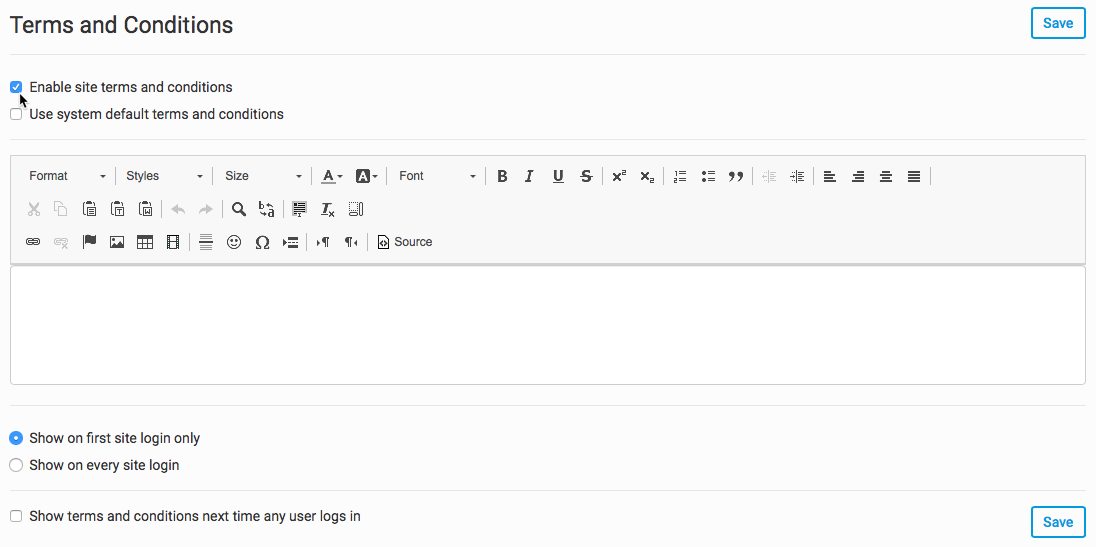
- Mark the theEnable site terms and conditionscheckbox.
- Enter your terms and conditions into the text editor or copy them from a Word document. The terms and conditions can include any text, images, and links.
- Select when the terms must be accepted:Show on first site login onlyorShow on every site login.
- SelectSaveto save your terms and conditions
Once enabled, a site user accessing the site will see the site
Terms and conditions
.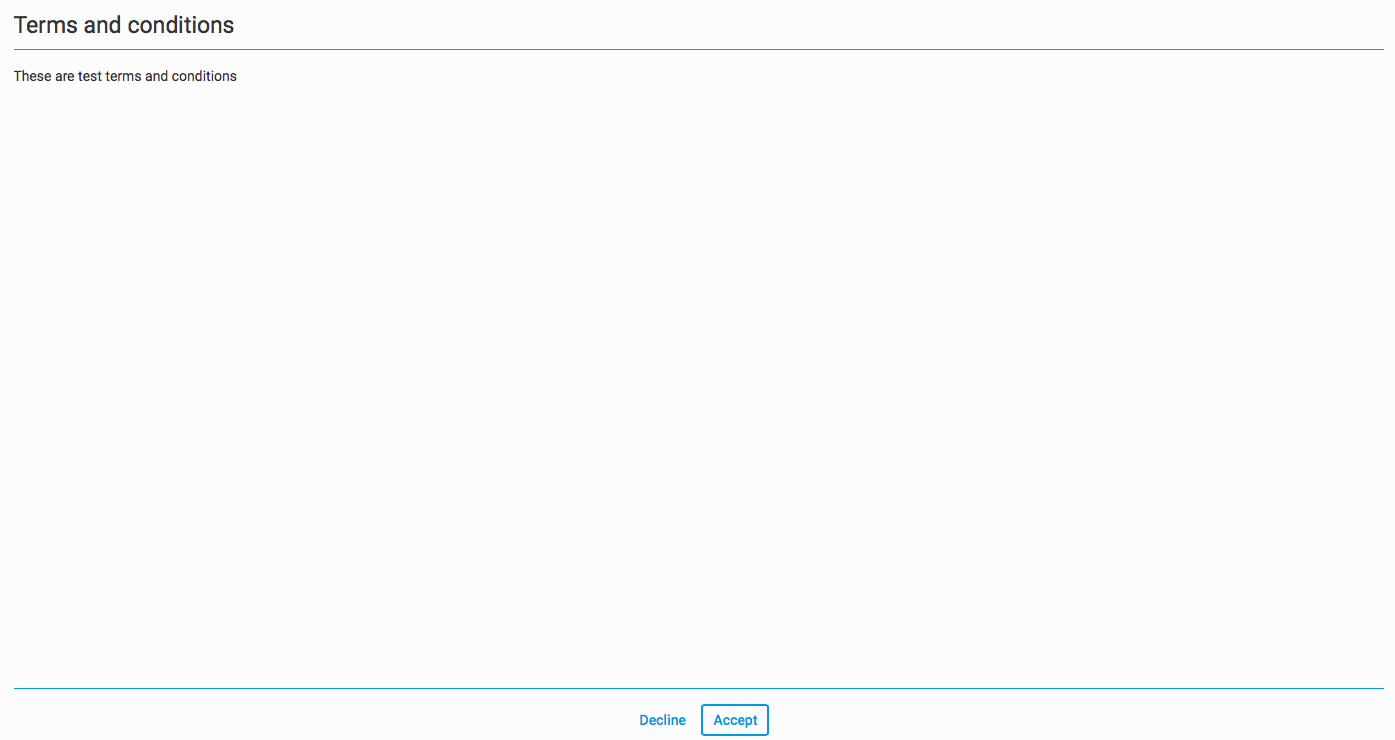
The user is asked to either
Accept
or Decline
the terms and conditions. If the user declines, they will be returned to the Dashboard. If the terms and conditions are enabled after a user has accessed the site, that user will not be asked to accept the terms and conditions unless the terms are set to be shown on every site access.The configuration of the terms and conditions can be changed at any time. They can be disabled and re-enabled, the frequency can be changed and the terms themselves can be changed.
Splash page
Splash pages are very similar to terms and conditions but the major difference is that splash pages do not need to be accepted by site users. Instead, they are used for informational purposes, often to provide context or background about the site. At the site level, it is left to the Site Administrator to determine whether a splash page will be required. If required, a splash page can be configured in one of two ways: each site user will see the splash page only the first time they access the site, or it will be seen every time the site is accessed.
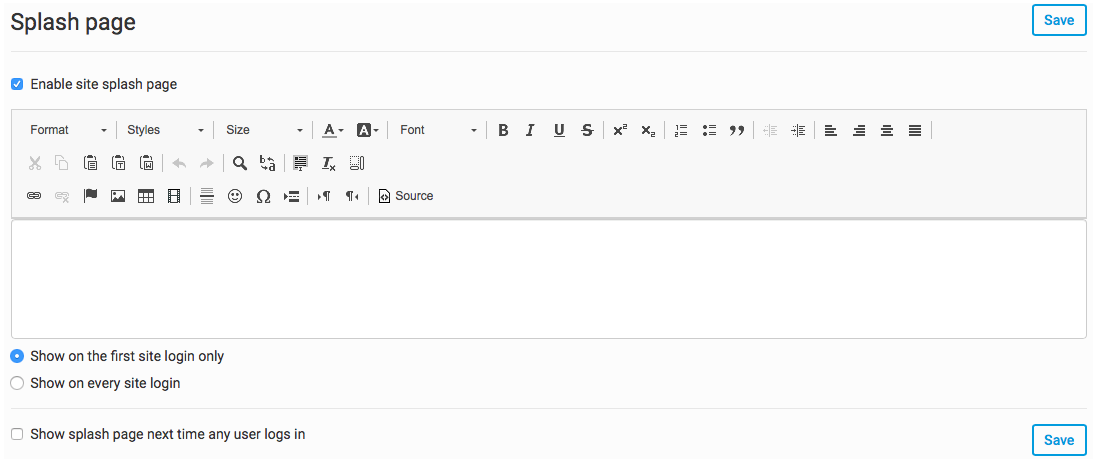
To access the
Splash page
, go to > > Splash page
.To configure the splash page:
- Mark theEnable site splash pagecheckbox.
- Enter the content of the splash page. Here we use a WYSIWYG editor - where you can enter the content or copy it from a Word document. The splash page can include any text, images, and links.
- Select when the splash page will be displayed:Show on the first sit login onlyorShow on every site login.
- SelectSaveto save your changes
Once enabled, a site user accessing the site will be presented with an untitled page with the content entered above. You have two choices when presented with the splash page:
Enter
the site or go Back
. If the splash page is enabled after you have accessed the site, you will not be shown the splash page unless the splash page is set to be shown on every login.The configuration of the splash page can be changed at any time. It can be disabled and re-enabled, the frequency can be changed and the content of the splash page can be changed.
note
Although a valid option, a Splash page is generally discouraged. Instead of a Splash page, many sites use the Home module and make that the site landing page.