
Auto deployment of solution templates
As of our April 2022 release, we have introduced auto-deployment of solution templates. If you want to use a best practice template for a specific type of solution, you can benefit from work done by an expert in that field.
Select from pre-approved, pre-selected system templates that can be used as a starting point for a specific solution.
When you log in to your instance of HighQ, you can select
Manage Templates
, then Manage templates
from the site dropdown menu.
Then select
Template Marketplace
in the Manage templates
screen:
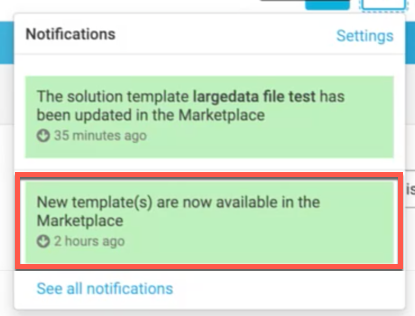
Alternatively, select a Marketplace notification from your
Notifications
, such as "New template(s) are now available in the Marketplace
".
This takes you to the
Template Marketplace
window in HighQ, where you choose from a range of templates.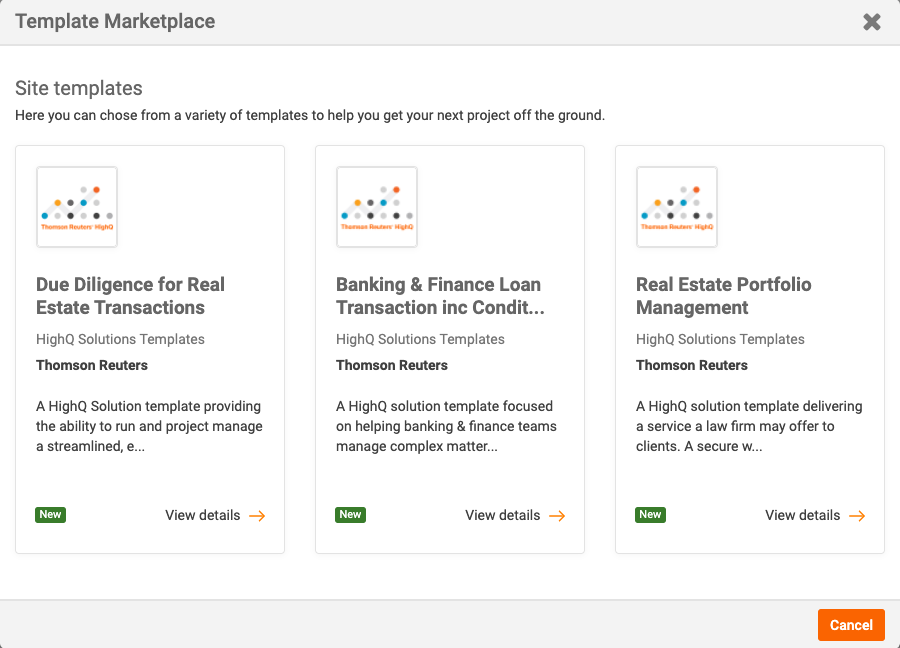
Selecting and installing your solution template
In this gallery, you can see all solution templates marked as default or created by Thomson Reuters.
note
Please note that this screen does not display all available templates or previously purchased templates, but only templates that are deemed as best practice by Thomson Reuters.
note
All new and recently updated templates are labelled with a
New
or Updated
tag.Select the template you want to use.
The next screen gives you the information to decide if this template matches your project requirements. The information provided (if applicable) includes a video, a short description, screenshots, and additional information from the marketplace.
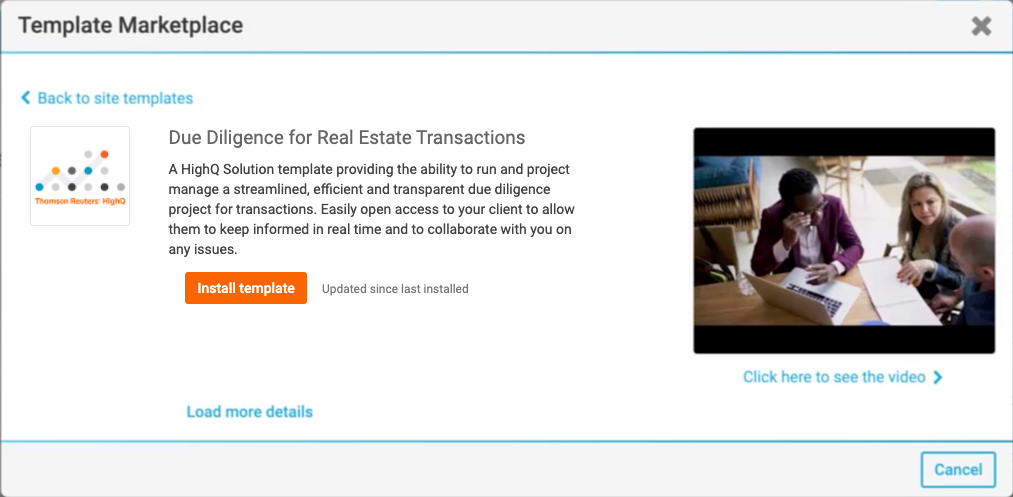
If this is the template you want to use, select
Install template
.The installation of the solution template starts. When finished, select
View template
to view the template: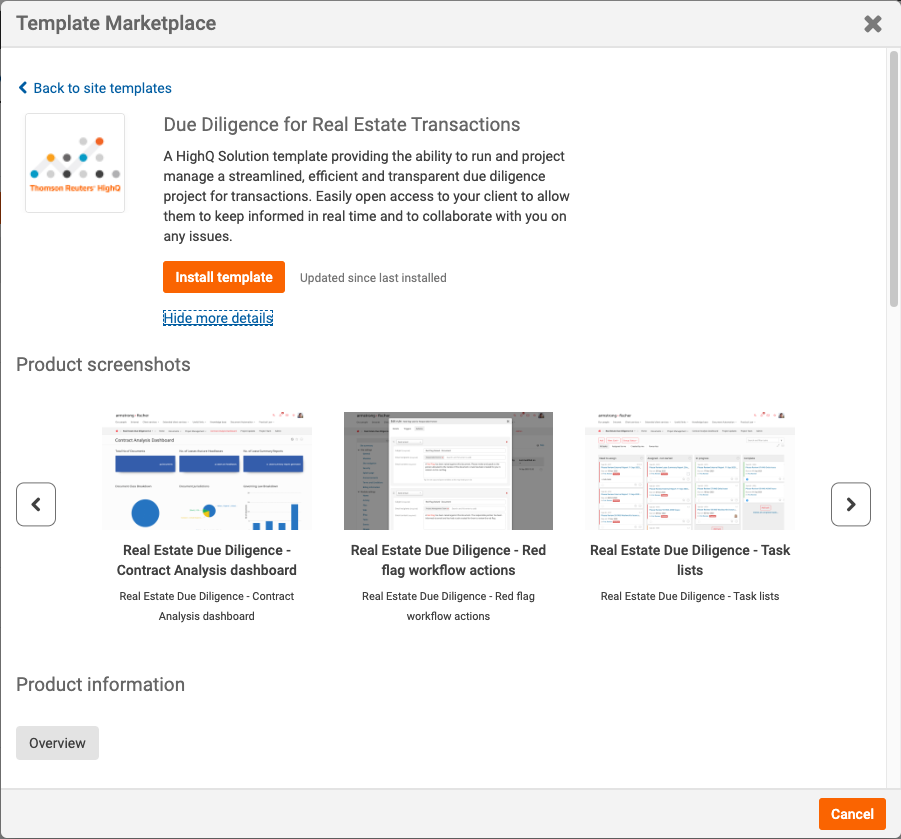
This takes you to the solution template. This window provides information about the contents of the solution template.

note
Please note that if an installed solution template is updated or changed, you will get a notification. For example, "
The solution template [name] has been updated in the Marketplace
".However, these notifications create a copy of the solution template and do not automatically update and replace your existing template. This allows you to review the changes and apply them only if required.
Related Content
-
Create a site from a template
Format: Article,
3 min read
Article,
3 min read