
Import a site template
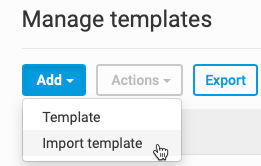
To import a site template, in the
Manage templates
screen, select Add
, then Import template
.
The
Import template
screen opens. You can either drag and drop a template, or use Browse
to choose one. 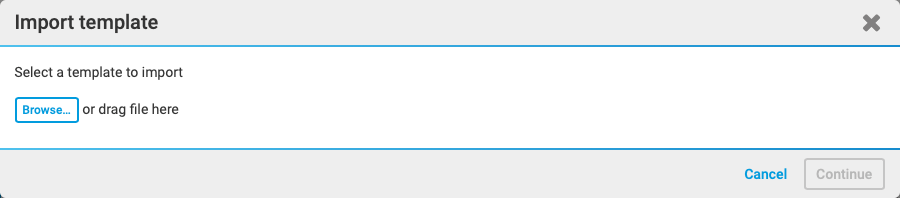
note
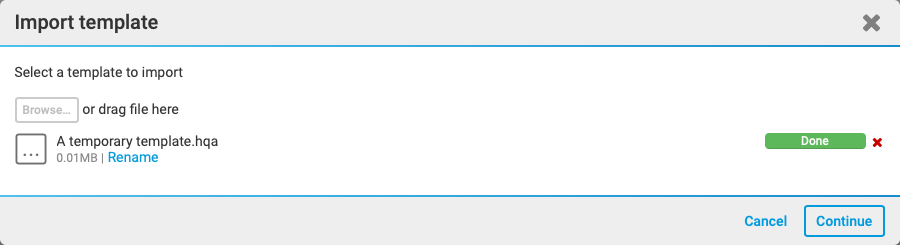
You can also rename the template during the import process with the
Rename
option.The template document type must be .hqa
Once you have selected your template, a virus scan is performed. When the scan finishes, select
Continue
.
Compatibility report
The
Import template Compatibility report
window opens. On the Summary tab, the report lists the findings of compatibility checks on the Site template you're importing and your instance.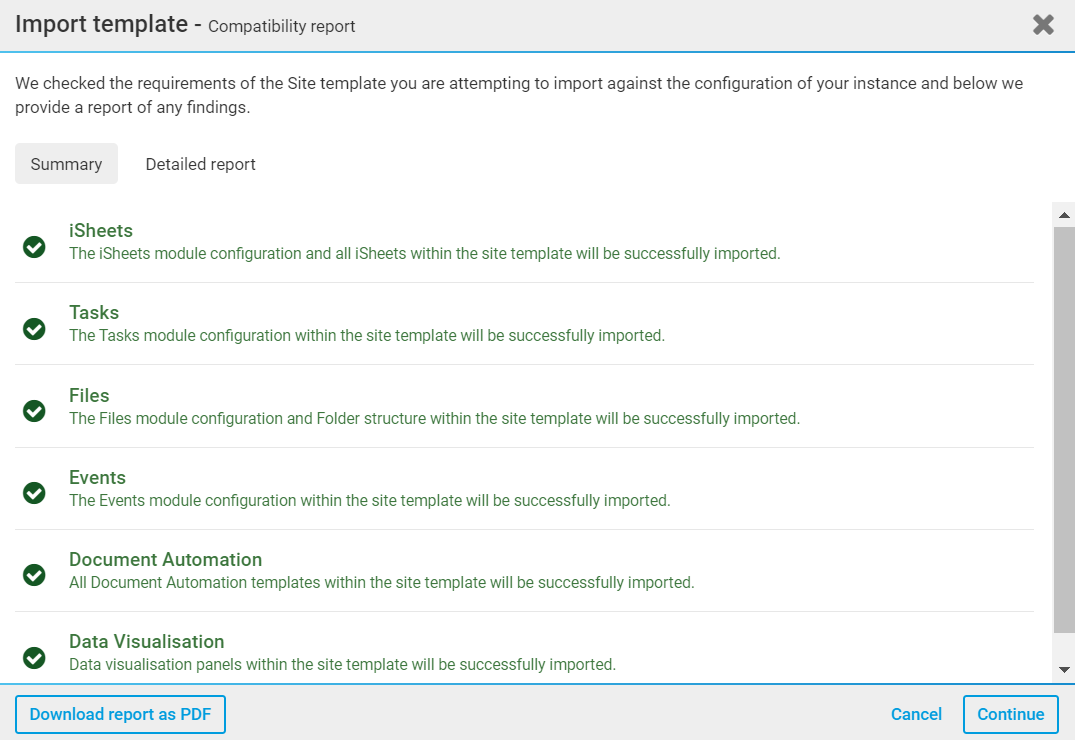
Additionally, you have the option to download the report as a PDF file. This can be useful if you want to share the report with your system administrator, should you need them to change any system settings. You can also send the report to the HighQ support team so they can help you change the configuration of the instance. To download the report as a PDF, select
Download report as PDF
.Select
Continue
to import the template to your instance.