
Save a site as a template
The templating capability in HighQ enables clients to copy sites and their configuration to create repeatable, portable solution templates.
With this powerful feature, you can copy sites and their configuration, including:
- iSheets and iSheet views, including Document Automation configuration
- Home page and site navigation configuration
- Custom Pages
- Re-pointing of data visualisation and navigation links
- Site and module configuration plus folder structure
- User groups and permissions
- Workflow, including triggers and actions
- HighQ AI engine configuration
- Dynamic choice rules
note
Some items cannot be saved. For example,
Associations
in Doc Auto
documents must be reapplied after you create a site from a template.To save an existing site as a template, open the site, then select
Admin
:
The
Site summary
window opens. Select Save as template
:
The
Save as template
screen opens.In the
Save as template
screen, you have access to the following fields:- Template name- The name of the template
- Template type*- Set if the template will allow derivatives. If youAllow derivatives, then system admins can save a site based on this template as a new template. If you chooseNo derivativesthen sites based on this template cannot be saved as a new template
- Template licence*- Set if a licence is required to import the created template to any instance
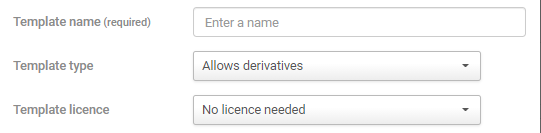
note
Template type
and Template licence
are only available if Site template type and licence options
have been enabled by HighQ support. These options always default to Allow derivatives
and No licence required
.- Description- Add any notes for an admin user
- Admin notes- If you always intend to use this template for the same client, consider entering the client's number
- Client no- If you always intend to use the site for the same matter, consider entering the matter number
- Site purpose- Select one or morepurposesfor the site
- Keep site users- Select if you want to keep the site users that already exist within the site and add them to the new template
- Keep site logo- Select if you want to keep the logo used on the original site. Any site you create with this template will use this logo
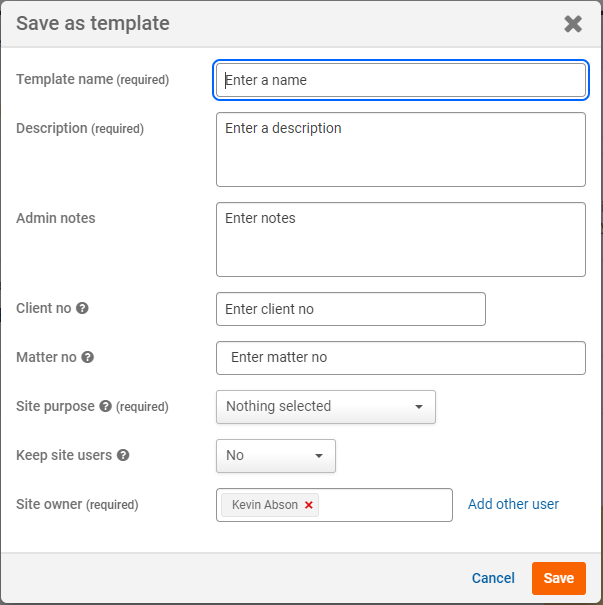
Enter the details of the template and click
Save
.The site is saved as a template. You can go to a different screen while it saves. The template will be created in the background.
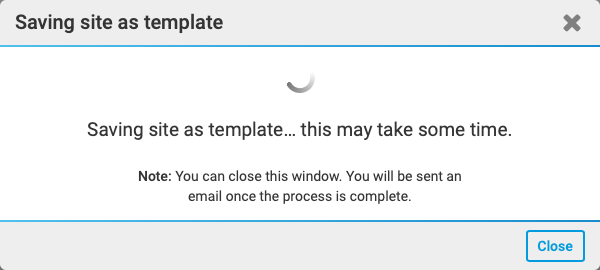
Once the site is saved, you'll get a brief confirmation message: "
Template saved
".
Now you can use the template to create new sites. To learn how to create a new site from a template, click here.
Related Content
-
Dynamic choice rules in site template
Format: Article