
Organise tasks in Hierarchy view
In the Hierarchy view, each list, sub-list, task and sub-task is represented by one row.
note
Users can now in-line edit status fields without viewing a task in full. This applies to the task list and the hierarchy view.
The Hierarchy view provides additional tools to help organise tasks:
- You can customise the columns displayed in the Hierarchy view so they are more relevant to your tasks
- You can reorder tasks and sub-tasks by dragging an item within a parent task
- You can select multiple tasks and change the assignee, change the status, or delete the tasks in one action
- As of November 2023, you can duplicate one or more tasks, including sub-tasks

Managing columns in the Hierarchy view
You can add and remove columns in the Hierarchy view to focus on metadata specific to your needs. Select the information you need to see on the hierarchy board for all tasks, so you do not need to open each task to see details, and you can use the search and filter options more effectively.
note
Your saved selection of columns may not be shared with or accessed by another user.
Manage columns is based on user permissions and includes columns that are assigned to the Task Metadata iSheet view
note
Important note for site admins
Manage columns is only available if the site uses a Tasks metadata iSheet that is assigned to the Tasks admin.
The Hierarchy view can include any column available in the Task metadata iSheet view.
If there are specific columns that should not be visible to a user please configure the appropriate
column permissions
to restrict access to those columns.Add and remove columns
note
You must have access to the Task metadata iSheet view.
Open the
Tasks
module and open the Hierarchy view.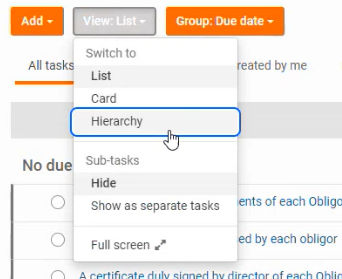
The default Hierarchy view opens:
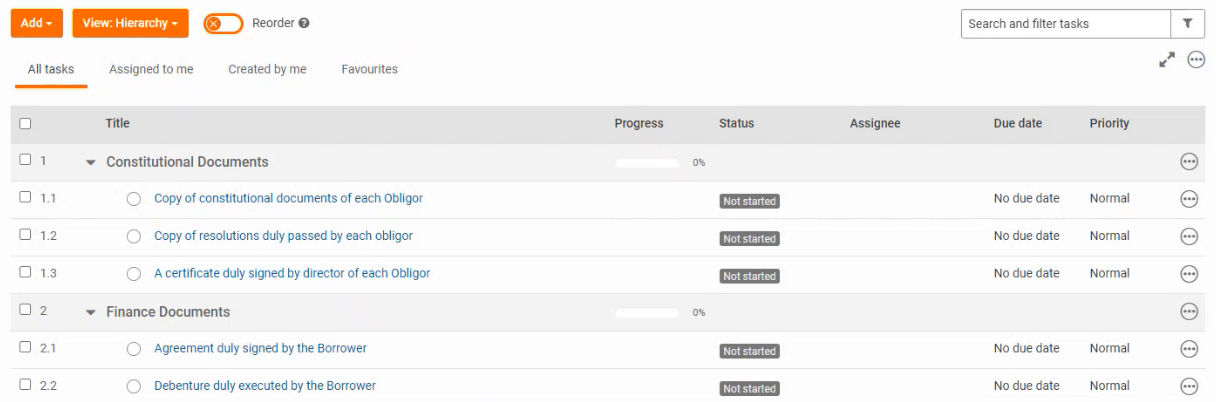
Select the
More actions
icon for the Hierarchy view, then Manage columns
.
The
Manage columns
panel opens.
- Click the delete icon to hide the column
- Click and hold the 6-dot drag-and-drop icon to move a column
- SelectAdd columnto see a list of columns in the source Task metadata view. Select a column to add it to your view.

- Type the name of a column in theSearchbox to filter the list of columns.
note
For example:You may include up to 15 columns in your selection.

- SelectSaveto keep your changes.
The default Hierarchy view is replaced with your selected columns.

When you open the Hierarchy view on this site, it opens your selection of columns.
note
No other user can see your views and you cannot share them.
Change column widths
You can change the width of each column. This allows you to see all the content in a column, or minimise the column if it is not needed.
Hover the cursor over the boundary between two columns in the title bar. The cursor changes to a double arrow when it is over the boundary.

Click and hold, then drag the column to the required position.
Changes to the Tasks metadata iSheet
Your saved columns are deleted if the source view or iSheet is removed, or if your permissions change and you no longer have access to that view or iSheet.This also applies to individual columns; if columns are deleted from the source view or iSheet, or your permissions are removed, the columns are also removed from your selection.
note
If an item (iSheet, view or column) is later restored, columns in that item are also restored.
Edit your columns
Select the
More Actions
drop-down menu, then Manage columns
.Make your changes to the included columns, then select
Save
.Changing the order of tasks
Open tasks, then the Hierarchy view.

Click the
Reorder
toggle above the list of tasks.
A
Reorder
handle is shown at the left of each task and sub-task.
Click and hold the
Reorder
handle, then drag the task to its new position.
note
It is not currently possible to move a sub-task from one parent to another parent.
Tasks are automatically renumbered to match the new position.

note

Tasks that contain sub-tasks can be moved as one item, and are shown as stacked rows.
Or:
note
It is not possible to move a sub-task to a new parent task:
No new position is created; if you release the row it returns to its original parent task.
In some cases the task does not return to its original position in the original parent task, please check.
Changes are automatically saved. After you have reordered your tasks, select the
Reorder
toggle so that no further changes can be made.
note
Changes to the Hierarchy view are also reflected in the Card view, and vice-versa.

Making bulk changes
In the Hierarchy view, you can select multiple tasks; then change the assignee or the status, or delete the selected tasks.
note
Content admin permissions are required to make bulk selections.
Open the Hierarchy view, then select one or more tasks or sub-tasks. The status panel above the list shows how many items are selected, and provides three icons.
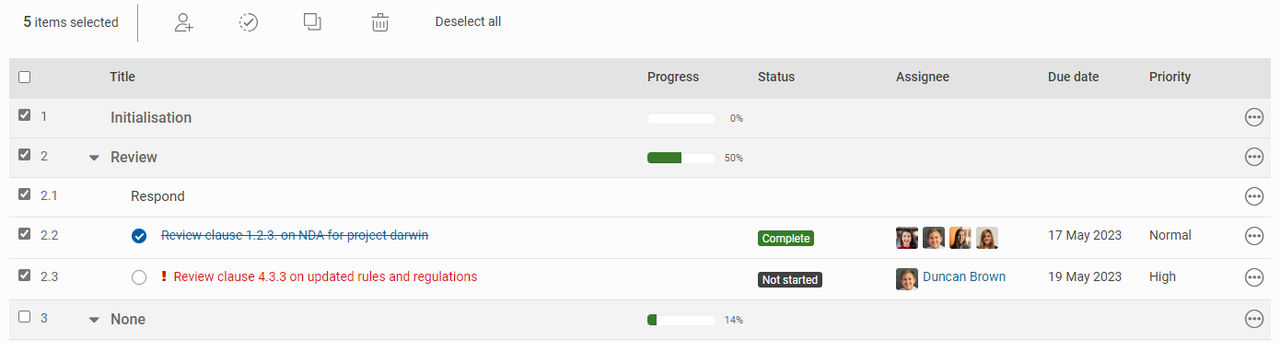
Assign
, Update status
, and Delete
. Additionally, a fourth button allows you to Deselect all
.Assign
Select the  above the list of tasks:
Assign
icon above the list of tasks:This opens the
Assign Tasks
window.
Type the name of a group or user, select the name from the list then select
Assign
.
The change is immediately shown in the list of tasks.
Update status
Select the  above the list of tasks:
Update status
icon above the list of tasks:This opens the
Update status
window.
Select an item from the list to change the current status.

note
Select
Add new status
to create a new status flag. Type a name and select a colour for the status, then select Add
.After you change the status, select
Update
. The change is immediately shown in the list of tasks.Duplicate tasks
Select the  above the list of tasks:
Duplicate
icon above the list of tasks:This opens the
Duplicate tasks
window.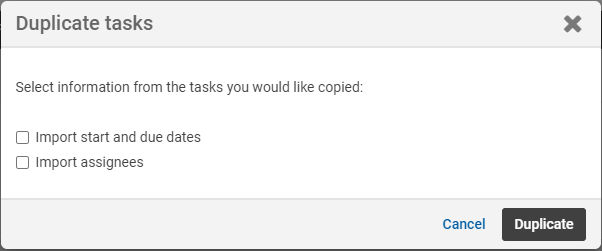
By default, the
Title
, List
, Priority,
Description
and all sub-tasks are copied.Select
Import start and due dates
to also copy the start and due dates, and select Import assignees
to also copy the assignees.note
If the site has a Task metadata iSheet, you may also select
Import custom metadata
.Other fields:
- TheCreated by,Created date,Modified by, andModified dateare based on the user that copies the task and the date this is done.
- Statusis reset toNot started
- Attachments,Tags,RemindersandCommentsare not copied
Select
Duplicate
to create copies of the selected tasks from the list.note
Refresh the browser window to see copied tasks.
Delete tasks
Select the  above the list of tasks:
Delete
icon above the list of tasks:This opens the
Delete task
window.
Select
Delete
to remove the selected tasks from the list.note
Deletion is permanent - deleted tasks cannot be restored.