Exporting Document Analysis to HighQ iSheets
After the workflow analysis is complete, you can export the results to HighQ iSheets. You can then review, collaborate, and follow up in iSheets, which serves as the central repository for the analysis results and related information.
How results are exported
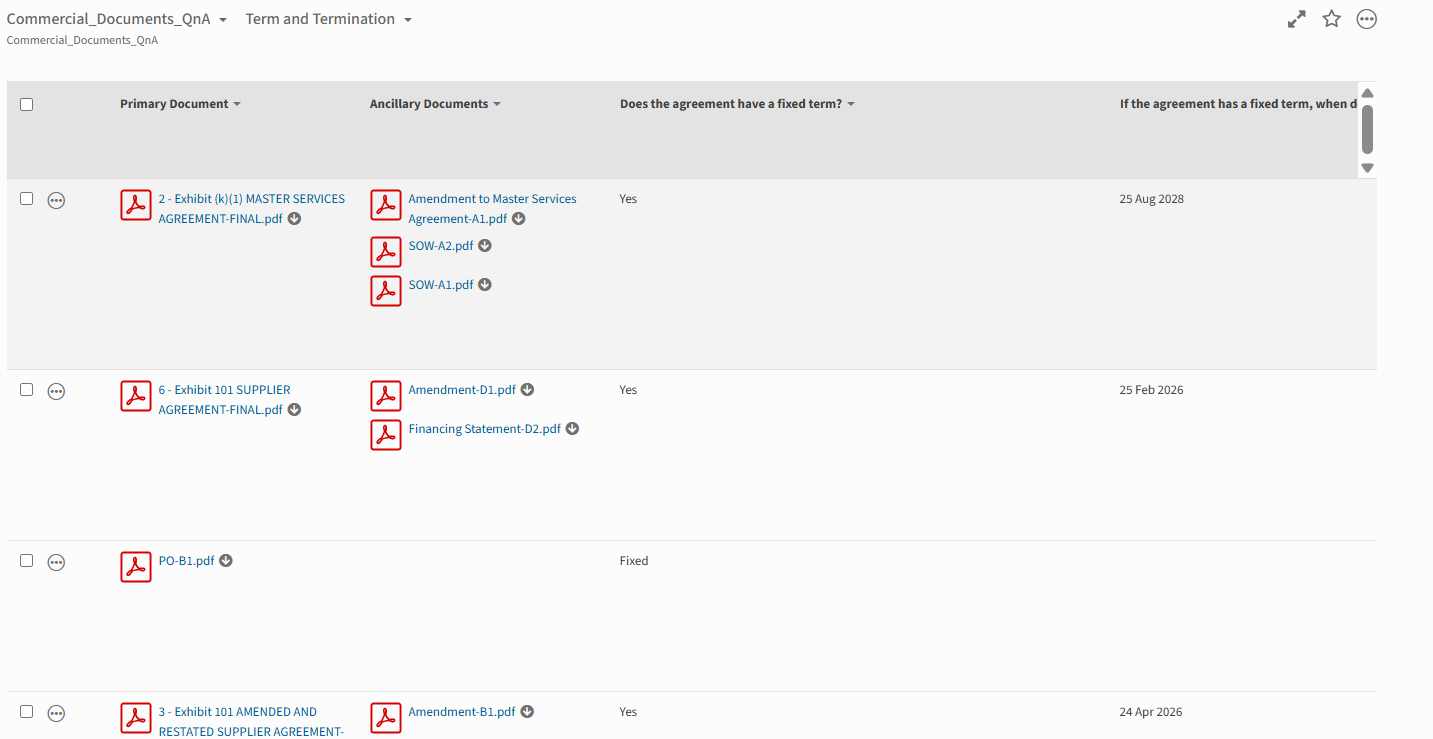
When you run the export, the analysis results are exported to iSheets in a tabular format. The exported content is organised as follows:
- Document analysis
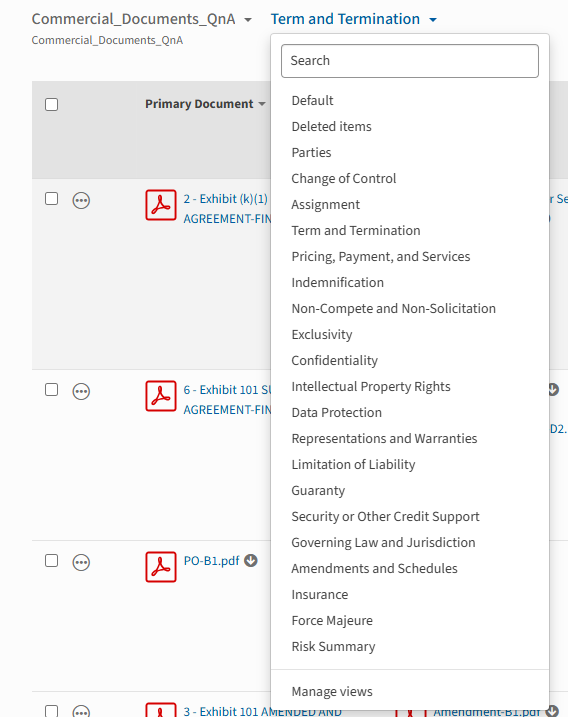
- One iSheet per practice area: A separate iSheet is created for each practice area and contains the corresponding document summaries.
- One view per column header: Within each practice area iSheet, a separate view is created for each column header. Each view displays the related questions and answers grouped under that header.
- Readiness report
- One iSheet per Readiness report: Each Readiness report is exported as a separate iSheet containing information about missing documents in the deal room.
Reviewing in iSheets
iSheets supports citations, the same way they appear in the guided workflow. You can review each answer in the iSheet, click through, and verify the source it was produced from without leaving HighQ.
Review tags and notes
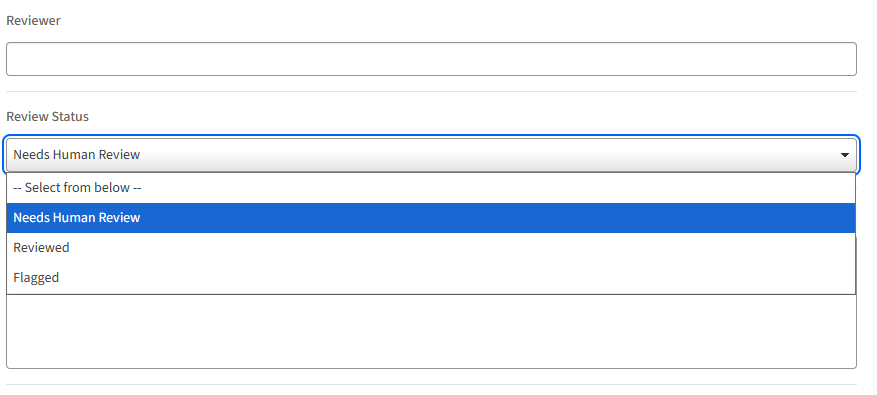
Every exported answer, for every document, can be given a review tag so the team can track its status. The tags let you mark whether an answer needs human review, has been reviewed, or is still open for review. Legal teams can also add notes to answers. Together with citations, this unlocks the existing HighQ collaboration and version-control capabilities on top of the analysis.
- Needs Human Review: The answer still requires a human check.
- Reviewed: The answer has been checked.
- Flagged: The answer is a risk and worth highlighting.