
Getting Started: Connecting to a Dealroom
Due Diligence Guided Workflow (DDGW), an AI solution delivered on the HighQ platform that helps buyer-side legal teams run M&A and transactional due diligence more efficiently. Once the guided workflow has been enabled for a law firm, that firm's designated HighQ users can access the solution directly through the HighQ platform. The current version is built primarily to serve the legal teams representing the buyer side of a transaction.
Virtual data rooms created in HighQ (also known as
Dealrooms
) connect to the solution, which lets you securely centralise all of a deal's data sets in one place. When you link a Dealroom, it appears in the solution as a card. Selecting a card takes you into that deal's project workspace, where all of your work for that deal takes place.This is especially useful for
Lawyers and legal professionals
representing the buyer side in an M&A transaction, who analyse documents at volume and manage Dealroom readiness- including chasing the seller for missing documents and references- before analysis begins.What you can do with DDGW
- Assess whether a Dealroom is ready to be reviewed by comparing its contents against your own request list.
- Automatically classify every document in the Dealroom into legal practice areas.
- Analyse documents as related families rather than in isolation.
- Configure the questions and risk guidelines the AI should apply, and control the format of each answer.
- Review answers and identified risks, each anchored to a citation in the source document.
- Produce a due diligence report that rolls document-level risks up to the practice-area level.
- Export reviewed results into HighQ iSheets to continue collaboration and review.
Link a Dealroom to a guided workflow
Before a deal appears on the guided workflow landing page, its associated HighQ site or Dealroom must be linked to the guided workflow. Linking a Dealroom is an administrative task and can be completed either from the HighQ site or from the guided workflow landing page. Once linked, the Dealroom becomes available within the guided workflow.
Link a Dealroom from the HighQ site
If you are working in the HighQ site that you want to link, you can enable the Dealroom from the site administration settings.
- Navigate toAdmin>Site settings.
- OpenDue Diligence Configuration.
- SelectEnable Due Diligence.
- SelectSave.
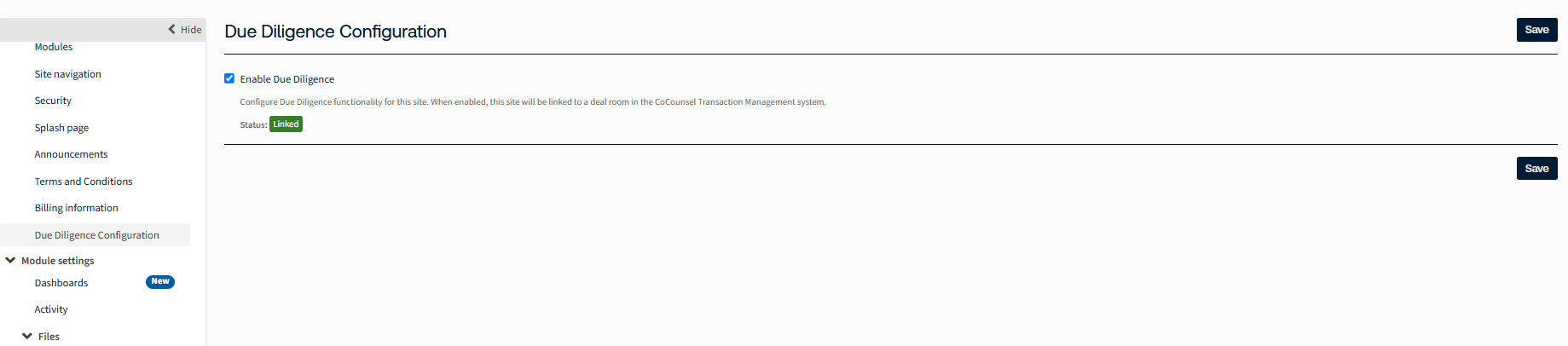
The
Status
indicator shows whether the site is currently linked. Once enabled, the site appears as a Dealroom on the guided workflow landing page.Link a Dealroom from the guided workflow landing page
Administrators can link Dealrooms directly from the guided workflow landing page.
- On the guided workflow landing page, selectLink Dealroomto open the configuration page.
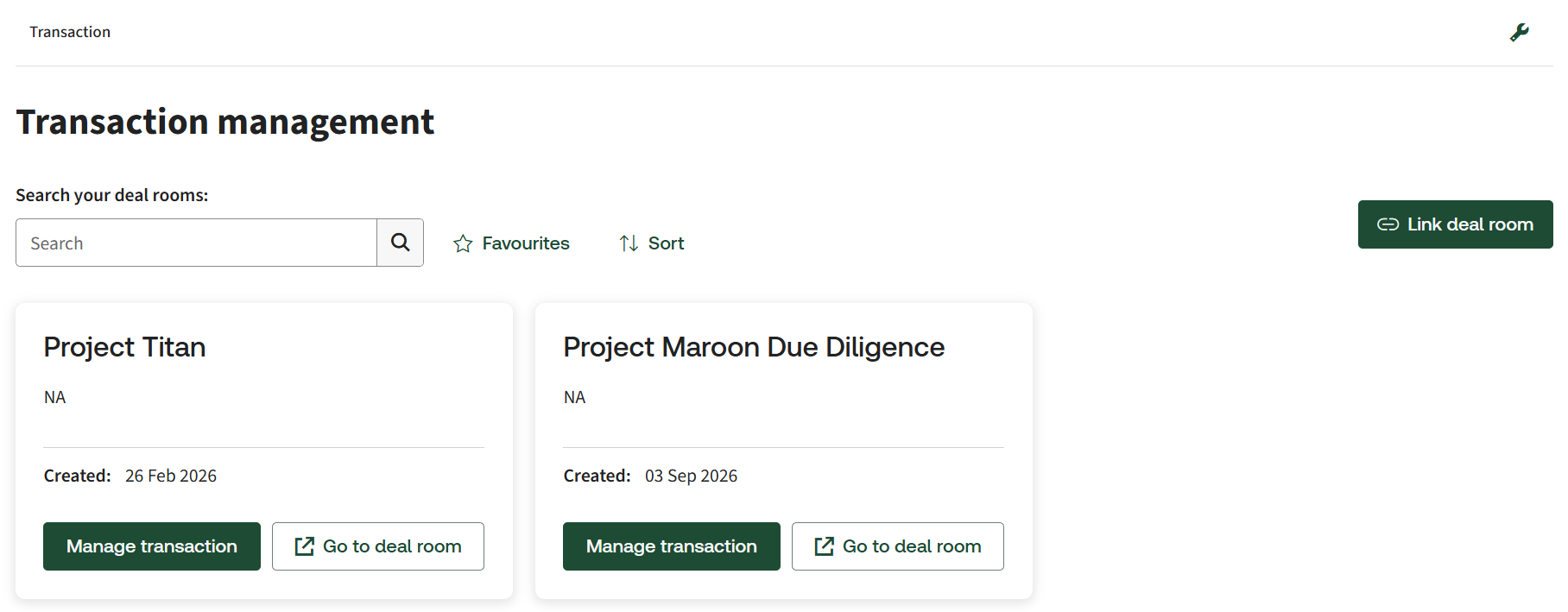
- Select a connector to view the available sites, or clickSelect Connectorto add a new connector.
- From the selected connector, click Deal room and select the Dealroom you want to link.
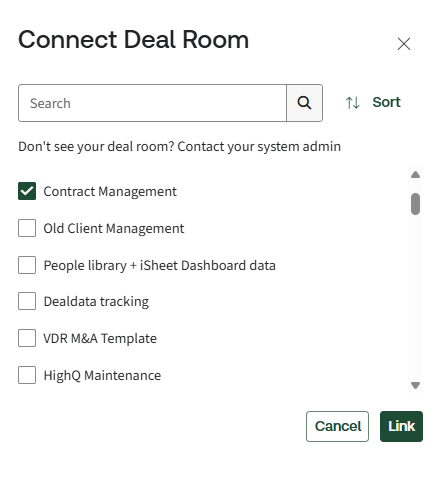
- SelectLink.
The selected site appears as a Dealroom on the guided workflow landing page.
Linked Dealrooms are available only to users who have been granted access to them. Users can view only the deals available through their assigned permissions.
Selecting a deal
Selecting a deal
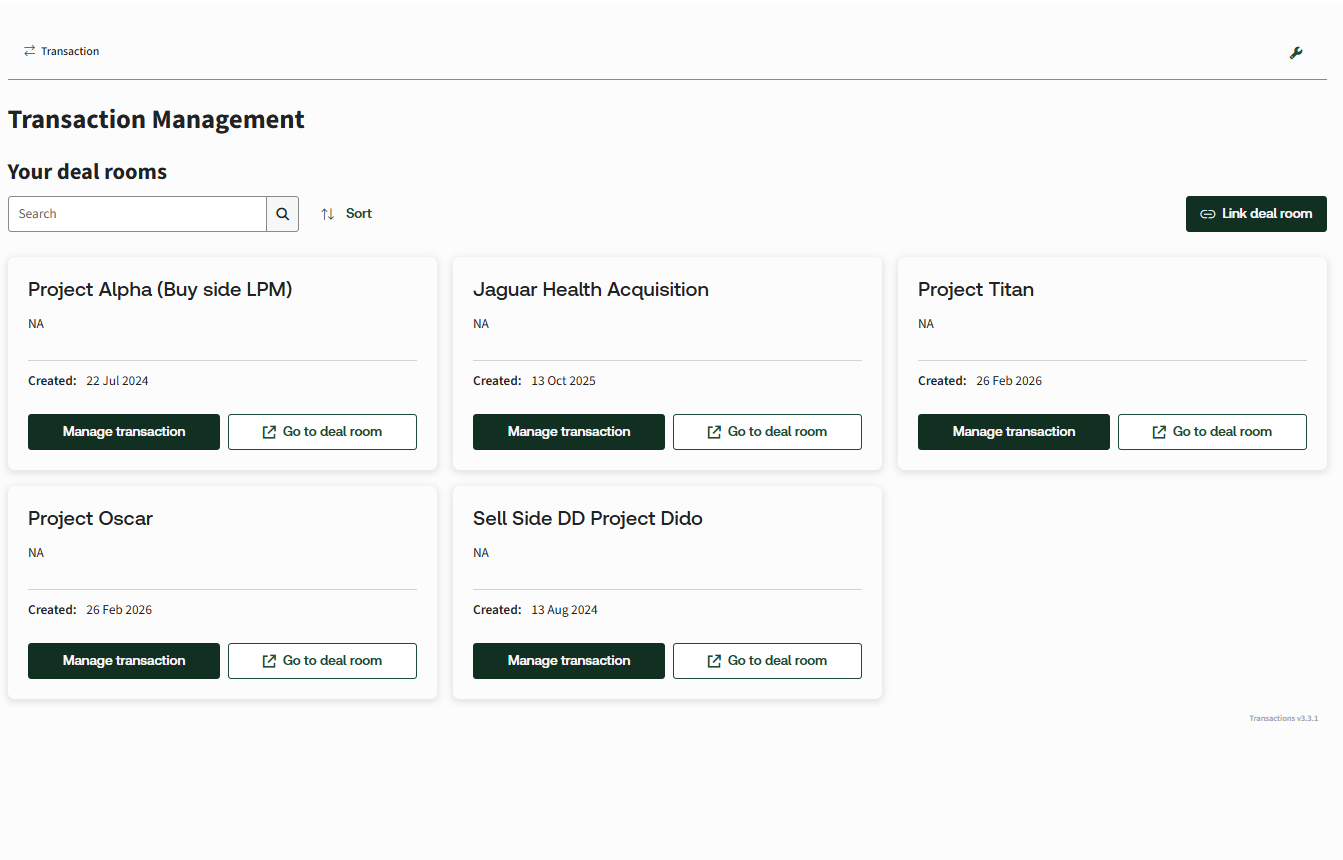
Each Dealroom that has been linked to the solution appears as a card, and each card is linked to that Dealroom. Find the deal you are working on and select its card to open the project workspace for that deal.
- Locate the deal cardOn the landing page, the linked Dealrooms are shown as cards. Identify the card for the deal you want to work on.
- Open the project workspaceClick the card. The system opens that deal's project workspace.
Choosing a workflow
When you enter the project workspace, the system presents two independent workflows. Select the workflow you want to use, as the two workflows can be used independently..
- Deal Room Readiness (pre-diligence): A hygiene or readiness assessment that checks how many documents are in the Dealroom and whether it is ready to be reviewed.
- Document Analysis: Jump straight into classifying and analysing the documents in the Dealroom.
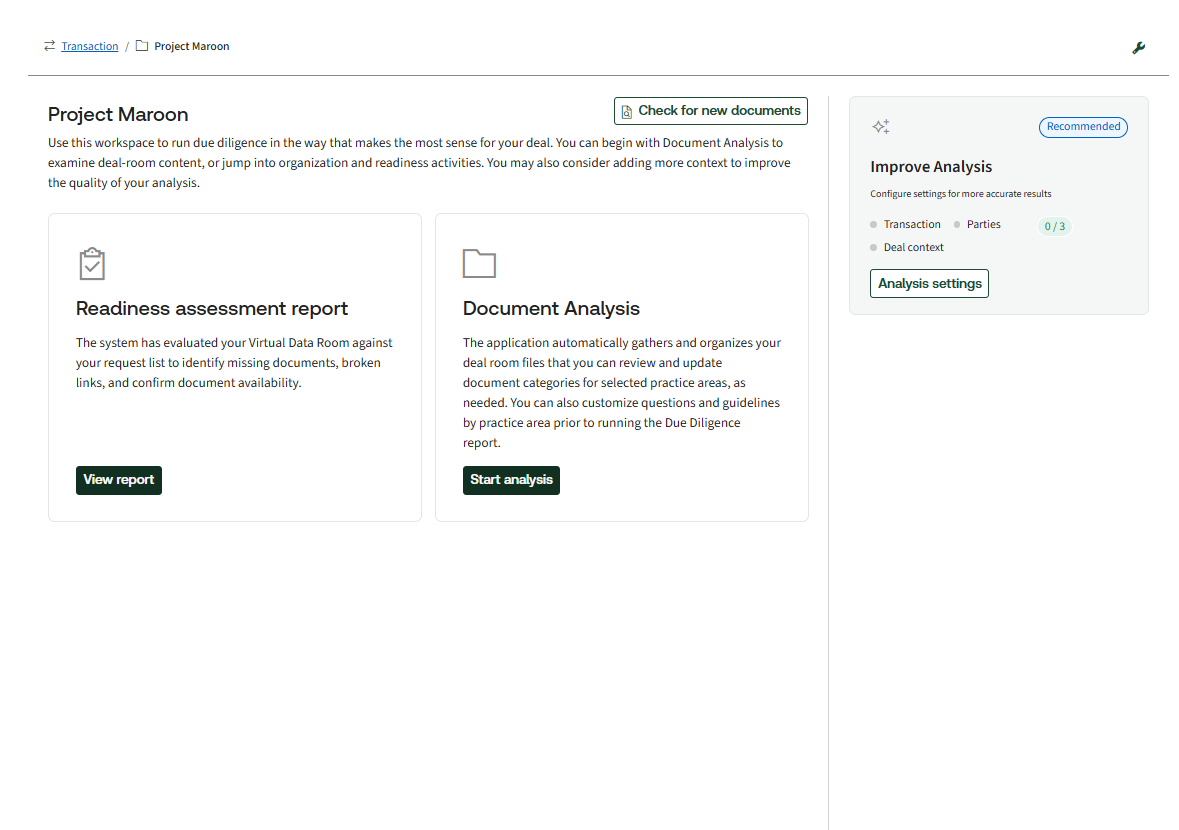
For more information on how each of these workflows perform readiness and risk assessments, see Due Diligence Workflows.
Supported file types and excluded files
The guided workflow analyses documents in two formats: Word (.docx) and PDF (.pdf). When it fetches the documents from the Dealroom, any files that cannot be processed are excluded from the analysis and reported as an excluded file for review.
A file may be excluded for reasons such as:
- Unsupported file format: Anything other than Word (.docx) or PDF (.pdf).
- Password-protected files: Files the system cannot open because they are locked.
- Corrupt or damaged files: Files that cannot be read.
A banner in the project workspace indicates the number of files that could not be processed and have been excluded from the analysis. Select
See details
to open the Excluded files
panel, which lists the affected files and the reason each file was excluded.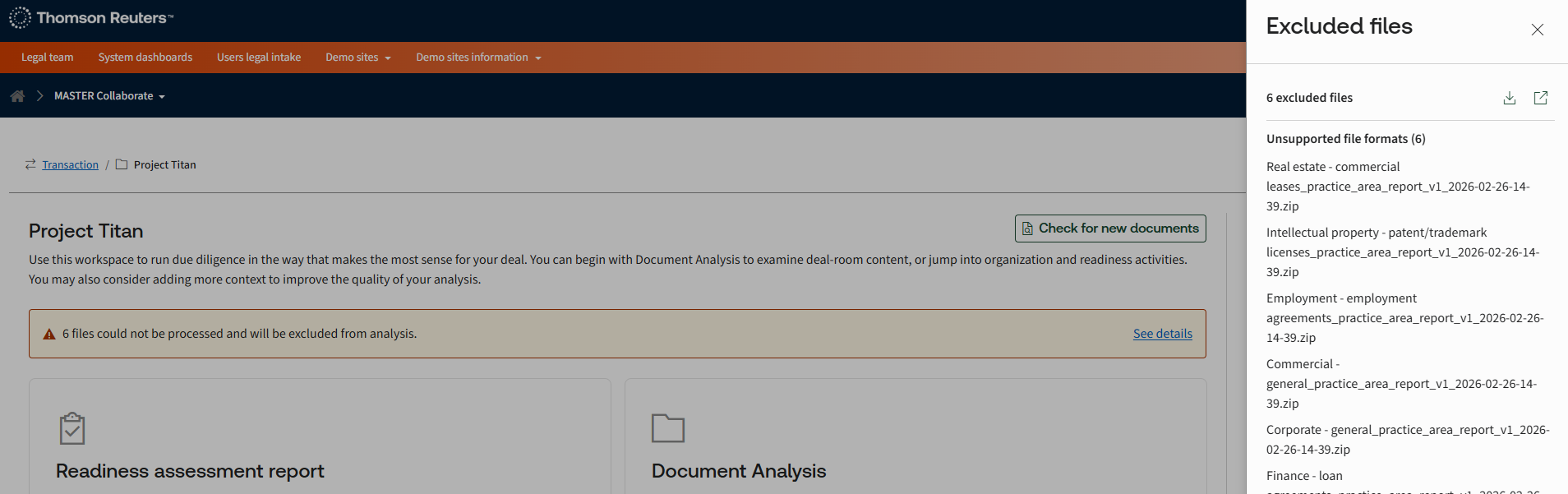
tip
Because only Word and PDF files are analysed, converting key documents to one of these formats before they are added to the Dealroom is the simplest way to make sure nothing important is left out.
Deal context (Improve analysis)
Deal context is an optional set of details you can give the system about the transaction you are working on. It is presented under the heading
Improve analysis
. Providing it is never mandatory, but when you do, it helps the AI stay focused on your deal and produce more relevant results, with less chance of the analysis drifting away from what matters for this transaction.You can open
Improve analysis
in two places: on the splash page you land on when you first enter the project workspace, and on the page where you configure questions. Because it is available at both points, you can set the deal context up front before any analysis begins or add and refine it later while you are configuring questions.The
Improve analysis
panel contains the following fields, all of which are optional:- Transaction type: A drop-down where you select the kind of deal. The options currently available are Asset purchase, Stock or share purchase, and Other.
- Buyer: A free-text field for the name of the buyer.
- Seller: A free-text field for the name of the seller.
- Target Company: A free-text field for the name of the target company.
- Deal context: A short free-text field (up to 500 characters) where you can describe anything else about the deal that would help keep the analysis relevant.
When you have entered as much or as little as you want, select
Save
to apply the deal context. The details you provide are used to inform the analysis so that the results are tailored to your transaction. Leaving the panel empty does not stop you from running the analysis; it simply means the system works without this extra steer.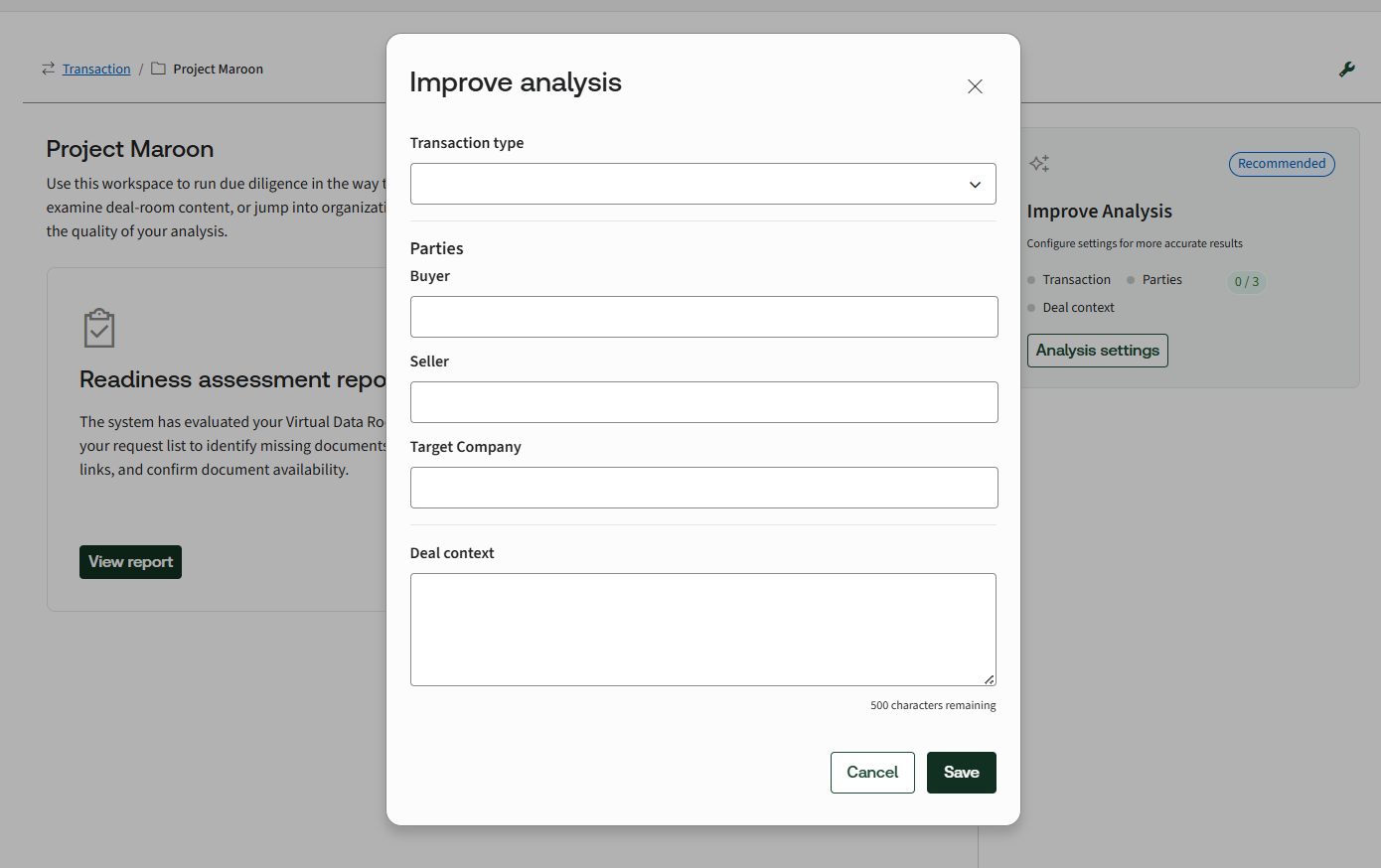
tip
Even a short entry helps. If you are unsure what to add, start with the transaction type and the names of the parties, then expand the deal context as the review progresses.