
Configure and Manage CoCounsel Transaction Management in HighQ
Configure and Manage CoCounsel Transaction Management in HighQ
Configure System Access and Enable Admin Functionality
Configure System Access and Enable Admin Functionality
To configure your HighQ instance for seamless integration with CoCounsel Transaction Management and enable the dedicated 'Transactions Management' icon for your Admin users, follow these steps.
Client Onboarding by Support Team
The HighQ Customer Support Team will perform client onboarding on demand using the configuration steps outlined above. Support team members have access to the ASP Settings and will manage the tenant onboarding accordingly.
Confirm Icon Appearance
Upon successful setup, verify that the
‘Transactions Management’
icon appears in the HighQ interface. This icon should be visible to the Admin of the HighQ instance, indicating that the onboarding process is complete.Linking a dealroom

Accessing the Connection Management Interface
- Navigate to the Transaction Management solution's landing page.
- Locate and select the"Link Dealroom"button.

- This action will redirect you to theConnection Management Dashboard.From the Connection Management Dashboard, click the"Link New Connector"button to initiate the workflow.
note
In the current July 2025 release, the only supported repository type is HighQ (Host instance). In future releases, support will be extended to include External HighQ, Dropbox, and SharePoint.
Authentication and Authorization
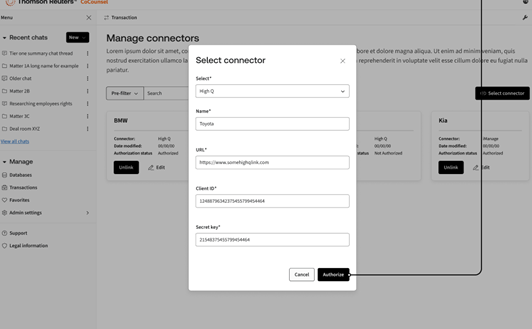
- A secure configuration form will appear. Enter the required credentials in the corresponding fields:
- Name:A name for the connection (e.g., "HighQ Dealroom").
- Client ID:The unique identifier for the HighQ application.
- Secret Key:The confidential key for authenticating the application.
- Click the"Authorize"button. This will initiate a secure handshake with the selected HighQ instance.
- Upon successful authorization, the system will present a list of available HighQ sites. You can select single or multiple sites for batch authorization using themulti-site selection capability.
- Confirm your selection to complete the authorization process for the chosen dealrooms.
note
For the July 2025 release (Early Adopters Program), we're limiting the HighQ sites connection to a maximum of 3.
Post-Authorization Workflow
- After successful authorization and selection, you will be automatically redirected back to the Landing page.
- The newly connected projects from the authorized dealrooms will be displayed in real-time on your project list. The system performsreal-time project synchronizationto ensure immediate visibility of all connected repositories.
- From the Connection Management Dashboard, you can manage your connections at any time. The following options are available:
- Edit credentialsfor an existing connection.
- Add new projectsto an existing connection.
- Unlink connectionsas needed, which will remove the associated projects from the solution.
Future Enhancements
note
As of the
July 2025 initial release
, the solution is limited to linking with the Host HighQ platform
. Future releases will introduce the ability to integrate and connect with external systems
, enhancing flexibility and compatibility with a wider range of document repositories.User Onboarding and Authorization
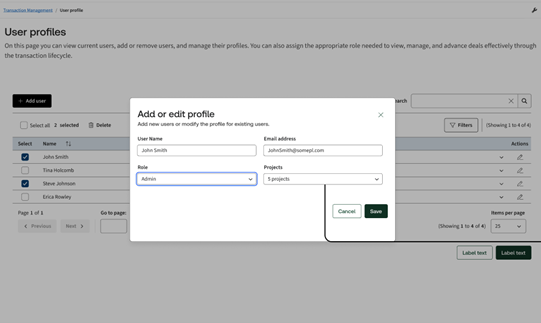
The User Onboarding and Authorization functionality provides a comprehensive permission framework that enables administrators to precisely control user access and capabilities within the Transaction Management solution. This hierarchical system ensures users have appropriate visibility and functionality based on their roles and responsibilities.
Admin Control Center
Access the
Settings
interface via the dedicated settings icon to manage user onboarding and permissions.
- New User WorkflowAn intuitive process to add new users by capturing essential details such as Name and Email Address.
- Granular Permission AssignmentAssign permissions with project-specific access controls, allowing tailored access to different parts of the solution.
Permission Hierarchy
The system supports a hierarchical role-based permission model:
Role | Access Level & Capabilities |
Admin | Full system access including settings management and dealroom linking. Admins can access all projects and manage user permissions globally. |
Creator | Project-specific access with dealroom linking capabilities. Access to self-created projects and those assigned by Admins. |
Editor | Project access as assigned by Admins. Currently focused on editing capabilities; future updates may include report generation. |
Viewer | Read-only access to assigned projects, allowing visibility without modification rights. |
note
For the initial Early Adopters Program (EAP) in release in July 2025, only Admins will have the ability to link deal rooms and manage user permissions, while all other roles—including Creators, Editors, and Viewers—will operate with Editor-level access, granting them editing capabilities limited to their assigned projects.
Navigating the Transaction Management Solution
The first time users access the Transaction Management Solution, the system will display a popup presenting the Beta program terms and conditions. Upon accepting these terms, users are redirected to the Landing Page, which serves as the central command center for legal professionals managing multiple transaction projects, specifically due diligence. This intuitive interface consolidates all ongoing projects into a single comprehensive view, enabling efficient monitoring and management.
Landing Page Overview
- Transactions Display (Card View):The Landing Page presents all Linked Dealrooms (HighQ sites) accessible to the user, . Each transaction is displayed as a clickable card containing key details. Users can sort transactions by parameters such as last modified date or alphabetically.
Individual Transaction Cards
- Display the transaction name
- Show site description
- Indicate creation date
Navigation & Controls
- Primary Action Controls:
- Manage Transactionoption provides access to a detailed transaction management interface.
- Go to Dealroomoffers a quick link to the dealroom where the source files are stored.
This setup ensures users have a streamlined and organized workspace to oversee and manage their transaction projects effectively, enhancing productivity and project oversight from the moment they join the Beta program.