
Change the email address of the workflow automation engine
As a
system administrator
, follow these steps to change the email address of the workflow 'Automation engine':note
You must contact your IT department before making any changes to ensure emails from the new address are not blocked by your email service.
Find the 'Automation engine' profile
Click on your Profile image, then navigate to
System admin
> User admin
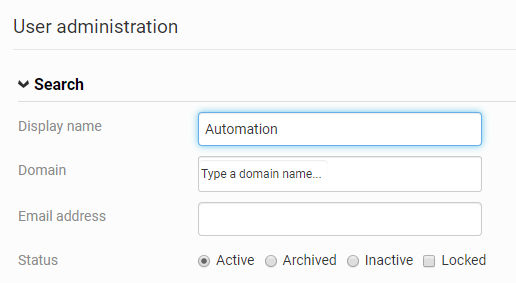
.Type 'Automation' in the
Display name
field and select Search
.
Follow the processes below to change the email user name or
domain
.Changing the email address
Select
Automation engine
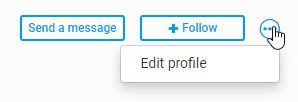
in the search results.In the 'Automation engine' profile page click
More actions
> Edit profile
.
Change the name, email address and profile picture of the 'automation engine' user, as required. You may change the domain, but only to a domain registered for the current organisation.

Select
Save
to apply the changes.Changing the email organisation and domain
In the
search results
, select the checkbox next to 'Automation engine' and then select Move
at the top of the page.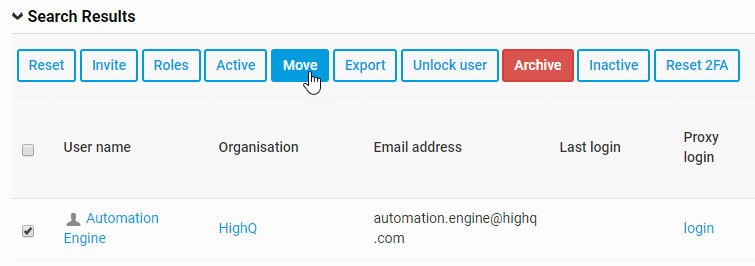
Select the required organisation from the
Select organisation
menu (for example, 'BayView'). Then select the appropriate organisation domain from the Select domain
dropdown (in this example, 'highqsolutions.com').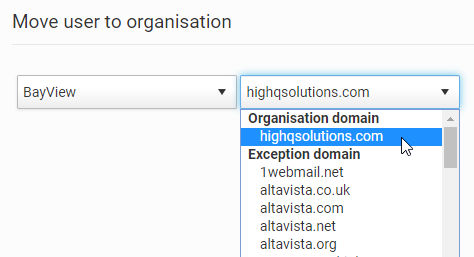
Select
Save
to apply the changes.