
Cross References
Two kinds of cross-references let you jump quickly to other locations in a calculation that are referenced in a cell.
- Cross-referencesare quick links to other sheets and are indicated with the sheet reference number. You can select a referenced sheet to go directly to that sheet.
- In-sheet cross-referencesare cells that contain cross-references and are indicated by small up and down arrows. You can select these arrows to move directly to the referenced cell.
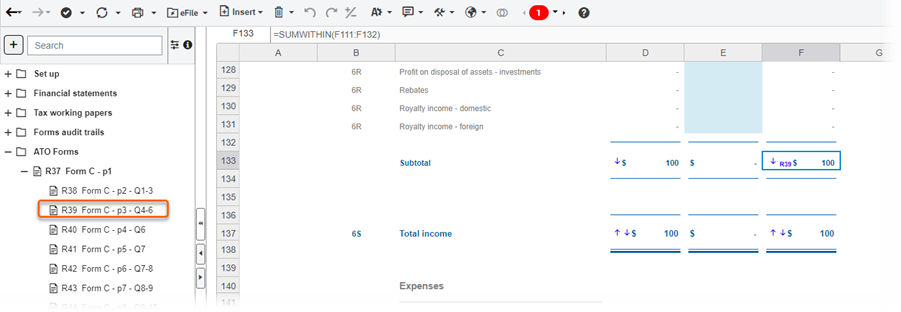
The example in the illustration shows that cell F133 contains a cross reference to sheet R39. Cell F133 also has an in-sheet cross-reference to cell F137, which also shows another in-sheet cross-reference farther down in the calculation.
Clicking the small down arrow in F133 moves the focus to the referenced cell farther down in the calculation, which in this case is F137. Cell 137 also shows another in-sheet cross-reference farther down in the calculation. In cell F137, selecting the small up arrow in cell F137 jumps back to the previous referenced cell, which in this case is F133.
note
- If a link refers to a hidden workpaper, it is not displayed on the screen.
- Links are generated in a single calculation, not between different calculations.
- Links work in single workpapers and across different workpapers in the same calculation.
- Linked cells can't contain text or dates.
- Links are automatically generated when there is a direct correlation of data.
- Manually entering a formula automatically generates a link between cells.
- Editing formulas automatically deletes a link unless the editing only reverses signage of the source value.
Enable Cross-references
- Open a calculation and select the sheet you want to work with.
- On the toolbar ribbon, select the Tools icon and selectSettings.
- Mark or clear theCross ReferencesandIn Sheet Cross Referencesboxes to enable or disable the functions. Both boxes are checked by default. TheCross Referencesbox must be checked for theIn Sheet Cross Referencesbox to be visible.