
Other items
Line items not populating in financial statements
Check the mapping as described in the Review the NextGen Map section.
Missing investments & trading stock workpapers
- Manually insert these workpapers as NextGen doesn't include them by default. If you can't find the workpaper in the Insert Sheet window, follow these steps:
- In {B} Balance sheet, right-click on the row item (such as “Investment – current”) and selectInsert, thenSheet.
- In theAnalysis Sheetssection, select the relevant sheet to insert.
These steps apply to the following workpapers:
Investments
- Investments - current
- Investments - other - non-current
- Investments - wholly owned subsidiaries - non-current
Trading Stock
- Trading stock – current
- Trading stock - current – impairment
- Trading stock - non-current
- Trading stock - non-current – impairment
Complete Fixed Assets CS data against rolled forward opening balance rows
We've redesigned the Fixed Assets CS workpapers, so the prior period closing balance will roll forward for reference only. You need to re-enter or import the opening balances into the relevant workpaper in the NextGen calculation.
Follow these steps to re-enter:
- Verify opening balances in rollforward support sheets {RFF} Fixed Assets – accounting values and {RFG} Fixed assets – tax values, and in relevant fixed assets workpapers (reference starting with {C}).
- In {S2} Calculation setup, tickYestoAllow fixed assets opening balance adjustment. Go to the relevant Fixed Assets CS workpaper (with a reference starting with {C}), and re-enter the opening balances.
- In relevant rollforward support sheets {RFF} and/or {RFG}, set the switch toNoto avoid duplicating opening balances in the Fixed Asset CS workpaper.
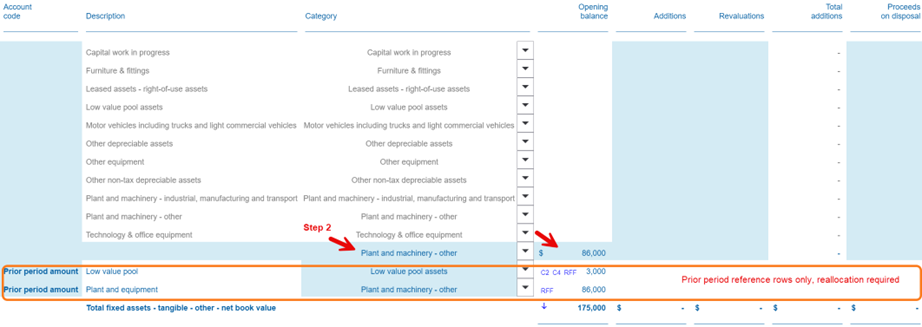
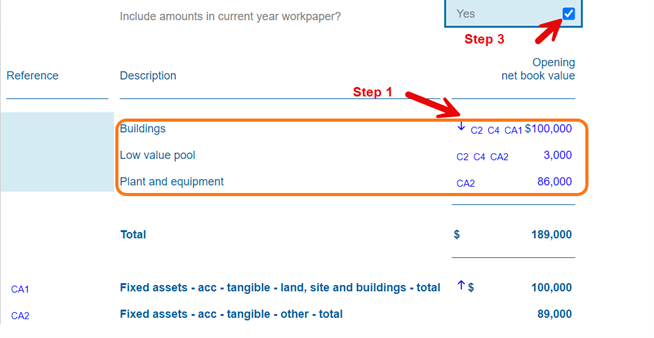
You can also import the opening balances. Refer to the Fixed Assets Webinar for more information.
Adjust for assessable income/other deductible expenses not included in P&L
Classic content's {D14} and {D15} workpapers are no longer available. Instead, insert {D1} Various adjustments – permanent. This new workpaper combines assessable income and deductible expenses tax adjustments, replacing Classic content's {D14} Other deductible expenses not included in P&L and {D15} Other assessable income not included in P&L.
If you need this workpaper, you can insert it manually from the Ribbon Toolbar by selecting
Insert
, then Insert Sheets
.Unrecognized DTA and DTL balances after transitioning to NextGen content
The transition design and new splits for some workpapers require you to re-enter any unrecognized amounts brought forward in {T3} Temporary Difference Movement as a one-time exercise.
Enter these unrecognized amounts as current period adjustments in:
- {T3}, column D “Unrecognized amounts brought forward”
- {T2X}, column G “Unrecognized – carried forward”
Once you enter these amounts, the system clears the recognized amounts.
note
This adjustment will create a duplication in {T3} Temporary Difference Movement, making the total “Unrecognised amount brought forward” appear doubled. However, the system won't account for any movement in deferred tax, and the opening balance only considers the recognized portion for tax accounts. Therefore, this is a one-off appearance issue due to row duplication and won't have any additional impact.
Opening balance DTA/(DTL) indicator changes when using “Display DTA and DTL override” in Classic content
In {T3}, opening and closing balance indicators for Deferred Tax Assets (DTA) and Deferred Tax Liabilities (DTL) are based on their balance signs in both Classic and NextGen content. The system automatically classifies a positive balance as a DTA and a negative balance as a DTL.
If you already use this default setting in Classic content, you won't need to make any changes when moving to NextGen content. This approach simplifies the process and ensures consistency across both content types.
If you previously used the “Display DTA and DTL override” option in {T3} Classic content, you'll need to make a one-time adjustment when moving to NextGen content. This option lets you change how the system classifies a line item manually as either a Deferred Tax Asset (DTA) or a Deferred Tax Liability (DTL). You need to review and update these manual classifications to ensure they transfer over correctly to the new system. This step maintains the accuracy of your tax classifications in NextGen content.
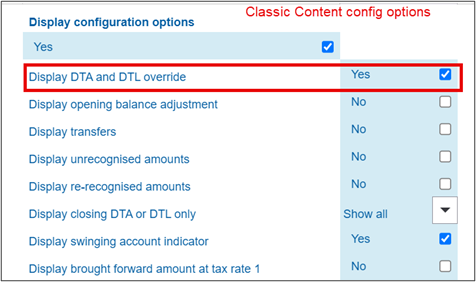
When moving to NextGen content, review all Deferred Tax Asset (DTA) and Deferred Tax Liability (DTL) indicators, even if you didn't use manual overrides in Classic content. This is important because:
- NextGen no longer offers the manual override option.
- The transition process can't automatically copy your manual selections from Classic to NextGen.
To ensure consistency between Classic and NextGen calculations, follow these steps:
- Open your NextGen calculation.
- Check each DTA/DTL indicator.
- If needed, select the correct option from the dropdown next to the indicator.
- Continue this process until all Opening balance DTA/DTL indicators in NextGen match the Closing balance DTA/DTL indicators in Classic content.
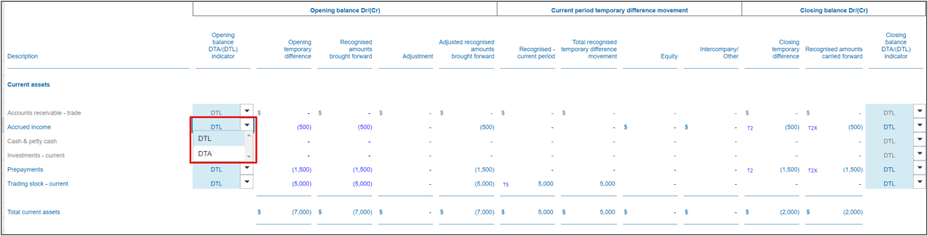
Verify opening balances efficiently
If you've been using ONESOURCE Corporate Tax only for tax returns without the tax effect accounting workpapers, you'll need to allocate extra time for this step. Currently, we don't offer a quick way to review opening balances in each balance sheet workpaper. This means you'll need to:
- Go through each balance sheet workpaper individually.
- Carefully review all opening balances.
- Make any necessary adjustments.
This process might take longer than you're used to, so plan ahead and allocate enough time for this task. By doing so, you'll ensure accuracy in your financial reporting and maintain compliance with tax regulations. Remember, a thorough review now can save you time and potential issues later.
Salary and wages data population in NextGen content
In NextGen content, the Salary and wages {F8} audit trail has replaced the original Salary and wages workpaper. The system requires this audit trail workpaper to populate salary and wages data correctly on Financial disclosures audit trails, Company tax return forms, and consolidated group disclosures.
To ensure correct population and consolidation of Salary and wages data, insert the Salary and wages {F8} audit trail in each relevant member entity:
- In each relevant member entity, go to the Ribbon Toolbar and selectInsert, thenInsert Sheets.
- SelectSalary and wages {F8}from the list to add the audit trail workpaper.
- Repeat these steps for all member entities that contain salary and wages data.
- Once you have added the workpaper to all relevant member entities, update the group consolidated calculation by selecting "Data updates available" to refresh the data and give proper consolidation.
Consolidated statement of taxable income adjustments
When transitioning from Classic to NextGen content, hidden prior period rows may not align with current period rows at the member-entity level. This misalignment prevents certain adjustments—such as accrued expenses or accrued income—from consolidating correctly into the group's Statement of Taxable Income.
To correct this, apply a Sort function to the Statement of Taxable Income in each relevant member entity:
- Open theStatement of Taxable Incomeworkpaper in each affected member entity.
- With this workpaper active, go to the Ribbon Toolbar and selectTools, thenSort.
- Update the group consolidated calculations by selecting "Data updates available."
This process properly aligns the rows for consolidation.