
Set up e-filing to Companies House using Accounts Production Advanced and Onvio Secretarial
Before you begin
To file annual accounts with Companies House online using Digita Accounts Production Advanced (DAPA) with Onvio you will need to have at least version 6.26 of DAPA.
Enable Onvio Secretarial
- Log in to Onvio as a user with admin rights.
- Select Setup > Permission Groups from the menu bar.
- Choose the name of the permission group that you want to edit.
- In step 2, select the Secretarial tab.
- Select Enable for theCreate and maintain statutory recordspermission, then Next.
- In step 3, make sure that the staff who should have access to Onvio Secretarial are listed in the Members section on the right.
- Select Done.noteWhen you select My applications you should see Onvio Secretarial in the list. If it isn't shown, log in again to refresh the menu items.
Set up electronic filing in Onvio Secretarial
- Select My applications > Onvio Secretarial.
- Select Setup > Presenter Details from the menu bar.
- Enter yourPresenter IDand PresenterAuthentication Number. View the Presenter Details screen.
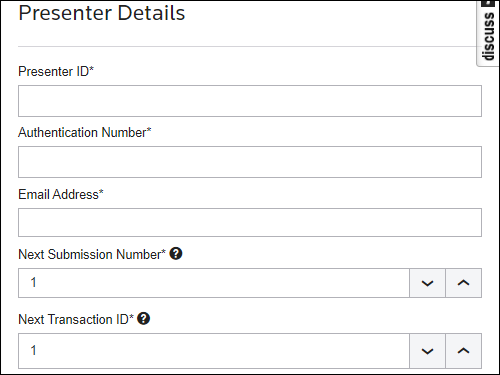 noteCompanies House gives you a Presenter ID and Presenter Authentication Code when you apply for an online filing presenter account.
 - If you've used your Presenter ID b before, enter numbers in theNext Submission NumberandNext Transaction IDfields that you're certain are higher than any previously used numbers. If you're Presenter ID is unused, enter 1 in each field.noteTheNext Submission NumberandTransaction IDincrease by one each time you file at Companies House. The numbers are unique to each filing. If you enter a number that's already been used with your Presenter ID, Companies House will reject your submission.
- Select Save.
Set up electronic filing in a client
- Select My applications > Onvio Centre.
- Select Setup > Clients from the menu bar.
- Find the client company that you want to set up e-filing for, then select Edit from the Actions column.
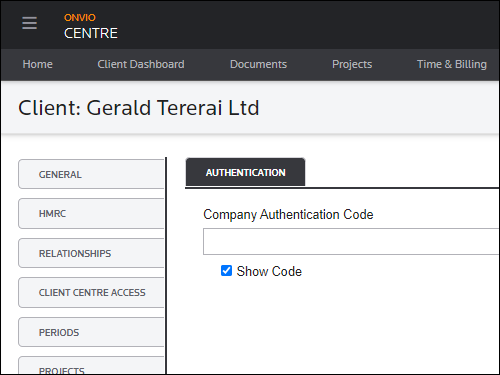
- Select the Companies House tab.
- Select theShow Codecheckbox and enter theCompany Authentication Code.
- Select Save.
Enabling the Accounts Filing project template
- Select My applications > Onvio Centre from the menu at the top left.
- Select Setup > Project Templates from menu bar.
- Check that the Accounts Filing (ACCFILE) project template is in the list.
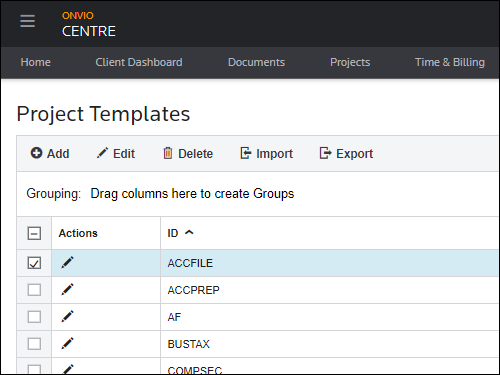
- If the Accounts Filing project template is not in the list:
- Select Import from the Project Templates menu
- Select theAccounts Filing project templatecheckbox
- Select Import.
E-filing accounts using Digita Accounts Production Advanced
- Open the client in Digita Accounts Production Advanced.
- Run the report.
- Select File with Companies House from the Reports menu.
- If the accounts are filed successfully, the File with Companies House button will change to include a tick. If the accounts are rejected, a rejection message will be displayed.