
Can't delete a project or task
Onvio allows you to delete a project, a project template or a task only if there is no data of any type associated to it. This is necessary to maintain data integrity.
Can't delete a project or project template
When you attempt to delete a project you will get an error message that tells you what is preventing the project from being deleted.
You will receive a similar message when trying to delete a project template associated with any data.
The data preventing deletion may include:
- Billing
- Receipts and adjustments
- Time and expenses entries
Before you can delete the project, you'll need to find and delete any and all data associated with the project.
Can't delete a task
Tasks cannot be deleted from existing projects if they are associated with any data. You will get an error message that tells you exactly what is preventing the task from being deleted.
Tasks
can
be deleted from project templates, whether they are associated with any data or not. This is by design so that your firm has the flexibility to change your projects over time.Deleting a task from the project template does not affect any projects that have already been generated. It also does not affect projects that are set to generate using the current project's task information.
Recommended method
If you want to delete an existing project or a task but cannot delete the data associated with it, we recommend cancelling it instead.
If you want to delete an existing project template but cannot delete the data associated with it, we recommend stopping the regeneration on all existing projects instead.
How to find and delete data
If, after considering the effect on your data, you still wish to delete a project, a task, or a project template, you'll need to identify and delete the data associated with the project, task, or project template to be deleted.
Delete all invoices
If you try to delete a project or a task and you get an error message saying that it cannot be deleted once it has been billed, you'll need to delete all invoices associated with the project or task.
- In Onvio Centre, selectTime & Billing, thenBilling.
- In theReview Invoicestab, select each invoice associated with the project.
- SelectDeletein the toolbar.
- SelectDeleteagain to confirm, orCancelto keep the invoices.
Delete all receipts and adjustments
If you try to delete a project or a task and you get an alphanumeric code in the error message showing that it cannot be deleted because it is currently in use by Receipts and Adjustments, you'll need to delete all receipts and adjustments associated with the project or task.
Copy the alphanumeric code presented in the error message, then:
- In Onvio Centre, selectTime & Billing, thenReceipts & Adjustments.
- In theReviewtab, selectEditto open any entry.
- In the web address, delete everything that comes after "review/", paste the alphanumeric code that you copied from the error message, and press Enter on your keyboard.
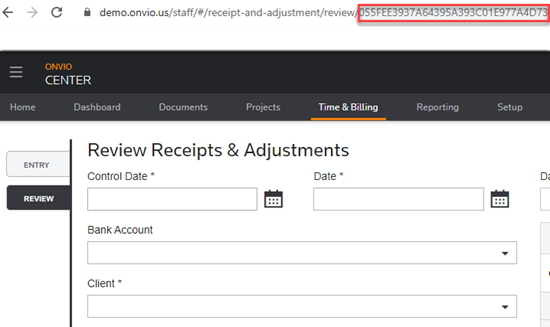 This opens the entry that needs to be deleted to clear the error and delete the project.
 - SelectDeleteto remove the entry.
Delete all time and expenses entries
If you try to delete a project or a task and you get an alphanumeric code in the error message showing that it cannot be deleted because it is currently in use by Time and Expenses, you'll need to delete all time and expenses entries associated with the project or task.
Copy the alphanumeric code presented in the error message, then:
- In Onvio Centre, selectTime & Billing, thenTime & Expenses.
- In theReviewtab, selectEditto open any entry.
- In the web address, delete everything that comes after "review/", paste the alphanumeric code that you copied from the error message, and then press Enter on your keyboard.
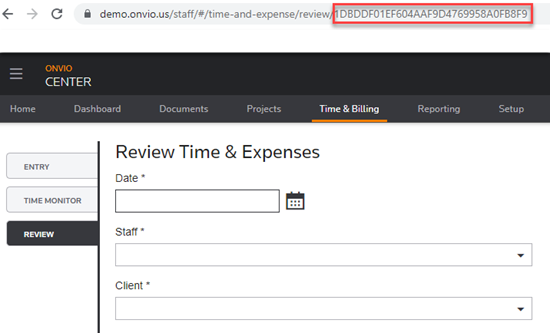 This opens the entry that needs to be deleted to clear the error and delete the project.
 - SelectDeleteto remove the entry.
Next steps
After finding and deleting all the associated data, you can delete a project, delete a project template or delete a task.