
Filter data and filter documents
Filter data
On many Onvio screens that present lists or grids of data, you can create filters to control the information that is displayed on screen and in various firm management reports.
Filters can either be accessed through a Show Filter button, a Filters panel on the left side of the screen, and in some cases, a quick filter button.
Show Filter button
- If the filter area is hidden, click the Show Filter button, and then click theEdit Filterlink.
- Click theAdd Rulelink and create one or more filter rules by selecting an option and building a statement to include or exclude information. Use AND / OR statements to make the rule more specific.
- If you are mixing AND and OR statements, add a group to combine the rules so that they will operate together. You can use multiple groups to create complex rules. The primary AND or OR statement is at the top of the panel. The AND or OR statements for groups are indented below it.
Example
This filter shows all clients who have the status of active, OR clients who are inactive AND have left the firm since 1/1/2017. (For dates, "less than" means "before," and "greater than" means "after.")
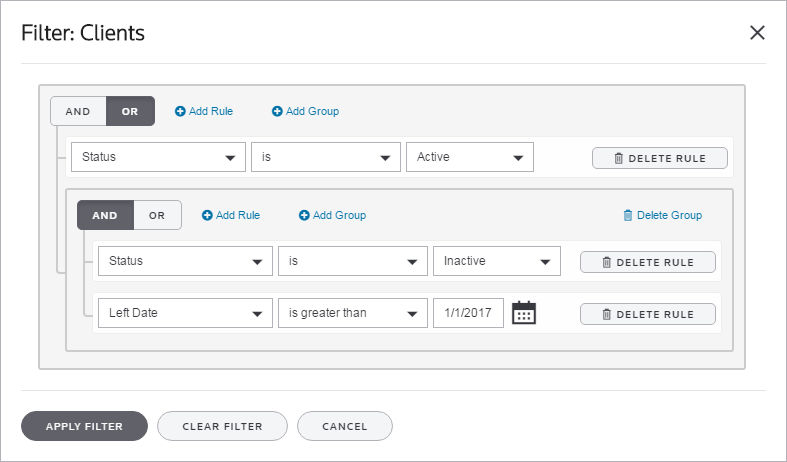
(Rule 1) Status is Active
OR
(Group 1 Rule 1) Status is Inactive
AND
(Group 1 Rule 2) Left Date is greater than 1/1/2017
Once you create and apply a filter, it will stay active for future Onvio sessions until you change or remove the filter. You can remove filters, or rules and groups from a filter, one of two ways.
- Click an X in the Filter panel to delete a specific rule or group.
- Click the Edit Filter link to open a panel with all of the filter's details, where you can delete specific rules or clear the entire filter.
Filters panel
Use the Filters panel to organize projects.
- If necessary, click the Show Panel
 button to expand the Filters panel.
 - Make selections in one or more of the expandable sections.
- To filter by criteria not represented by the available sections, use the Advanced Filters section at the bottom of the panel, where you can build a custom filter.All filtering criteria you select in the panel combine to narrow the data displayed on the screen. Onvio will retain the filter until you change it or clear it.
- When building a custom filter in the Advanced Filters section, tick theCustom Filterbox and click the Edit button.
- Click theAdd Rulelink and create one or more filter rules by selecting an option and building a statement to include or exclude information. Use AND / OR statements to make the rule more specific.
- If you are mixing AND and OR statements, add a group to combine the rules so that they will operate together. You can use multiple groups to create complex rules. The primary AND or OR statement is at the top of the panel. The AND or OR statements for groups are indented below it.
ExampleThis filter shows all clients who have the status of active, OR clients who are inactive AND have left the firm since 1/1/2017. (For dates, "less than" means "before," and "greater than" means "after.")(Rule 1) Status is ActiveOR(Group 1 Rule 1) Status is InactiveAND(Group 1 Rule 2) Left Date is greater than 1/1/2017
Once you create and apply a filter, it will stay active for future Onvio sessions until you change or remove the filter.
The heading on this screen will be followed by "
(Filtered)
" when a filter has been applied.You can remove filters, or rules and groups from a filter, one of two ways.
- Remove an X in an expandable section of the Filters panel to delete a specific rule or group.
- Click the Edit button in the Advanced Filters section to open a panel with all of the custom filter's details, where you can delete specific rules or clear the entire custom filter.
Quick Filter button
On some screens, other filtering capabilities may be supplemented by a quick filter button, which enables you to quickly filter by a common criterion. One example is on the Billing Selection screen (Setup > Time & Billing > Billing > Selection tab), where you can hide entries with zero balances using the Zero Balance WIP  button. Click the button to turn this quick filter on or off. When the button is orange, the filter is applied (in this case, items with zero balances are hidden).
button. Click the button to turn this quick filter on or off. When the button is orange, the filter is applied (in this case, items with zero balances are hidden).When you remove a filter, Onvio applies the changes immediately.
Filter documents
In the Client, Firm, and MyDocuments tabs of the Documents area, you can click the Show Filter button to turn on filtering at the storage level to create filters, and/or clear all existing filters.
- To display filter buttons in the storage area of the Client, Firm, or My Documents tab, click the Show Filter button.noteThe Show filter button appears white when the column filter buttons are hidden, and orange when the column filter buttons are displayed in the header row for each column in the grid.
- Click a filter button in a column to sort the column by ascending or descending order, and/or create a filter to include or exclude information by condition or value.
- If you choose to filter by value, you can enter a search term in theSearchfield, and/or mark the checkboxes next to the items that you want to display in the grid.
- If you choose to filter by condition, you can apply a filter for items where the value Contains, Equals, Begins with, and so forth. Use AND or OR statements to make the rule more specific.