
Edit and delete iSheets
To edit an iSheet, navigate to
Admin
> iSheets
:
The iSheets administration page opens. Select
More actions
for the iSheet that you want to either edit or delete:
From this menu, you will be able to manage the various elements of an iSheet as follows:
- Manage columns- Add, sort, move, edit and delete columns in the iSheet. Add a section to simplify column management.
- Manage permissions- manage iSheet permissions.
- Set as default sheet- Configure an iSheet so it is the landing iSheet in the iSheets module, and the first iSheet listed; other iSheets will be listed according to the defined sort order.
- Delete- Delete an iSheet from the module.

To delete an iSheet, select
Delete
. When attempting to delete an iSheet, the following message window opens: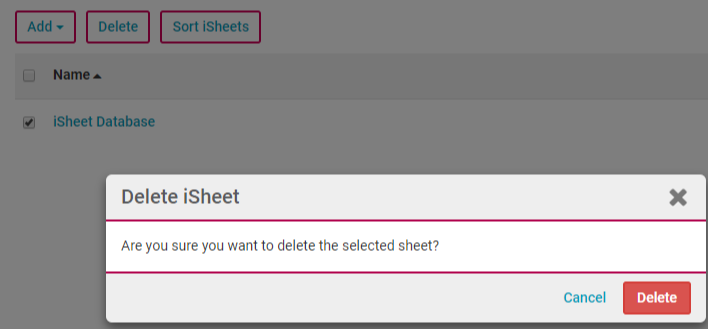
Select
Delete
to delete the iSheet.note
You can delete multiple iSheets by selecting the checkbox next to each iSheet and then clicking
Delete
.Additionally, if you attempt to delete an iSheet that is referenced by another iSheet, either as a lookup, join or iSheet link you will be prevented from doing so and the following message will be displayed:

System Administrators can use the 'iSheet references' tool accessed via
System admin
> iSheet admin
to determine the reference location(s). All references must be removed before an iSheet can be deleted.Deleted iSheets in Site admin
In the Site Admin
iSheets are now separated into two sections
- Active iSheets and Deleted iSheets. The Deleted iSheets section
acts as a 'recycle bin'
, allowing you to restore recently deleted iSheets, along with all associated data, attachments, permissions, workflows, rules, filters, etc., for up to 30 days
before they are permanently removed
. This makes it easy to recover iSheets that were mistakenly deleted.
The feature includes a
Days since deletion
column that shows when the iSheet was first deleted.
note
Please note that, currently, only
Metadata iSheets
can be permanently deleted before the 30 days
elapses.Unlike other iSheet types,
Legal Tracker iSheets
will not be stored in the recycle bin when deleted. Due to a technical limitation, they will be automatically and permanently removed upon deletion.
View iSheets in the Deleted iSheets section
note
Only Site Admins can see and restore deleted iSheets.
To
access deleted iSheets in the recycle bin
, navigate to the Site Admin
and select the Deleted iSheets section
. Here you will find a list of all recently deleted iSheets, each with a countdown displaying the number of days elapsed since deletion. Review this list to identify any iSheets you may want to restore before they are permanently removed.
note
When
viewing deleted iSheets in the recycle bin
, their information, views, columns, and permissions will be visible but not editable
. To make any edits to a deleted iSheet, it must first be restored, edited as needed, and then deleted again if desired.This
read-only view
allows you to confirm details
about a deleted iSheet before deciding to restore it.Restore iSheets from the Deleted iSheets section
note
When restoring a deleted iSheet from the recycle bin,
all associated views, data, attachments, permissions, workflows, rules, and filters will also be recovered
, provided they still exist in the system.The
restored iSheet
will be identical to its state at the time of deletion, allowing you to easily reinstate iSheets that were mistakenly removed.To restore a deleted iSheet from the recycle bin, click the
More actions
menu for the desired iSheet and select Restore
. This will reinstate the iSheet
along with all of its columns, records, attachments, permissions, workflows, rules, filters and processes (provided that these still exist) back onto the site.
If an iSheet remains in the recycle bin
past 30 days
and is permanently deleted
, restoring it will require opening a support ticket and will be a complex process
. While the iSheet's data can be recovered, all attachments, permissions, workflows, rules, filters, etc. must be manually reconfigured.note
To avoid this inconvenience, restore any mistakenly deleted iSheets within 30 days, while restoration is still simple and complete.
note
If an iSheet is
restored and then deleted again
, the 30-day countdown resets
, based on the most recent deletion. I.e. each time an iSheet is deleted, the 30-day retention period restarts.