
Import RSS Content into Publisher
The RSS content syndication enables the import of content from external sources, into Publisher.
There are currently two ways that Publisher can import this data:
- A live feed - Publisher can pull the data from a public xml feed. For example, http://feeds.bbci.co.uk/news/world/rss.xml
- A static xml file - Publisher would import the data from a xml file stored within the Publisher instance document library.
We recommend using a live feed for ongoing content syndication. The static xml file method is recommended for imports where no live feed is available or you are planning a one-off initial data import.
Adding an RSS feed
To access the RSS content syndication options, navigate to
System administration
> RSS content syndication
Within the
RSS content syndication
screen, select Add RSS feed
to display the Add RSS feed details
screen.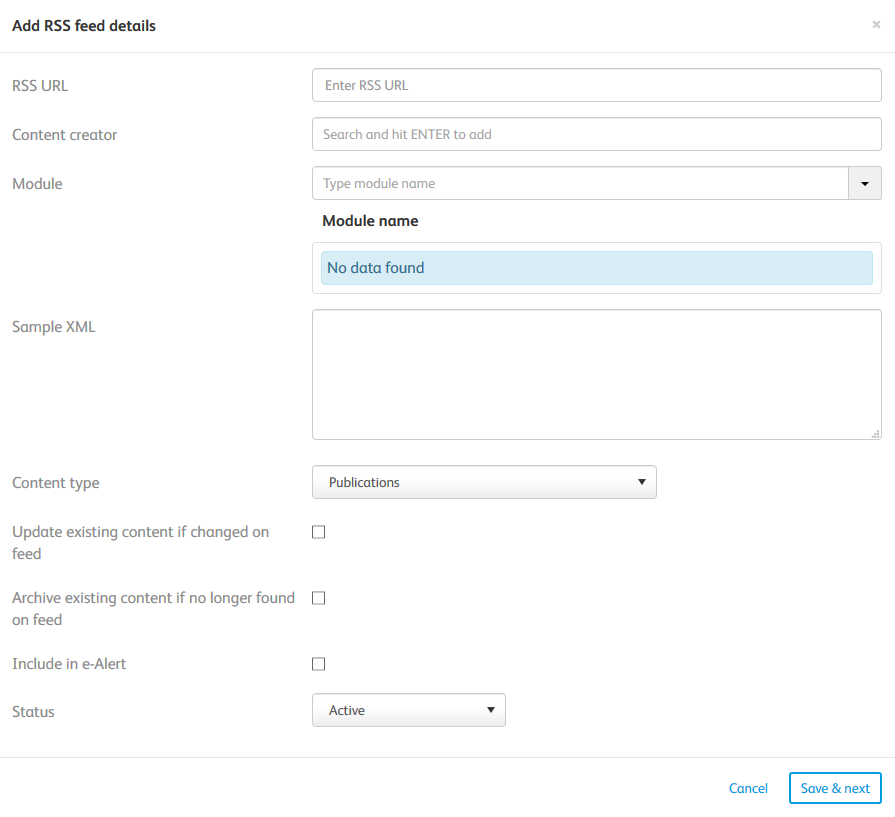
Each field is described in detail below:
- RSS url - This is the valid url of the RSS feed that is to be imported, e.g.:
- A live feed: http://feeds.bbci.co.uk/news/world/rss.xml
- A file hosted in the Publisher document library: https://publisher4live.highq.com/p4live/attachment_dw.action?attkey=FRbANEucS95NMLRN47z%2BeeOgEFCt8EGQJsWJiCH2WAWHb%2FPDBPVvgkKxWKInbXtZ&fromContentView=1&nav=FRbANEucS95NMLRN47z%2BeeOgEFCt8EGQuf6KjHLHOBw%3D&attdocparam=pB7HEsg%2FZ312Bk8OIuOIH1c%2BY4beLEAeXRvam7zK3s8%3D.
- Content creator - This is the system user to whom the imported content items will be assigned. This doesn't necessarily need to be displayed on the front end of the application. Common practice can be to use a genericAdministratoruser account
- Module - This is the module which you want the content to be added to. It is currently limited to a single publications module
- Sample XML - Here you can provide an extract of the RSS feed. This will be used to map the xml data to publication module fields and system metadata. Therefore, you need to ensure that it contains all of the elements you want to import
- Certain elements must be present in the xml file for it to successfully syndicate the content:
- item
- GUID
- pubDate*
- title*
* These elements can be labelled with almost anything, as long as they are present, e.g. <title> could be <headline> and <pubDate> could be <date>.
Below is an example:
  <?xml version="1.0" encoding="utf-8"?>
  <rss xmlns: content="http://purl.org/rss/1.0/modules/content/"
xmlns:dc="http://purl.org/dc/elements/1.1/" version="2.0">
    <content>
      <title>XML FEED</title>
      <LastBuildDate>18/08/2016 10:22:18</LastBuildDate>
      <Item>
        <pubDate>2016-7-1</pubDate>
        <guid>1234</guid>
        <title>Title of an article used in HighQ Publisher</title>
        <Summary> <! [CDATA[Short description of the article used in excerpts,
usually a catchy sentence to hook people in. ]]></Summary>
        <Contents> <! [CDATA[<h3>Sub-heading in article</h3> <p>Cras risus
ipsum, faucibus ut, ullamcorper id, varius ac, leo. In consectetuer
turpis ut velit. Pellentesque libero tortor, tincidunt et, tincidunt
eget, semper nec, quam. Cras varius. This is a <a
href="http://www.bbc.co.uk" target="_blank" title="BBC">link</a>.
</p>]]></Contents>
       <MetaDataOne>Internal</MetaDataOne>
       <MetaDataTwo>Dispute Resolution</MetaDataTwo>
       <MetaDataThree>Books</MetaDataThree>
      </Item>
    </content>
  </rss>
Elements within an <Item> element can be mapped to the relevant content elements and system metadata nodes (please see
Field mapping
below). Please note that all elements containing html will need CDATA tags.- Content type- Choose between a branded content item (a publication) or a single static html attachment
- Update existing content if changed on a feed- Triggered by a change of an item's <pubDate>, items already in the Publisher content hub will be updated
- Archive existing content if no longer found on a feed- This archives all existing content in a Publication module if that item's GUID is no longer present within the xml
- Include in e-alert- Include content in the daily, weekly or monthly system email updates
Once the relevant fields are updated and validated you are provided with a field mapping tool.
Field mapping
The
Field mapping
screen has 2 columns:Publisher field
and RSS field
. Based on the sample XML, you can map your XML elements within the feed to the relevant content elements and system metadata nodes by using the RSS field
dropdowns to map feed tags with the relevant items. Please note that you must double-check the Overwrite on change
field, if you want those elements to update.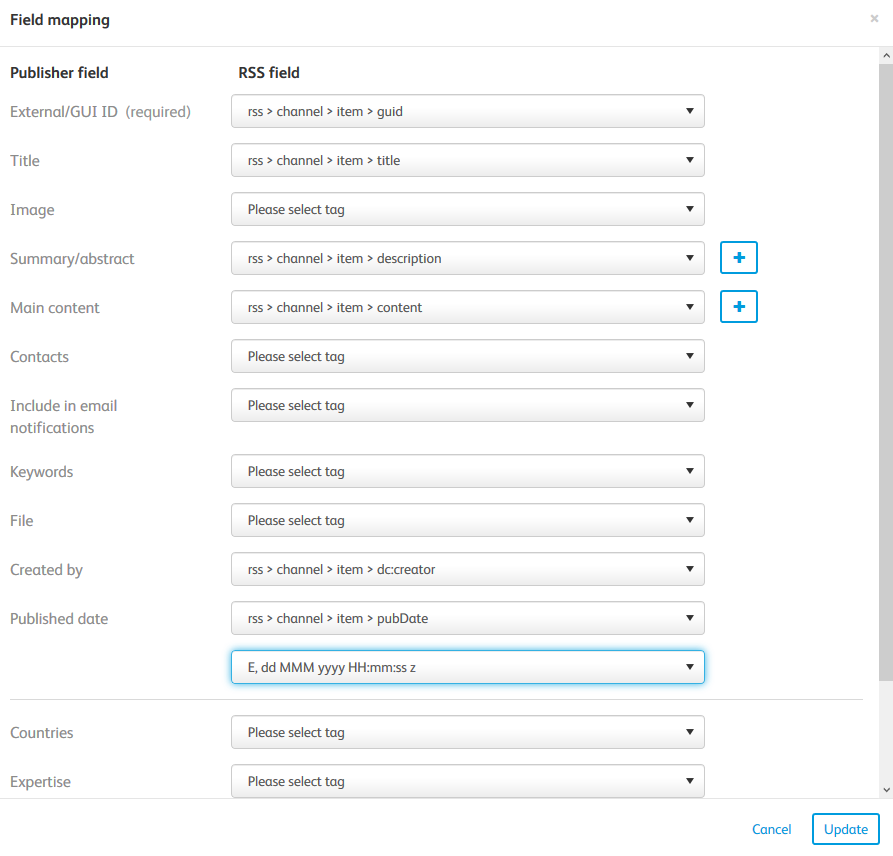
note
To successfully map xml elements to Metadata nodes your xml elements
must
match the labels for each of the metadata nodes.Please see our example below:
Your publication module uses the metadata node "Practice Areas" (see image above), and this node has two labels; "Dispute Resolution" and "Tax".
You can then choose to map the xml element "MetaDataTwo" to the "Practice Areas" metadata node. Therefore, <MetaDataTwo> elements need to match exactly to the "Practice Areas" metadata labels, i.e. they must contain either "Dispute Resolution" and "Tax", or both. Please note that in the example in our sample XML above: <MetaDataTwo>Dispute Resolution</MetaDataTwo>, there could be two (or more) MetaDataTwo elements within an Item, e.g. <MetaDataTwo>Dispute Resolution</MetaDataTwo> and <MetaDataTwo>Tax</MetaDataTwo>
Finally, remember that mapping to metadata is case sensitive, therefore <MetaDataTwo>Dispute resolution</MetaDataTwo> would not map successfully.
Syndication frequency
RSS syndication can run hourly, daily, weekly and even at specific times of the day. This is something that HighQ will have to set for you, so get in touch with your CSM to find out more details.
Related Content
-
Exporting Content
Format: Article,
13 min read
Article,
13 min read