Filter data in the Process Payroll Tax Forms screen

For payroll compliance (annually licensed)

Use the filter fields to choose the type and time period for the forms that you want to process. Then use the fields in the
Filter Options
section to drill down using more specific search criteria.

General form type filtering

  1. Choose the type of form that you want to process. More filtering fields will display based on the form type.
    Reconciliation
    Mark the checkbox for the frequency of the forms you want to process, and then make the selections appropriate to that frequency:
    • Monthly
      : Select the month and year.
    • Quarterly
      : Select the quarter and year.
    • Annually
      : Select the year.
    Payment
    Check dates
    : Select the beginning and ending check dates for the payment forms you want to process.
    W-2
    Year
    : Select the year you want to process.
    1099
    • 1099 type
      : Select the 1099 type you want to process.
    • Year
      : Select the year you want to process.
    1099-C
    Year
    : Select the year you want to process.
  2. Select
    Refresh
    to display all forms that match the form type, specified frequency, and time period.

Filter options

Filing method
You can choose to display only forms that use a specific filing method. The dropdown list differs depending on the form type you have selected.
Reconciliation
  • Electronic
  • Electronic with payment
  • Internet
  • Internet with payment
  • Magnetic
  • Magnetic with payment
  • Paper
  • Preprinted
  • Preprinted with labels
Payment
The filing method field doesn't display.
W-2
  • 2-Up
  • 3-Up
  • 4-Up
  • 4-Up Pressure Seal
  • Electronic
  • Internet
  • Magnetic
  • Paper
  • Preprinted
1099
  • Preprinted
  • Paper
  • Pressure Seal (1098, 1099-INT, 1099-MISC, & 1099-NEC only)
  • Internet
  • Electronic
1095-C
  • Paper
  • Internet
Filed by
You can choose to display only forms filed by the firm or only forms filed by the client.
Status
This filter option is available for Reconciliation, W-2, 1099, and 1095-C form types. You can choose either
Processed
or
Not processed
from the dropdown list. If you don’t select an option here, the Form Selection grid displays all payroll forms (both processed and unprocessed) that meet the criteria specified in the other filter option fields.
note
  • The application displays the status (
    Processed
    and
    Not processed
    ) of forms in the Status column of the Form Selection grid when you expand a client. A Processed status also includes a processing date in that column.
  • To reset the status from
    Processed
    to
    Not processed
    , select the form in the grid, then
    Process Selected
    . In the
    Print
    window, mark the
    Mark all as not processed
    checkbox, then select
    OK
    .
Use the Status filter to see which payroll tax forms have been processed and which still need to be processed, so you can easily monitor the progress being made for payroll tax processing for the selected period.
Verification
This filter option is available only for W-2 form types. You can use this filter to display and process only the W-2 form information that has already been verified in the
Verify W-2s
screen.
Liability adjustments
This filter displays if you select
Reconciliation
as the form type and make a selection in the Status filter. You can choose either
Processed
or
Not processed
from the dropdown list.
Use this filter with the Status filter to see which payroll tax forms still need liability adjustments processed, and which are ready to process.
Example 1
: To show only the clients' forms for whom you haven’t yet gone through the liability adjustment process, select
Not processed
in the Status filter and
Not processed
in the Liability adjustments filter.
Example 2
: To show only those forms that are ready for processing, select
Not processed
in the Status filter and
Processed
in the Liability adjustments filter.
Jurisdiction
You can choose to display only forms that apply to a specific jurisdiction, such as federal forms or forms for a specific state. When you choose an option from the dropdown list, the application displays the
Form
dropdown list so that you can choose a specific form.
Employee Copy
This filter option applies only to W-2 forms and displays when a selection is made in the
Jurisdiction
dropdown list. In addition, the position of the Employee Copy filter depends on which jurisdiction is selected.
  • When
    Federal
    is selected in the Jurisdiction filter and
    Copy A/W-3
    is selected in the
    Form
    dropdown list, the application displays an Employee Copy dropdown list from which you can select either
    Processed
    or
    Not processed
    .
  • When a state is selected in the Jurisdiction filter, the application displays an Employee Copy dropdown list from which you can select either
    Processed
    or
    Not processed
    .
Use the Employee Copy filter with the Status and Jurisdiction filters to see which W-2 Copy A/W-3 or state W-2 forms are ready to be filed.
Example
: To show only those clients' Copy A and W-3 forms that have had their Employee Copy processed, select
Not processed
in the Status filter,
Federal
in the Jurisdiction filter,
Copy A/W-3
in the Form filter, and
Processed
in the Employee Copy filter.
Recipient Copy
This filter option applies only to 1099 forms and displays when
Federal
is selected in the Jurisdiction filter field and
Copy A/1096
is selected in the Form dropdown list. You can choose either
Processed
or
Not processed
from the Recipient copy dropdown list.
Use the Recipient copy filter with the Status and Jurisdiction filter to see which 1099 Copy A/1096 or Copy 1 forms are ready to be filed.
Example
: To show only those clients' Copy A and 1096 copies that have had their Copy B, Copy, Copy 2, and/or Copy B/2 (recipient copies) processed, select
Not processed
in the Status filter,
Federal
in the Jurisdiction filter,
Copy A/1096
in the Form filter, and
Processed
in the Recipient copy filter.
Recipient CopyClient filter
The Client filter fields enable you to specify in greater detail which client forms you want to display. These are the same filtering options that are available within the Clients screen.
Useful filters on the
Payroll Tax Form Processing
screen include:
Primary Processor
You can choose to display only the clients for whom you or another specified staff member is the primary processor.
Or you can choose to display only the clients for whom the staff member is currently logged in is the primary processor.
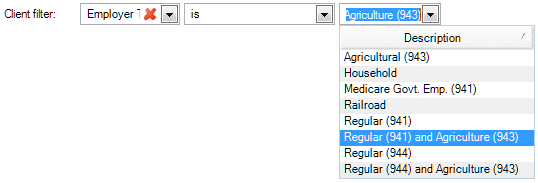
Employer Type
You can choose to display only the clients with a particular employer type, limiting the form types displayed in the grid.
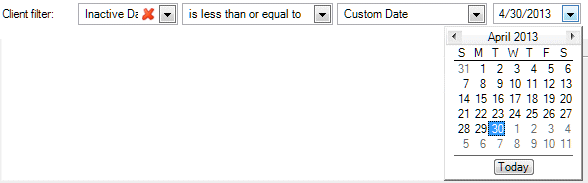
Inactive Date
You can choose to display only clients who have an inactive date that falls within the form filing period by filtering by less than or equal to the ending date of the form period.
Payroll name or EIN/SSN
As an easy way to determine if clients are missing information, you can choose to display only the clients with missing EIN/SSN numbers or with no payroll name specified. Choose
is blank
in the Method dropdown list.

error-icon

Triva isn't available right now.

Check out the support page for our phone number and hours

error-close