
Setup Questionnaire in Author Online
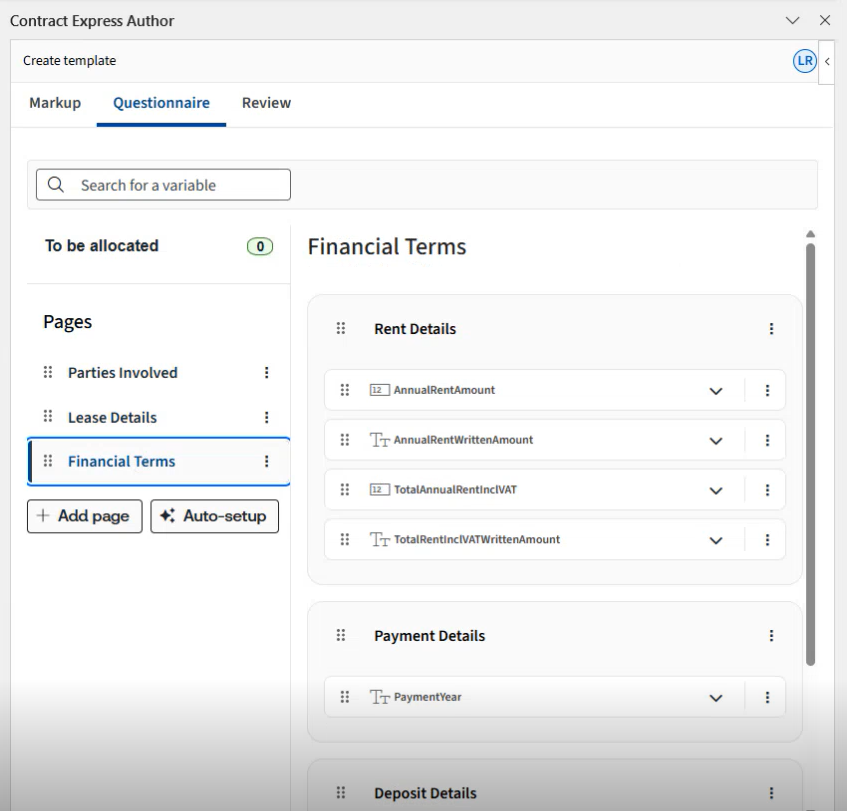
Contract Express does not require users to organise questionnaires into groups and pages to test template. If no structure is specified, questions will be presented in their order of appearance, with adjustments for any conditional logic. For example, questions that determine the relevance of other variables, such as guarantor details, will be asked first. This ensures that guarantor-related questions are only displayed if the user indicates that a guarantor is relevant.
However, the questionnaire experience can be enhanced by organising it into a more structured format with pages and groups. This can be easily achieved using the questionnaire view.
Accessing and resizing the Questionnaire
To access the questionnaire, click on the
Questionnaire
tab. To work with the questionnaire efficiently, you may want to resize the work pane. To do this:- Move your cursor to the edge of the add-in panel.
- When the cursor changes to a resize arrow
 , click and drag the edge to widen the panel.
Alternatively, click on the header of the work pane to undock it and move it to the center of the screen or another monitor. Adjust the size of the window by dragging its edges outward or inward.
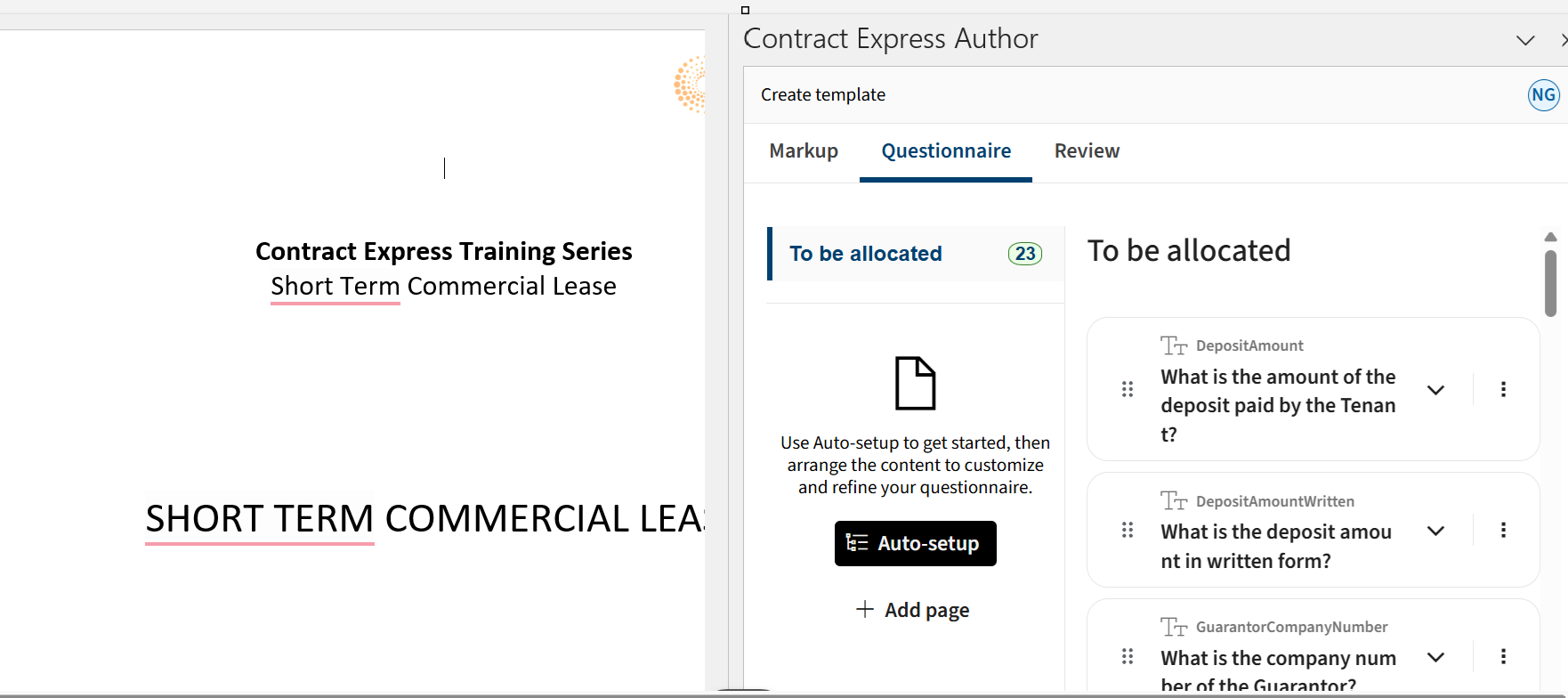
To be allocated
When you first access the Questionnaire, all your variables will be placed in the section called
To be allocated
. These are variables that have not yet been assigned to a specific page or group.Any relevant variables will automatically appear on the questionnaire, even if they are not yet allocated to a specific page. If you forget to add new variables to questionnaire pages, they will still appear at the end of the questionnaire on a system-generated page, as long as they are relevant for document generation.
Similarly, any group or page or question that is not relevant will be automatically hidden from Contract Express template, ensuring that the end user is never asked to complete questions not relevant for his document.
Auto-setup of Questionnaire
In the new author add-in, we've added the flexibility of the
Auto-setup
feature, now enhanced with AI capabilities.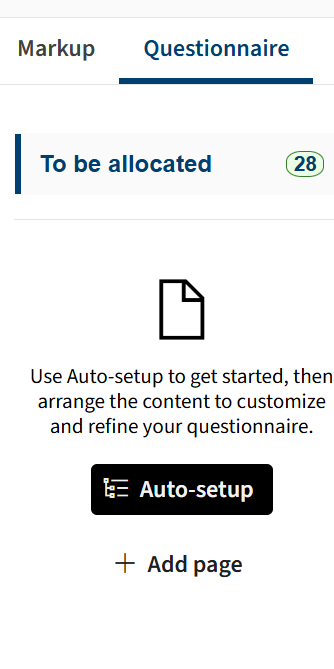
This new functionality not only uses a chronological order but also arranges things logically, considering factors like conditions, repetitions, and relationships between variables. The tool will also generate page names and group variables logically. For example, all questions relating to landlord details or tenant questions will be grouped together.
This feature can also be applied to
non-English documents
, providing greater flexibility for users who prefer to create templates in their native language.After the automatic arrangement is complete, the template author can fine-tune and finalise the questionnaire by manually adjusting the order, page names, or group names as needed. Additionally, users have the option to manually create pages if they prefer to organise the questionnaire differently from the automatic setup.
Adding a page or group manually
To add a new page to the questionnaire, choose the
Add page
option.
The new page will be displayed under the Questionnaire tab.
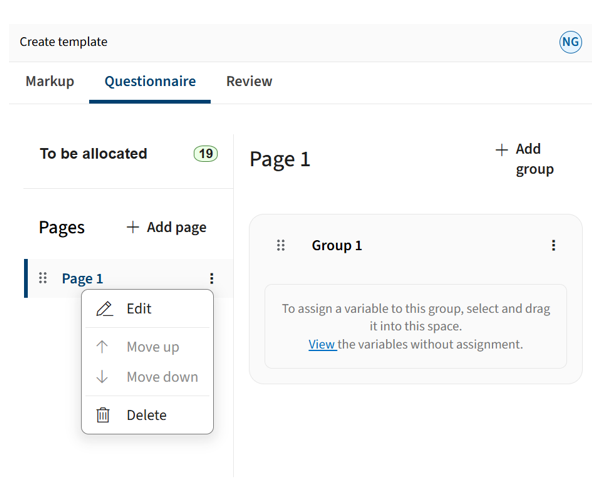
To edit the name of the page, click on the three ellipses. The
Edit page
will appear as shown below:
- Title: This lets you change the name of the page you'll see in the questionnaire.
- Guidance: Add information about the questionnaire here, like what it's for and when to use it (you can even use formatting).
- Always show: Select this option to ensure the page is always displayed, even if it doesn't contain relevant variables. This is particularly useful for informational pages, such as introductory or concluding pages, that do not rely on variable data.
- Collate Groups: Used for nested repeats only, this option organises questions by the parent question, rather than collecting information about all items at the same repeat level at once.
Once pages are created, the first group is added automatically. You can create additional groups as needed. To assign questions to the pages and groups, navigate to the
To Be Allocated
section and use the drag-and-drop feature. Alternatively, you can also re-run the auto-setup to allocate the variables to existing pages and groups.Additionally, you can drag a group to another page and position it among that page's groups or drag a variable into a group on another page and place it among that group's variables. While dragging, visual indicators help you select the correct drop location.
In the example below, we are using the drag and drop feature to move the variable
TenantName
from the "Party Details" page to the "Lease Details" page.
You can also search for a variable in the questionnaire tab to locate its group or arrangement using the search window.
note
If you are using version 10.12 or older, when you re-run auto-setup, it will remove and reorganise all existing pages and groups and rearrange the setup from scratch. Ensure you confirm this action before proceeding.
Independent scrolling for Pages and Groups/Variables
In wide view,
Pages
and Groups/Variables
can be scrolled independently, making it easier to work with long questionnaires while maintaining context in both sections.If your questionnaire includes more pages than can fit on the screen, a vertical scrollbar appears in the Pages area. This scrollbar includes all pages, including those marked as
To be allocated
. Scrolling the Pages list does not affect the Groups/Variables section.Similarly, if the list of groups or variables is longer than the available screen space, a vertical scrollbar appears within the Groups/Variables area. Scrolling this list does not affect the Pages section.

Usage indicators
On the Questionnaire tab (on both the variable list view and variable detail view), you can also see , , , or within the template. Additional contextual information is provided via usage icons, helping you briefly understand the variable's role within the questionnaire logic.
relevance information
for each variable, indicating whether it is used
not used
conditionally used
repeated

These indicators allow authors to quickly assess the state of each variable without manually tracing logic through the template. The system automatically evaluates variable usage every time the Questionnaire tab is opened and displays the following relevance states:
- Always Relevant, represented by the
 icon, indicates that the variable is consistently included across all scenarios without any conditional logic.
 - Used Conditionally, represented by the
 icon, indicating that the variable is included only when specific conditions in the logic are met.
 - Not Used, represented by the
 icon, indicating that the variable is defined but does not appear in any logic or content.
 - Always Relevant and Repeated, represented by the
 icon, indicates that the variable appears in repeated sections and remains consistently relevant in each iteration.
 - Used Conditionally and Repeated, represented by the
 icon, indicating that the variable appears inside repeating structures and is included only when specific conditions are met.
These icons are consistently shown across the variable list and detail views, ensuring authors have immediate visibility into the variable's behaviour and reducing the effort needed to validate or debug questionnaire logic.
Variable occurrence navigation
You can also identify and navigate all occurrences of a variable within a document directly from the Questionnaire.
When you expand a variable in the Questionnaire, and if it is used in the document, a
Used in this document
section is displayed above the General and Advanced settings. This section shows the total number of times the variable is used and provides navigation controls to move between each occurrence.
The first occurrence (
1 of N
) is automatically highlighted in the document when the variable is expanded, regardless of the author's current position. You can use the forward and backward arrows to cycle through all occurrences, with the document automatically scrolling and updating the highlight as you navigate. Both navigation arrows remain active at all times. note
If a variable is not used in the document, the Used in this document section is not shown.
When switching to Markup, the view opens directly at the field or span that contains the currently selected variable occurrence. If no occurrence is selected, Markup opens at the default position.
This feature helps authors review and manage variable usage efficiently without manually searching through the document.
Related Content
-
Manage Variables, Groups, and Pages within Questionnaire
Format: Article