
Use HighQ iSheets as External Lookup Tables
Contract Express 8.10 and higher, enables the dynamic lookup of data stored in iSheets, eliminating the need to key in data multiple times.
This guide provides an overview of why external tables are useful and how to set up and reference them in your templates.
note
Supported in HighQ v5.6.10 and above.
Why use External tables
External tables are useful when centrally maintained data needs to be retrieved dynamically to populate values in a Contract Express template.
For example, you might use an iSheet to maintain a master list of:
- Corporate entities and their office locations
- Client contact details
- Products and services
This data can be retrieved by any template that references a corresponding external table, regardless of the HighQ site to which the template is associated, and by templates hosted in a standalone instance of Contract Express.
note
Access to the data is controlled by setting permissions on the external table connection; users do not need to be a member of the HighQ site that contains the iSheet.
External table set up
HighQ iSheet external tables require a HighQ connection. This connection is automatically configured for all HighQ Doc Auto license spaces.
To add a HighQ connection to a standalone Contract Express license space, follow the instructions in Contract Express Guide – HighQ – Configure Connection (Admin).
Adding an external table
- Go toAdmin>External tables.
- ClickNew external tablebutton.
- Configure the parameters as follows:
- External table name- A unique identifier, which Contract Express will use when referencing a table for data lookups from expressions in a template.
- Data Provider- Select HighQ iSheet.
- Row Limit- The number of rows the system will consider. Enter 0, if you do not wish to set a limit.
- Connection- Select a HighQ connection. This dropdown is populated by the HighQ connections set in Connection Settings.
- Dynamic site- Check the box to use the local iSheet in the HighQ site from which the questionnaire is launched. Available with version 9.5 or higher.
- HighQ site- Search for the relevant site and select it from the dropdown list.
- iSheet- Select the iSheet from the dropdown list.
- View- Select the iSheet from the dropdown list.
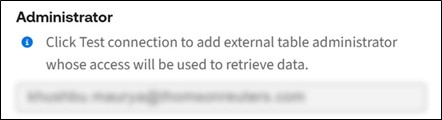
- ClickTest connectionto test the connection and authorise access to the table. This will populate the Administrator's field. The Administrator's access will be used to retrieve data from this external table for all users who are authorised to access this external table and launch relevant templates.
- ClickSave.
note
If the dynamic site checkbox is not ticked, the HighQ site, iSheet and View are stored by their ID number and External Table access will not be affected by the change in the name of the site or iSheet.
If the dynamic checkbox is ticked, the current HighQ site from which the questionnaire is launched will be used and the iSheet and View will be looked up by the name.
If a dynamic External Table referenced in a template which is launched from Contract Express rather than HighQ, it will use the site selected during the set up of the External Table.
Setting permissions
External table data can only be accessed through Contract Express by users who have been granted permission to do so.
To set permissions on an external table:
- Go toAdmin>External tables.
- Locate the required external table and click the button in theSharingcolumn.
- In the opened panel, setAccessasSharedand define the access for individual users, groups, or roles:noteDo notselect Role = User unless you intend to grant access to the data to every user (current and future) with access to templates that reference it.
- Readaccess is required to retrieve data from the external table when in the questionnaire and to populate data in the generated document.
- Writeaccess is needed to modify an external table definition.
- Fullaccess is needed to manage access levels for other users.
note
HighQ Doc Auto customers can also use HighQ system and site groups to manage permissions. For example, to grant read access to all users within your organization, simply set the sharing permissions as
Group = [your HighQ org name]
. As new users are added to your HighQ org group, they will automatically have access to the data in the table when using a template that references it.
Using external tables in templates
External data is retrieved by using Select statements in a template. This section describes how to construct a statement using the Select operator and provides some common use cases.
Select operator
The select operator is used to return text values from the named return column of the external table.
This function uses the following general form:
Select
return_column
From
source_table
Where
Boolean_expression
where:
Return_column
Source_table
Boolean_expression
For example, to return all client names that are in the ClientName column from the External table called Clients, use the following statement:
select
ClientName
from
Clients
To return only names of clients located in USA, add the Where expression:
select
ClientName
from
Clients
where
'Head Office Country' is "USA"
Remember to use single quotes for table, column and row names that contain spaces, and double quotes for the values.
The row filtering expressions can be built with
Is
, IsNot
, IsLessThan
, IsMoreThan
, IsAtLeast
, IsAtMost
operators. Such expressions can be combined using Boolean operators and
, or
, not
.note
All values will be returned as a list of text strings. To use them as different data types, convert them using ToInteger, ToNumber or ToDate functions.
For a full list of available conversion functions, see DataType Functions.
Hyperlink columns
The hyperlink columns in iSheets contain two values: display name and URL. Prior to version 10.3, hyperlink columns returned the URL details only. From version 10.3 onwards both values are combined as an HTML anchor element which can be inserted into a Contract Express template using the "Include HTML" statement.
For example, the following statement:
select
URLcolumn
from
iSheetTable where
ID is CustomerID
returns raw data with the html tags:
<a href="https://www.google.com/">Google</a>
The following statement
Include HTML
First
(select URLcolumn from iSheetTable where ID is CustomerID
)returns formatted text: Google
note
'Include HTML' can be applied to a single text string and cannot be used on a list of text strings. Since select statements return a list of values, additional logic is needed to ensure that only one value is passed into this field.
One of the ways to do it is by applying the function First to specify that the first value found in the external table should be used. To apply it to all found values, you can use the ForEach function.
note
The template document must contain hyperlink style for the hyperlink to be formatted correctly. To ensure that the template document has the hyperlink style defined, enter any hyperlink to it and check that after adding a space the hyperlink is automatically formatted. This action will add the hyperlink style to the style library.
To extract only the display name or URL information, use the functions AnchorText and AnchorURL.
For example, the following statement:
AnchorText(First(select URL from iSheettest where 'text input' is "Test1"))
returns only the description:
Google
The following statement:
AnchorUrl(First(select URL from iSheettest where 'text input' is "Test1"))
returns only the URL:
https://www.google.com/
Columns using reserved word as name
Contract Express has reserved a list of words for special use in markup expressions. These words are expected to be used as an operator or function defined in Contract Express. Any select statements which list a reserved word as a column to be retrieved will result in a syntax error.
To bypass this issue, from 10.3 onwards it is possible to escape the reserved word by adding the underscore symbol "_" as the prefix. For example, to retrieve data from iSheet column List, add it to the Select statement as _List.
For the full list of reserved words, see help article Special characters in variable names, template names, lookup column names, and text strings.
For more information on iSheet data types and the search queries they support, see the Author help article Using HighQ iSheets as External Tables.
Common use cases
Text selection variables
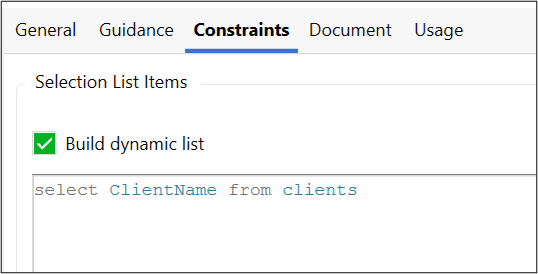
Text selection options can be populated with data from the external table. To do this, in the dictionary create a variable with type "Text Selection". On the Constraints tab, check the Dynamic box and enter the select statement in the box below.
Presentation options
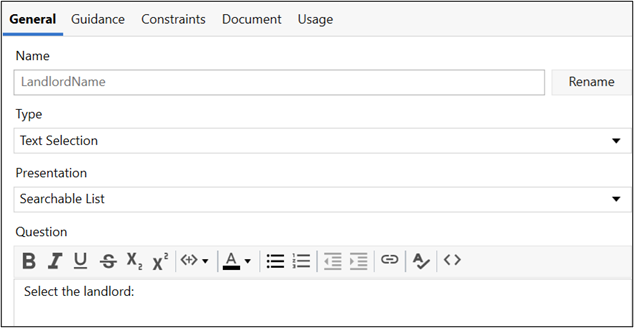
Where the list of values in the external table is long and it is not feasible to present them on the questionnaire as a list or dropdown, consider using the presentation option "Searchable List".
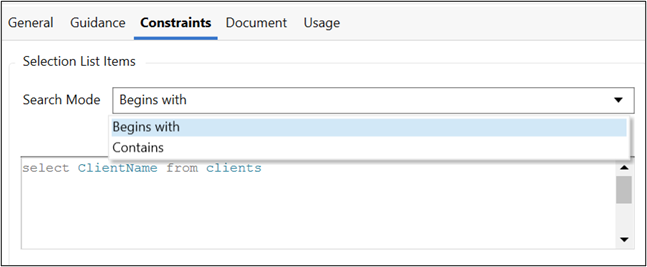
With this option, you can choose to show results that begin with or contain the search term entered in the input field.
note
Searchable list presentation option cannot be used for numbers, dates and formulas as these iSheet columns do not support "begins with" and "contains" queries. For these data types, use text selection with other presentation options. Alternatively, you can collect a number from the user with a regular number input field.
Make sure the user validates the information that is pulled through based on such a number by adding active text in the guidance. You can also add a warning if no information is pulled through.
Populating data in the generated document
Select statements can be used to retrieve data for the generated document based on answers given in the questionnaire.
In this example, once the LandlordName question has been answered, the address and company number of the client can be retrieved from the same table and inserted into the document text.

In the same way, you can look up other data such as email, addresses and contract data.
Guidance on the questionnaire
External data can be used as active text to provide context specific guidance on the questionnaire.
For more information on active text, refer to the Active text articles.
Dynamic lookup tables
External data can be used with lookup tables. To do this, create a new Lookup table in the dictionary and check the Dynamic box.
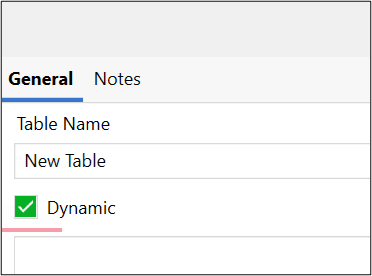
Enter the Select statement listing all relevant columns in the box below.
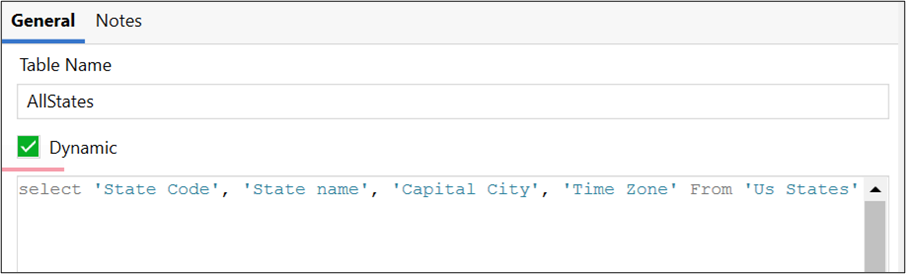
Dynamic lookup tables are evaluated once, and the result is cached so that subsequent lookup or select expressions against the table do not require the underlying database to be accessed again during that request.
For more information on Lookup tables, see Accessing external data in the questionnaire and Select Operator (from External Data Source).
Further information
For further information about how to set up external tables, please see Managing external tables.
For help with Contract Express template authoring, see the following Author help articles: