
Export Documents to iManage
With Contract Express you can export generated documents to iManage as part of your drafting workflow.
The guide outlines the steps to export documents, including selecting the export location and defining document properties, and how to work with documents after export.
note
Your Contract Express Administrator must configure the connection to your iManage Work instance before you can export documents to it.
Create a Document in Contract Express
To create a document, navigate to the
Documents
tab and click the New Document
button.
Select your desired template and answer all questions in the questionnaire.
note
Documents may only be exported when they have a status of
Ready
or Executed
. However, your Contract Express Administrator may have configured your site to permit this action for other statuses.
- Documents will have aReadystatus when the questionnaire is considered complete. This means all questions have been answered and there are no pending approvals.
- Documents will have anExecutedstatus after successful completion of the electronic signature process or after the document owner has uploaded a signed copy of the contract and manually marked it as executed.
Export to iManage
You must have Write or Full sharing permissions on the document to export documents to iManage.
Export a single Contract Express Document
The steps below outline how to export files to the same iManage folder.
Choose the export location
- From theDocumentstab, navigate to the Document you wish to export.
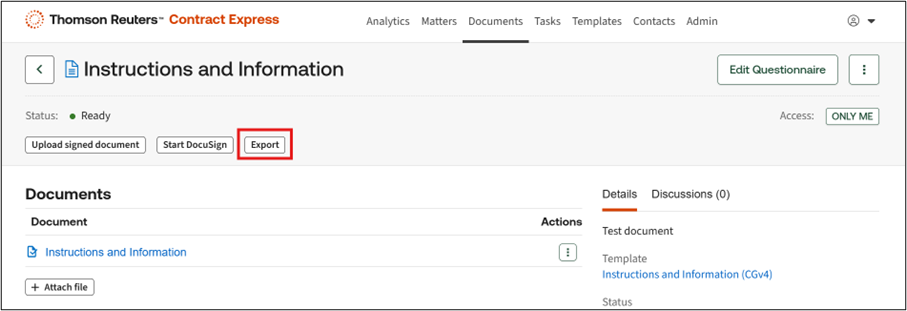
- Click onExportbutton at top left of page.
- Select documents for export from the available document list.
- In the Select Location drawer chose Connection if it is not already selected as the only option.
- ClickSelect Locationbutton.noteThe first time you clickExport Documents, you will be taken to the iManage login page where you must enter valid credentials and allow the connection to Contract Express.You will not be prompted for credentials again, unless you revoke the iManage token on yourMy Accountpage.
- Enter your iManage credentials, if prompted.
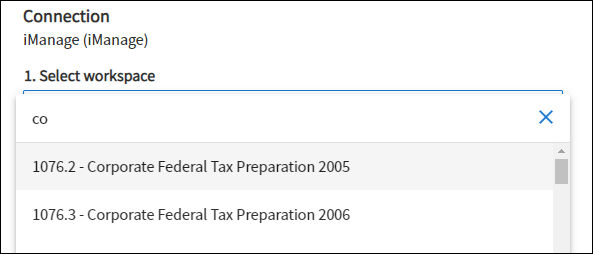
- Select your iManage workspace and folder. If the relevant workspace is not listed in the dropdown list, enter a search term at the top of the list to bring up the relevant results.
 noteIf the Export location has been defined in the template settings for this template, it will be pre-populated for all documents generated and will not need to be selected manually.
 - Click theSavebutton.
Initiate export
note
Ensure you have selected export locations for all files that you need to export. The Export action can be performed only once.
Once all the files you need to export are listed in the Export files section, click the
Export
button.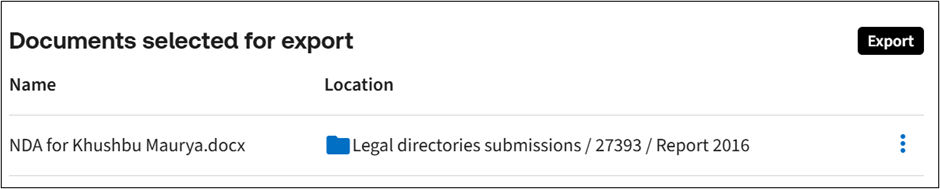
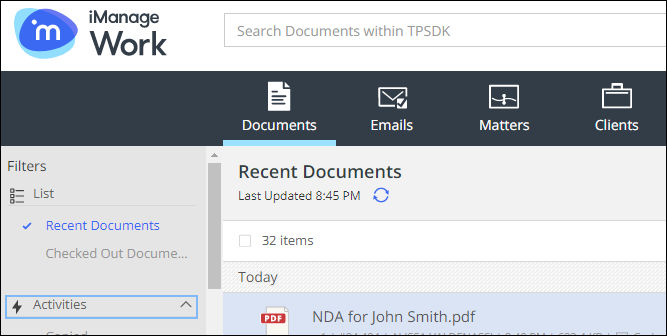
After export, the files will be available in iManage in the folder(s) selected during export.
Bulk export of Documents
For bulk document export:
- Select two or more documents on theDocumentstab.
- . Click onBulk Exportbutton.

- On the export page you will see a list of documents with the associated files that are available for export. Any documents that cannot be exported will be filtered out. You will see a message if any items have been removed from the list.
If any of the selected documents have different pre-defined export connection or export location settings, the destination of the first document will be used for this export. Any documents with conflicting settings will be filtered out.
Once documents for export have been selected, follow the same steps as for single document export to complete the export action.
note
Bulk export limit is set to 20 documents from the Documents tab. Each of these documents can have multiple files associated with it. If the maximum allowed number of documents is exceeded, the first 20 documents will be selected for export and a message will be presented about the items filtered out.
Working with exported Documents in Contract Express
Once a Document has been exported to iManage, it is stored in Contract Express with a status of
Exported
and can no longer be edited.note
Exported Documents can be cloned to create a new Document with the same questionnaire answers. You can then update the questionnaire answers as needed and export the cloned Document to iManage.
View the export location of Documents
The export location is saved to the Document history in Contract Express during the export process.
To view the export location, go to the Document page and click on
History
tab. An entry with the description ‘Document Exported’ will exist. Expand this entry to confirm the export location.