
Using the Dictionary Editor
The
Dictionary Editor
provides access to a number of features for managing the Contract Express Author
Dictionary. To open the Dictionary Editor
, click on the Dictionary Editor
icon from the Contract Express
tab.
With the
Dictionary Editor
you can:- View all variables defined in the Dictionary
- Create new variables
- Edit existing variables
- Add existing variables to the current template
- Search for variables
- Check spelling across the Dictionary
- Rename variables
- Find and replace text across the Dictionary
- Show the relevance of a variable
- Create and edit questionnaire pages
- Determine where variables are referenced elsewhere in the Dictionary
- View relevancy information
- Check the mark-up of the current template
- View issues reported in the current template
Docking and undocking the Dictionary Editor to the task pane
When the Dictionary Editor is opened for the first time, it floats over the top of the Word Document in an "undocked" state. This mode works very well if you are using dual monitors as the Dictionary Editor can be opened on one screen with the document open on another screen.
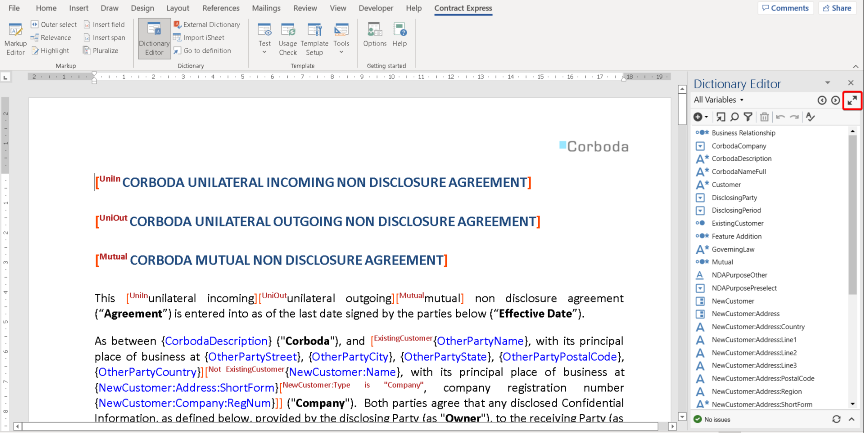
For those users who only have a single screen you may wish to "dock" the Dictionary Editor into a task pane. To do this, click on the Dock icon in the Dictionary Editor toolbar as highlighted below.
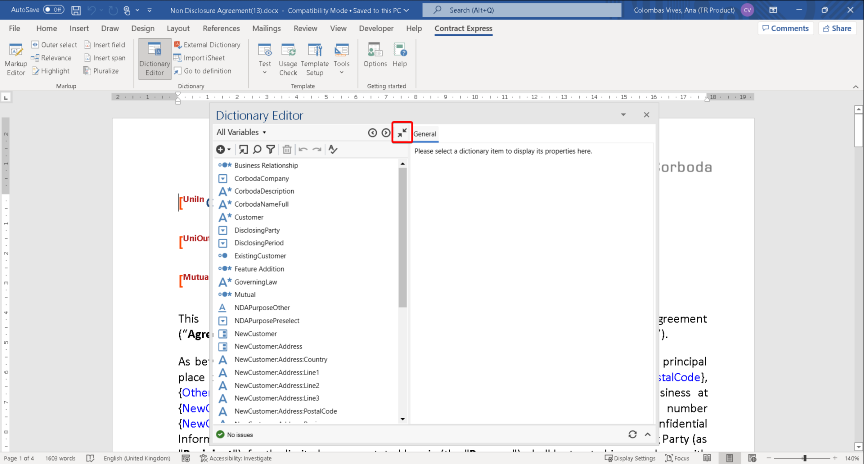
When the Dictionary Editor is docked it will appear in the task pane on the right side of Word. You can undock again by clicking the dock button in the Dictionary Editor Toolbar.
Toggling between sections of the Dictionary
The examples below use the sample Non Disclosure Agreement template which is included in every new install or new account in Contract Express.
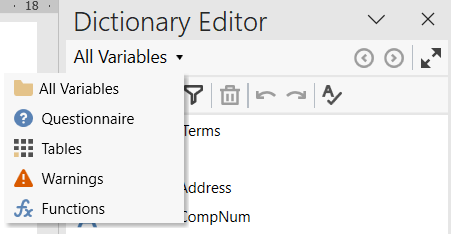
When the Dictionary Editor loads for the first time you are presented with the Home menu which displays links to All Variables, Questionnaire and Warnings. You can switch between these three areas of the Dictionary by either going home and selecting from the home menu, or selecting from the drop-down menu beneath the toolbar:
Viewing all variables in the Dictionary
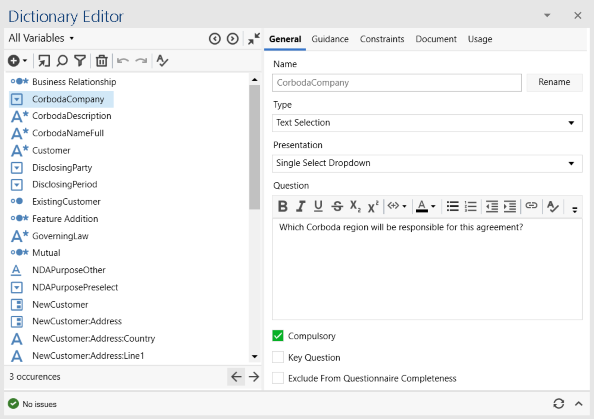
Select All Variables from the Dictionary drop-down menu to view all variables within the Dictionary. When undocked, the list of variables will appear in the content area on the left. Selecting a variable from this list will display all of the attributes of that variable on the right. When docked the variable list appears at the top with the variable attributes below.
Filtering the list of variables
To apply a filter to the All Variables list, click on the filter icon from the toolbar.
Selecting a variable type from the
Variable Types
dropdown will filter the list to display only the selected types.
More Filters
can be used to filter the entire variable list or for additional filtering on an already filtered list.You can filter by variable name, computable/not computable, compulsory/not compulsory, key question/not key question, from an external dictionary/not from an external dictionary, and used/not used.
To enable the ‘not’ state, click on the checkbox twice.
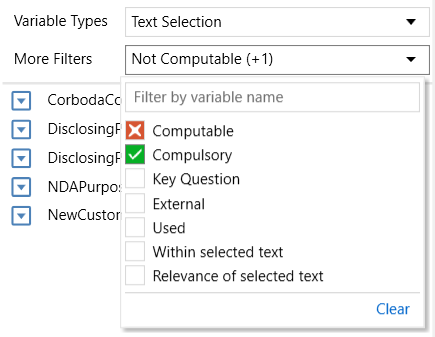
The variable list can also be filtered to display only the variables used within selected text in the document. To use this filter, select the text in the document and filter by
Within selected text
.The variable list can also be filtered to display only the variables that determine whether the selected span/text is relevant (similar to the Relevance button found in the Mark-up Editor). To use this filter, select the text in the document and filter by
Relevance of selected text
.Adding a variable to the Dictionary
To add a variable to the Dictionary select the new icon  from the toolbar. Select New Variable from the drop-down menu:
from the toolbar. Select New Variable from the drop-down menu: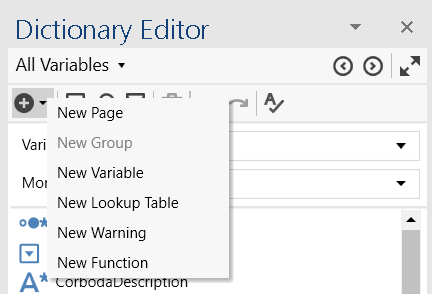
This will then display the attributes for the variable, such as prompt, type, guidance and selections. See Editing variables for details on the attributes of a variable.
Inserting existing variables into the current document
You can also quickly insert a field containing a pre-existing variable from the Dictionary Editor. To do this, place the cursor in the location where you would like to insert the field then click the Dictionary Editor in the Ribbon and locate the variable you want to place in the document in either All Variables or Questionnaire. Right click the variable and select the option
Insert to Document
. This will insert a field with the pre-existing variable at the position where the cursor is placed. Alternatively, you can drag and drop the variable to the desired location within the document.To replace text in the document with a variable, highlight the text within the document then right click the variable in the Dictionary Editor and select the option Insert to Document. The selected text will be replaced by a field containing your chosen variable. A dialog will be displayed asking whether you would like to replace all occurrences of the selected text in the document with the variable. Selecting Yes will run through the document, look for any occurrences of the text that was selected and replace it with the variable. Selecting No will only replace the selected text.
Find a value in the Dictionary
You may search for a value in the Dictionary. To do this, open
Find
in the Dictionary Editor, enter the value you would like to find in Find What
, and select where you would like to search for it in Find Where
. Click Find Next
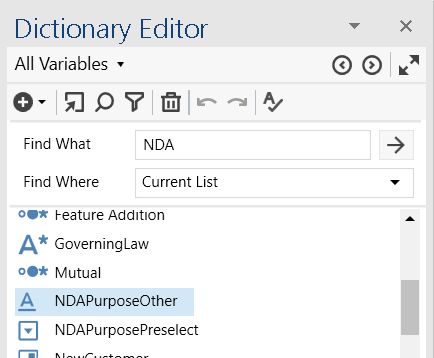
adjacent to Find What to find the next result.For example, to search for "NDA" in your variables list you should, with all variables displayed, enter "NDA" in
Find What
and select "Current List" in Find Where
.
Find and replace a value in the Dictionary
You may replace a value in the Dictionary. To do this, open
Find
in the Dictionary Editor, select "Entire Dictionary" in Find Where
, enter the value you would like to find in Find What
, and the value you would like to replace it with in Replace With
. Click Find Next
, adjacent to Find What, to find the next result; alternatively, click Replace and Find Next
, adjacent to Replace With, to replace the value in the current result and find the next one.For example, to replace "purpose" with "Purpose" in your variables list you should select "Entire Dictionary" in
Find Where
, enter "purpose" in Find What
, and "Purpose" in Replace With
.
Spell check the entire Dictionary
To check the spelling in your Dictionary, click the spell check icon in the Dictionary Editor toolbar. This will launch the spell check dialog. Use the Ignore / Add to Dictionary and Change buttons. Clicking on Go To Definition will redirect you to the item that contains the misspelled word.
in the Dictionary Editor toolbar. This will launch the spell check dialog. Use the Ignore / Add to Dictionary and Change buttons. Clicking on Go To Definition will redirect you to the item that contains the misspelled word.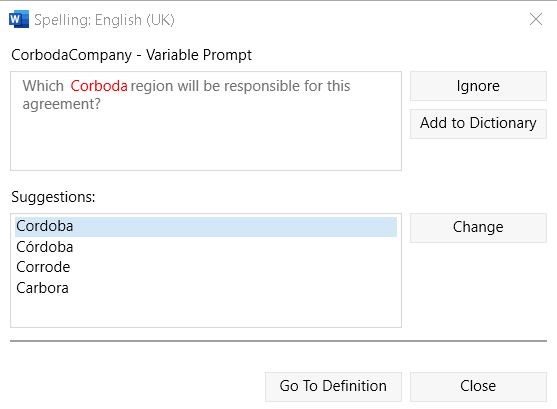
Delete a variable
To delete a variable in the Dictionary, right click the variable and select Delete from the actions menu.
note
To remove all unused variables select all the grayed-out variables and right click and select delete. This may reveal further unused variables (i.e. variables that only occurred in the definitions of previously deleted computation variables). Repeat this process until there are no more grayed-out variables. If Contract Express Author states that the variable is used, first select the variable and use the Right and Left  arrows in toolbar to find where it is used in the document, or right click the variable and select Find in Dictionary.
arrows in toolbar to find where it is used in the document, or right click the variable and select Find in Dictionary. Duplicate a variable
To make a copy of a variable, right click the variable and select Duplicate.
Show the relevance of a variable
Contract Express automatically creates questionnaire forms from your Microsoft Word templates when you click on the Test button. These questionnaire forms are dynamic decision trees such that answering one question may lead to further questions becoming enabled. Contract Express uses the location of variables within the template to work out these dependencies. The
relevance
of a variable is the expression or rule which must be true for that question to be enabled on the questionnaire. The Dictionary Editor allows authors to view what Contract Express determines as the relevancy of a variable.Locate the Variable in the Dictionary Editor. Select the Usage tab from the variable attributes panel as shown below. Always click Refresh to instruct Contract Express Author to update the relevance information.
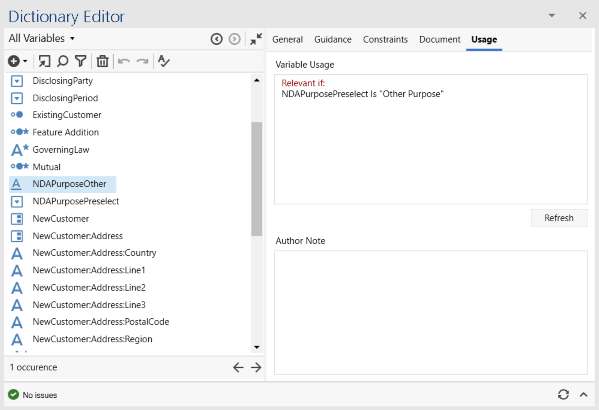
note
You may see the message "Run Usage Check or click Refresh to see the usage information." in the Variable Usage text box. This indicates that a Usage Check or Refresh is necessary to view the updated relevancy information.
Navigate between uses of a variable
Select the Variable you wish to find in the document. Click on the forward and back arrows in the Dictionary Editor taskbar to highlight the next/previous uses of the selected variable in the document.
to highlight the next/previous uses of the selected variable in the document.Determine where variables are referenced elsewhere in the Dictionary
Right-click on the variable you are interested in and choose Find in Dictionary. A pop-up dialogue box will detail all the instances of that variable.
Jump to a variable referenced in a computable variable
Computable variables can contain other variables in their definition. For example in the sample Non Disclosure Agreement there exists a computable variable named  allows the template author to jump from the current computable variable to the variable selected in the definition. In the following example, the UniIn computable variable is selected in the Dictionary Editor. The Computation tab is selected in the attributes pane and the DisclosingParty variable highlighted in the definition text box. By clicking on the
  will return you to the UniIn variable.
UniIn
which is defined as DisclosingParty Is "Outside party only"
. The Go to definition
icon in the Dictionary Editor toolbar allows the template author to jump from the current computable variable to the variable selected in the definition. In the following example, the UniIn computable variable is selected in the Dictionary Editor. The Computation tab is selected in the attributes pane and the DisclosingParty variable highlighted in the definition text box. By clicking on the Go to definition
button in the toolbar selects the DisclosingParty variable in the Dictionary Editor. Note that the Back button in the Dictionary Editor toolbar will return you to the UniIn variable.Find a variable from the template in the Dictionary Editor
If you would like to view the definition of a variable that is located in the document, place your cursor on the variable in the document and click the which can be found on the Contract Express ribbon or in the Dictionary Editor toolbar. This will jump to the variable definition in the Dictionary Editor.
Go to definition
icon which can be found on the Contract Express ribbon or in the Dictionary Editor toolbar. This will jump to the variable definition in the Dictionary Editor.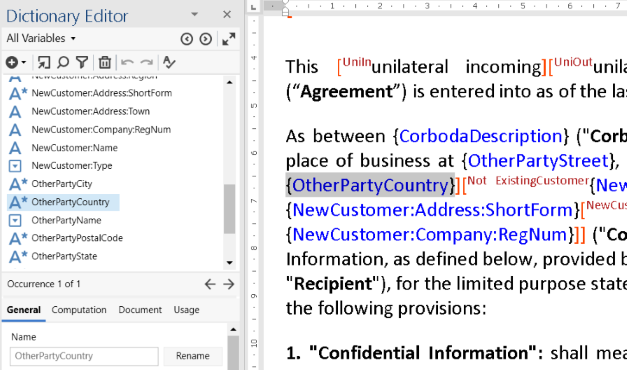
Check the mark-up of the current document
Click the Usage Check icon in the Dictionary Editor taskbar  to force Contract Express Author to scan for errors in the current document and refresh the Dictionary. If Contract Express Author finds any issues with the current document it will display the number and type of errors in the footer. Errors are either “serious” (red stop sign) or “non-serious” (amber triangle).
to force Contract Express Author to scan for errors in the current document and refresh the Dictionary. If Contract Express Author finds any issues with the current document it will display the number and type of errors in the footer. Errors are either “serious” (red stop sign) or “non-serious” (amber triangle).
Click on the status bar to open up the status pane to view the issues:

If the issue is related to mark-up in the document, double clicking the issue will highlight the area in the document. If the issue is related to a variable, double clicking the issue will open that variable in the Dictionary Editor.
See Troubleshooting for more information about error types.